


Make your first character
- BluenchanterAuthor
- OzzEditor


On this page 5
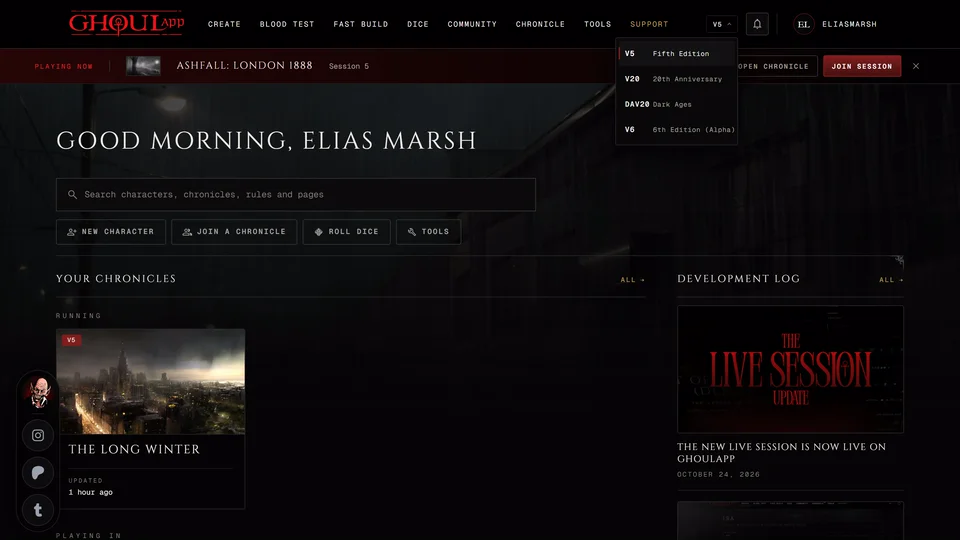
The creator builds a character one step at a time with the rules for each choice on screen. Open it with New character on your home page, Create in the top bar or Make a character on the front page if you aren't signed in. You don't need an account to make a character but read Can I use GhoulApp without an account? first: without one the character is kept only in your browser.
The Era step
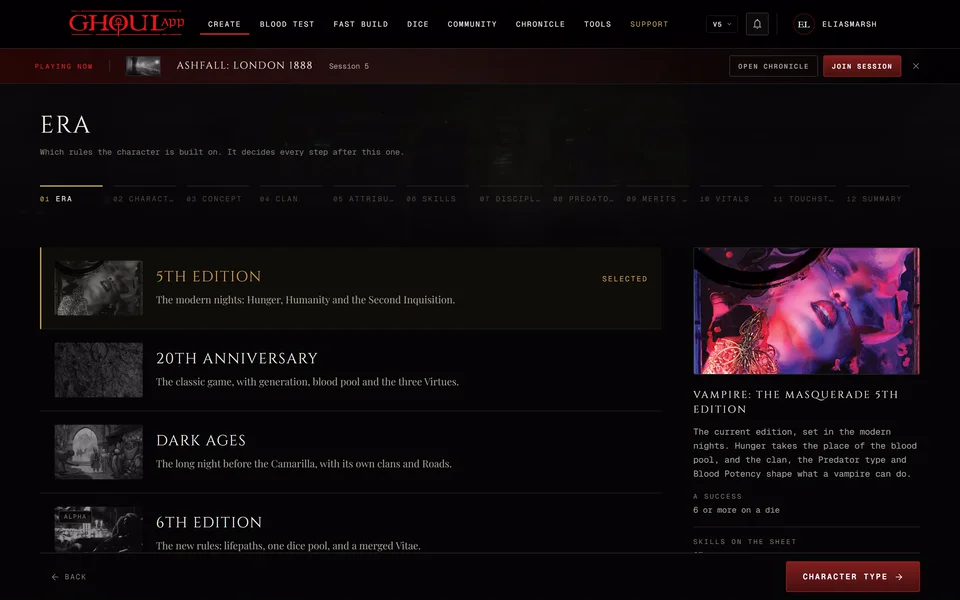
The first step Era asks which rules the character is built on: 5th Edition, 20th Anniversary, Dark Ages or 6th Edition. It decides every step after it so choose the edition your table plays. If you aren't sure the panel beside the list shows what counts as a success, which skills are on the sheet and the morality track for each one. 6th Edition carries an Alpha tag because its rules are still a playtest. See The four editions and Custom.
The same step asks about Creation mode. Standard keeps to the creation point limits of the book. Free mode lifts them, which helps when you copy in a character you already have on paper. You can switch between the two later from any step.
Under Other ways in there are two shortcuts if you'd rather not go step by step. Each opens in a new tab and this page stays open. Nothing you've entered here goes with it. Fast Build makes a whole character at once and you change whatever you want afterwards. It works for all four editions. Random rolls a character and opens it without asking anything. It works for V5, V20 and Dark Ages. V6 has no random character so the row isn't there when 6th Edition is picked.
Making one inside a chronicle
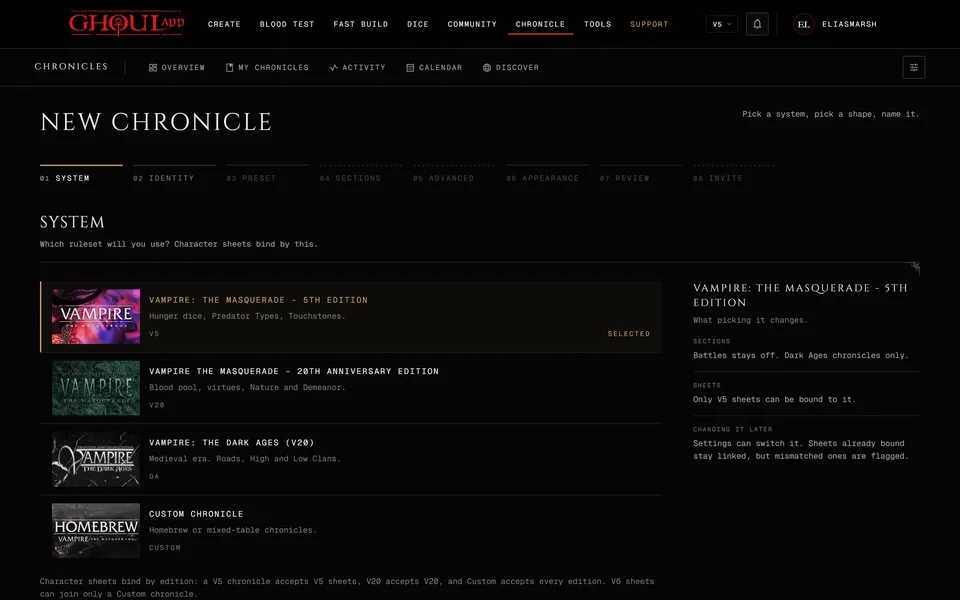
If you start the creator from inside a chronicle it works a little differently. The chronicle already knows its edition so you only see the Era step in a Custom chronicle, where you pick the edition. Other ways in isn't offered there.
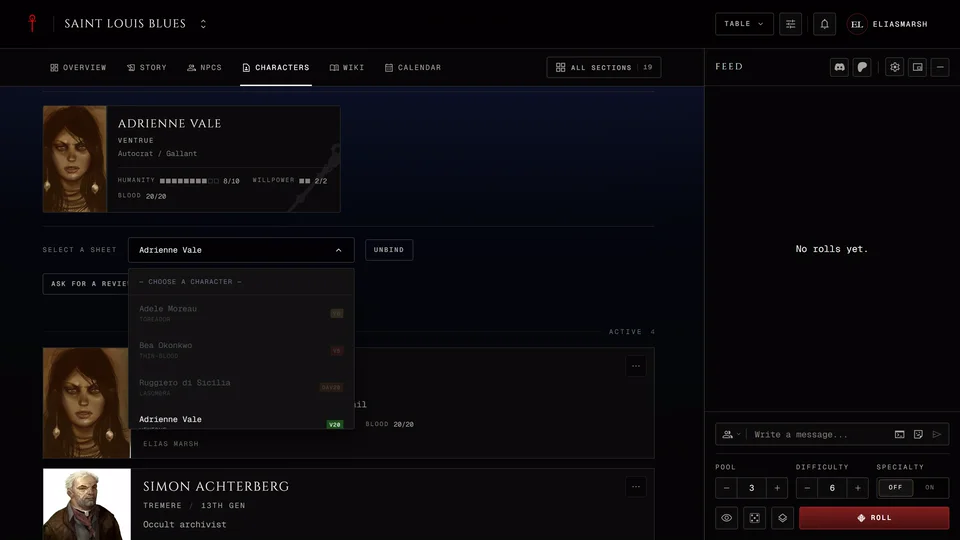
When the storyteller has written characters for the table you first get a step called How to make it. Step by step builds your own character. From the chronicle shows Characters to claim: pick one and press Claim with its name. Either way the character joins that chronicle.
The steps
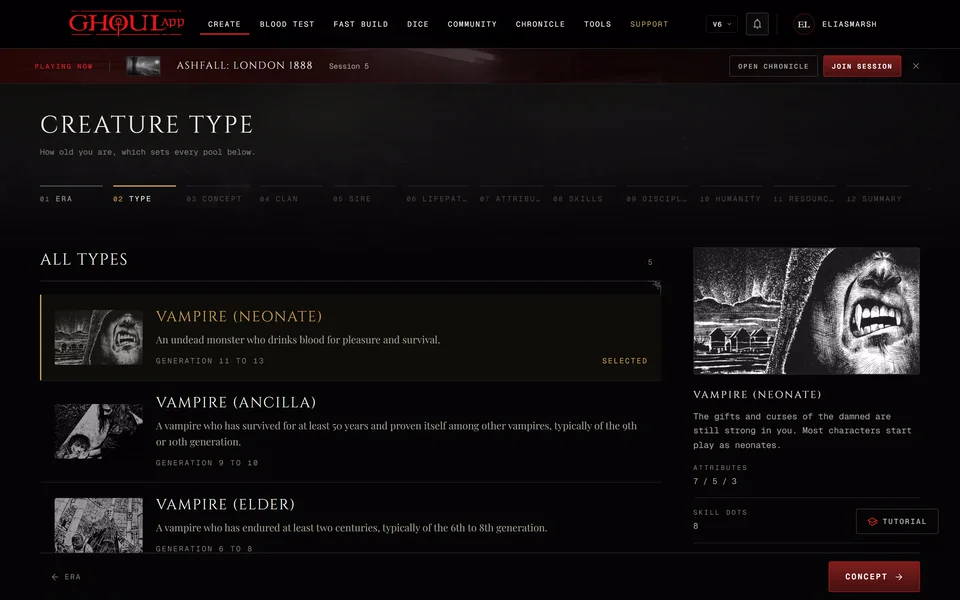
Next Character Type asks what you're playing. In V5, V20 and Dark Ages that is Kindred (a vampire), Ghoul, Revenant or Mortal. V6 has its own list: a Ghoul, a Duskborn or a vampire at Neonate, Ancilla or Elder.
The steps after that follow your edition and type:
- V5: Concept, Clan, Attributes, Skills, Disciplines, Predator Type, Merits & Flaws, Vitals, Touchstones.
- V20 and Dark Ages: Identity, Archetypes, Clan, Attributes, Skills (the screen calls them Abilities), Disciplines, Backgrounds, Merits & Flaws, Virtues.
- V6: Concept, Clan, Sire, Lifepaths, Attributes, Skills, Disciplines, Humanity, Resources.
A mortal skips the steps that only vampires have, like Clan and Disciplines. A V5 ghoul or revenant keeps Clan and Disciplines but has no Predator Type.
Use Back to return to an earlier step. Your choices stay in place.
Save the character
The last step Summary shows the whole character under the heading Review. If anything is still missing, like a name, it lists what to answer before you can save. In V20 and Dark Ages it also checks that you haven't spent more freebie points than you have.
Signed in, you also choose Private or Public under Visibility. A public sheet is listed in the gallery and on your profile and anyone can open it. You can change this later from the sheet. If you made the character for a chronicle the Summary says that saving links it to that chronicle.
Choose Save. It saves the character and opens its sheet. Signed in, the character goes to your account. As a guest it's saved in this browser and listed on the front page under On this device.
The Summary has two more things. Export PDF downloads the sheet as a PDF: Archive prints on cream paper and Printer is plain white and uses less ink. Start Over clears every choice and asks first. A character you already saved stays saved.
If saving fails the Summary says why and keeps every choice. When it offers Download character file take it: that file is your character until the save works.
If you stop halfway
You can leave the creator at any point. The unfinished character waits on your home page under Continue creating on this device (the front page if you aren't signed in). Choose Continue to pick it up where you left it or Delete to throw it away. The app asks "Delete this unfinished character?" first and a deleted draft can't come back. You can have more than one unfinished character at a time in any edition.
Related articles
About this article
- Type
- Guide
- Editions
- All editions
Need more help?

Ask the team in #ghoulapp-feedback on the Player Companion Discord. Or try #ghoulapp. GhoulApp players are active there and help each other.
Open Discord(New tab)