


Start your first chronicle
- BluenchanterAuthor
- OzzEditor


On this page 8
A chronicle is where a storyteller runs a game in GhoulApp: your players' bound character sheets, your NPCs, maps, sessions and XP live there together. You need to be signed in to make one.
Open it from New Chronicle in your chronicles or from Create a chronicle on the front page if you don't run a table yet. The form has eight steps. Only two answers are required: a name and a preset. Everything else has a working default and you can change almost all of it later in the chronicle's settings.
Nothing is created until you press Create Chronicle on the Review step. If the page reloads halfway through your answers are kept and the form says "Picked up where you left off. Nothing has been created yet." Start over clears them.
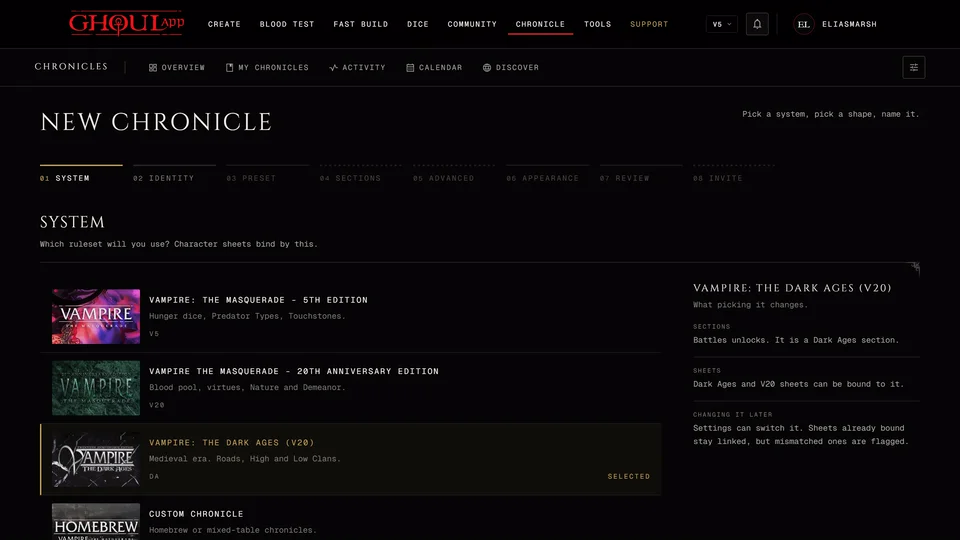
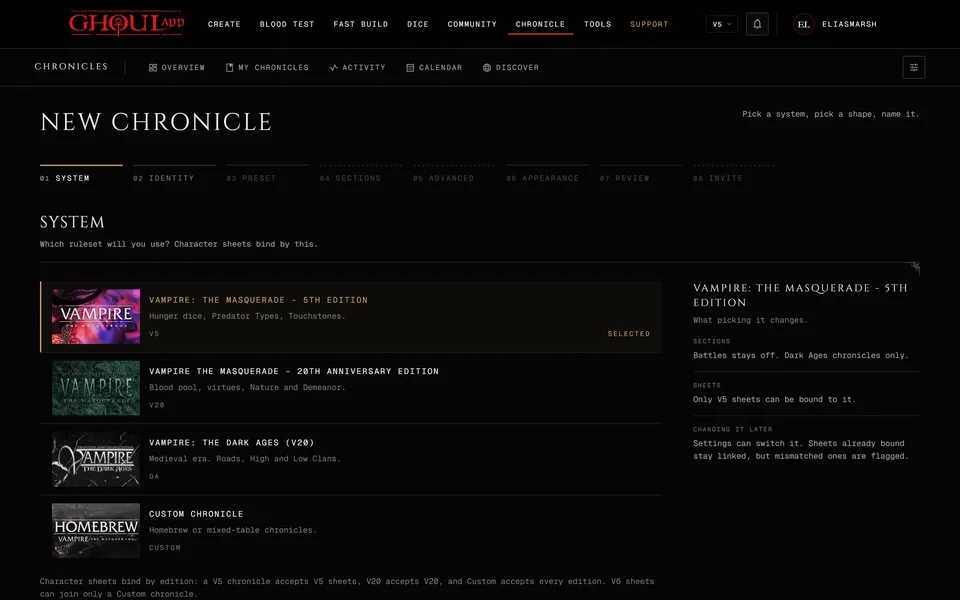
1. System
Pick the rules your table plays:
- Vampire: The Masquerade - 5th Edition (V5)
- Vampire The Masquerade - 20th Anniversary Edition (V20)
- Vampire: The Dark Ages (V20)
- Custom Chronicle, for homebrew games or tables where players use different editions.
The system decides which character sheets can join. A V5 chronicle takes V5 sheets and a V20 chronicle takes V20 sheets. A Dark Ages chronicle takes Dark Ages and V20 sheets. A Custom chronicle takes sheets of every edition and it's the only kind a V6 sheet can join: there's no V6 chronicle. See The four editions and Custom.
You can switch the system later in settings. Sheets already in the chronicle stay and the ones that no longer match are flagged.
2. Identity
- Chronicle name is the one required field, up to 120 characters. You can rename it whenever you like.
- Description is optional. It's shown on the screen players see when they join, on the chronicle's Overview and where players look for a table.
- In-world present is the year your story takes place in or an exact date. An exact date needs the Timeline section, which you choose in step 4. Left blank the chronicle goes by the real date. A Dark Ages chronicle left blank goes by 1242.
- Sect is Camarilla, Anarch or Sabbat. It changes how groups are worded on the table's screens and nothing else.
- Played in is the language your table plays in. It's only used when your chronicle is shown to players looking for a table and in invite previews.
3. Preset
A preset is a starting shape for the chronicle. It decides which sections are switched on and how players' sheets are handled. You must pick one:
Full Campaign turns every tool on for a long game. Politics & Court is for a court with many NPCs and brings the hierarchy, relationships and a calendar. Combat & Map is action first with the map and a quick reference. Territory & Map is play around places with no hierarchy. Investigation leans on the wiki and planning for a mystery. One Shot keeps the menu as short as it can for a short or episodic game.
If the preset is what you want Keep the preset, review skips to the end. From any later step Skip to review does the same.
4. Sections (optional)
Each section is a page in the chronicle's menu: Story, Wiki, Timeline, Handbook, Quick Ref, NPCs, Relationships, Hierarchy, Map, Battles, XP Requests, Planning, Calendar and Help. Switch each one to Enabled or Hidden. Overview, Members, Characters and Settings are always there. Help is always on while you make the chronicle. You can hide it later in settings.
Beside the list What players will see shows the chronicle menu your table gets with the sections you have on.
Battles is for Dark Ages chronicles. In a Custom chronicle you can switch it on yourself and in V5 and V20 it isn't available.
Hiding a section removes its menu entry and its page. Nothing inside it is deleted and you can bring it back in settings. If you hide XP Requests the chronicle has no XP to manage so its sheets can only be Player controlled.
5. Advanced (optional)
This step asks only about the sections you switched on.
Sheets sets who changes your players' character sheets and how XP is spent. You can always edit any sheet yourself. With Player controlled players manage their own sheet and XP. Storyteller approval locks the sheets and players send you XP requests to approve. With Storyteller managed only you edit sheets and grant XP and every change is written to the XP log. Free Storyteller is the same without the log. The preset has already picked one.
What players may do has switches such as adding XP to their own sheet, spending XP without asking, adding their own map pins, pinning their own haven and publishing wiki articles without your review. Once the chronicle exists you can change any of them for one player from Members.
Who can see it is Members only by default. Anyone with the link makes the chronicle readable without an account and lists it for players who are looking for a table. Rolls, live sessions, the member list, planning notes and XP stay private either way.
6. Appearance
Choose a Cover image from the ones provided or upload your own, a Backdrop colour and the Lettering for headings. If the Map section is on you also choose how the map looks. A Dark Ages chronicle can show its clan symbols in colour or in one colour. Everyone who opens the chronicle sees this.
7. Review
Every answer is listed with a Change link and a card shows what your players will see. When it looks right press Create Chronicle.
8. Invite (optional)
The chronicle exists now and this step helps you get your players in.
- A Join link is made for you. Copy it, use the buttons under Send the link or let your players scan the QR code. Under Link expires you choose 24 hours, 7 days, 30 days or No expiry. New link makes a fresh one.
- Nobody gets in through this link until you approve them. Each player who opens it sends you a request and you Approve it on the Invites & Requests tab under Members.
- Under Invite by name or e-mail type a player's GhoulApp username or e-mail address and press Add. A username sends them a request they can accept. An e-mail address sends them a message with the link and they make an account on the way in if they need one.
You don't have to do this now. Invite later and Open the chronicle both take you to your new chronicle. The invite link and its code are kept on the Invites & Requests tab under Members whenever you need them. Your players then follow Join a chronicle with an invite.
Related articles

About this article
- Type
- Guide
- Editions
- V5, V20, Dark Ages, Custom
Need more help?

Ask the team in #ghoulapp-feedback on the Player Companion Discord. Or try #ghoulapp. GhoulApp players are active there and help each other.
Open Discord(New tab)