


Create a chronicle
- Lithaner555Author
- OzzEditor


On this page 10
A chronicle is the shared page for one campaign: its sessions, its NPCs, its city and the players' characters. To start one open Chronicle in the top bar and press . On a phone the button shows only its plus sign. You need to be signed in.
The setup has eight steps. Only two of them need an answer from you: a name and a preset. Everything else has a default you can keep, so a storyteller in a hurry can name the chronicle, pick a preset and press Keep the preset, review.
Moving through the steps
Every step has Back and Continue at the foot. The optional steps (Sections, Advanced and Invite) also have Skip to review. The steps are listed along the top too and you can press one to jump to it. You can't jump past a step that still needs an answer. The main button then reads Finish this step and pressing it takes you to the answer that's missing.
Nothing is created until you press Create Chronicle on the Review step. Until then your answers are kept in that browser tab, so a reload doesn't lose them. When you come back you see "Picked up where you left off" with a Start over button if you'd rather begin again. A reload does lose a cover picture you uploaded from your device. You're told so and you pick it again in Appearance.
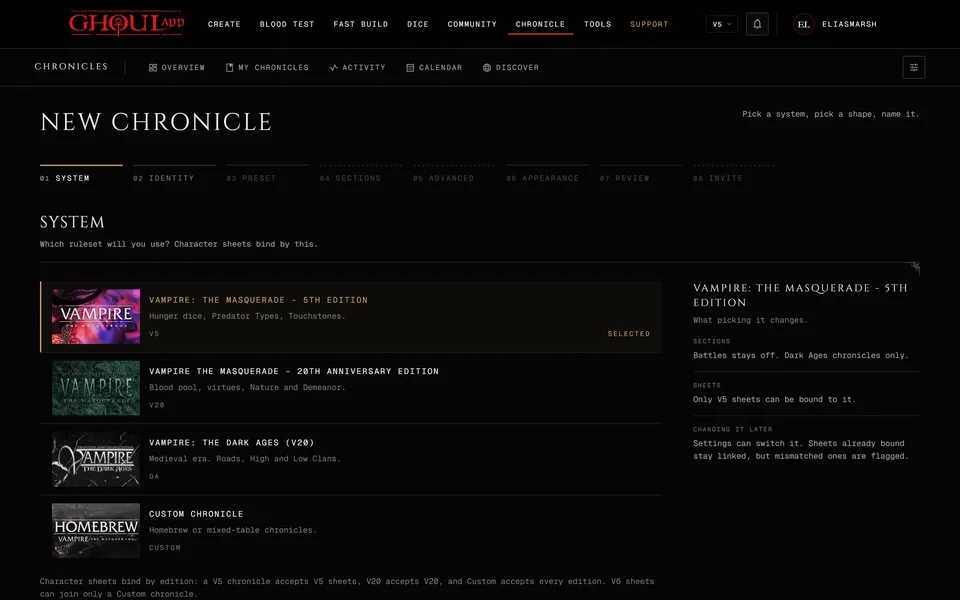
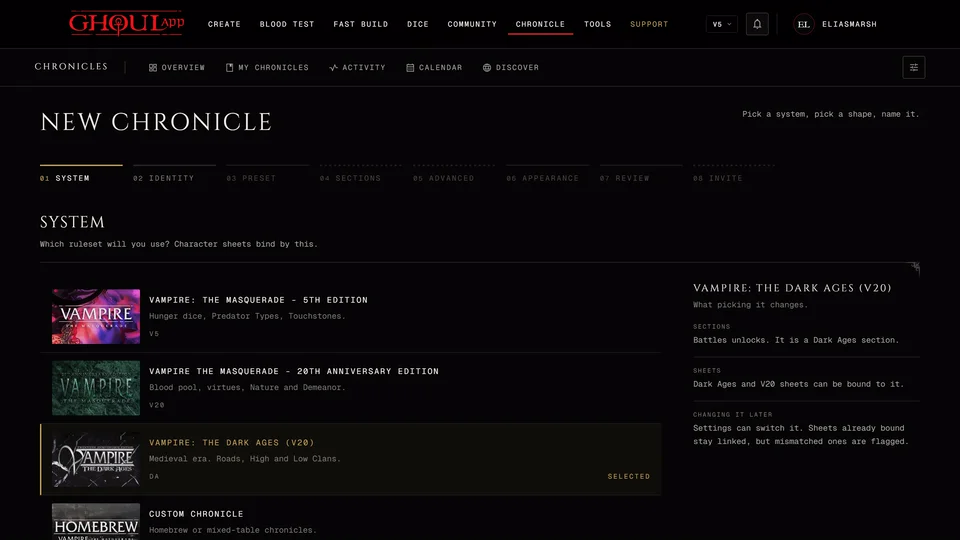
1. System
Pick the rules your table plays by. Take your time here because this decides which character sheets can join the chronicle.
| You pick | Sheets that can join |
|---|---|
| Vampire: The Masquerade 5th Edition (V5) | V5 sheets |
| 20th Anniversary Edition (V20) | V20 sheets |
| Dark Ages (DA) | Dark Ages and V20 sheets |
| Custom Chronicle | Sheets of every edition, V6 included |
There's no V6 chronicle. A V6 character can only join a Custom chronicle.
The panel beside the choices says what your pick changes. Dice follow it: in a V5, V20 or Dark Ages chronicle every roll uses that edition's rules. In a Custom chronicle each player rolls by their own character's edition, so a V5 player and a V20 player at the same table each roll their own way. Battles is a Dark Ages section. A Dark Ages chronicle can have it and a Custom chronicle can switch it on. V5 and V20 chronicles don't have it. If you pick Dark Ages the cover pictures in Appearance also open on the Dark Ages set.
You can switch the system later in the chronicle's settings. Sheets that are already in the chronicle stay in it and the ones that no longer match are flagged. A new sheet has to match the new system.
2. Identity
Chronicle name is the only thing you must fill in. It can be up to 120 characters and you can rename the chronicle whenever you like. Players see the new name at once.
The rest is optional. The Description shows on the chronicle's Overview, on the page a player sees when they open your invite and on the Discover card if the chronicle is public.
In-world present is the date your story stands at. Type a year on the Year tab or pick a day on the Exact date tab. Dates elsewhere in the chronicle then read as past or future against it. Leave it empty and the chronicle uses today's real date. A Dark Ages chronicle starts at 1242 instead. The exact date belongs to the Timeline section, so that tab stays closed if you turn Timeline off in step 4.
Sect is Camarilla, Anarch or Sabbat. It changes only the words your table sees. For Anarch, Coteries become Crews, Boons become Favors and the Harpy Ledger becomes the Favor Ledger. For Sabbat they become Packs, Debts and the Debt Ledger. Rules, permissions and characters stay the same.
Played in is the language your table speaks. Only the public Discover listing and the invite page read it. It doesn't change the app's language for anyone.
3. Preset
A preset is a starting shape: which sections the chronicle has and how character sheets are managed. Pick the one closest to your game. You can change both in the next two steps and again later in settings.
| Preset | Sections it turns on | Sheets |
|---|---|---|
| Full Campaign | Every section | Storyteller approval |
| Politics & Court | Story, NPCs, Wiki, Relationships, Hierarchy, Calendar, Timeline, Handbook, XP and Planning | Storyteller approval |
| Combat & Map | Story, NPCs, Hierarchy, Map, Relationships, Calendar, Quick Ref and XP | Storyteller managed |
| Territory & Map | Story, NPCs, Map, Relationships, Calendar and XP | Player controlled |
| Investigation | Story, NPCs, Wiki, Timeline, Relationships, Planning, Handbook and XP | Storyteller managed |
| One Shot | Story, NPCs, Quick Ref and Calendar | Player controlled |
Help is on in every preset. In a Dark Ages chronicle Full Campaign turns on Battles too. The other presets leave it off. Press See the section list on a card to check what it turns on before you move on.
4. Sections (optional)
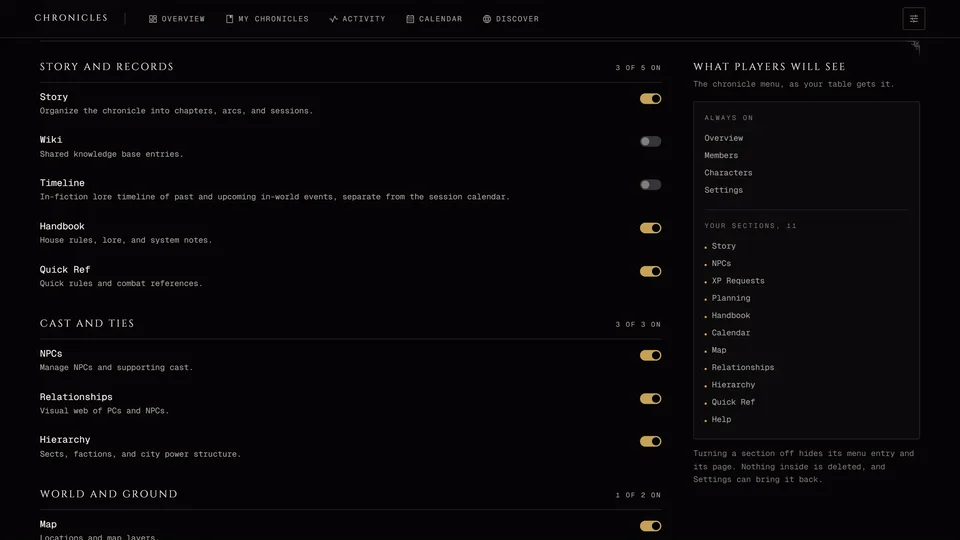
This step lists every section in four groups with a switch on each, already set by the preset. Keep what your table will use and turn off the rest. Overview, Members, Characters and Settings are always there and have no switch. Help shows Always on. Battles has a switch in a Custom chronicle and starts off. In V5 and V20 it stays locked.
Turning a section off hides it from the menu for you and your players. It deletes nothing and you can turn it back on in settings at any time. The panel beside the list, What players will see, shows the chronicle menu the way your table will get it.
If you turn XP off the chronicle can only run Player controlled. The other three ways of managing sheets all keep their XP on the XP page.
5. Advanced (optional)
This step only asks about the sections you kept on and every answer already has a working default. It has three groups.
Sheets sets how much of their own sheet a player may change. Player controlled leaves it to them. Storyteller approval locks the sheet and players send you XP requests. Storyteller managed and Free Storyteller leave the editing to you, with or without an XP history. How a chronicle manages sheets goes through all four. You can always edit any sheet in your chronicle yourself.
Under the modes sit three switches. Show damage on portraits draws Health damage over character and NPC portraits, here and in live sessions. It starts on. Record every change in Lifecycles writes the changes players make to values like Humanity, Virtues or Generation into the character's Lifecycles history, so you can see what moved and when. It never blocks a save. It starts off. Allow false identities lets a character show a Facade, a false identity other players see while you always see the truth. It starts on.
What players may do lists what you can allow. A row shows only when its section is on. While false identities are allowed, Disguise their own sheet lets players put a Facade on their own sheets. With XP on you get the XP switch of your sheet mode if it has one. With the Map on players may add their own pins (with Publish those pins without review under it) and pin their own haven. You can also let a player hold the editor seat on a single place. With the Wiki on you can let new articles publish without your review. Most rows start off. Adding XP to their own sheet and the editor seat start on. You can change any of them later in the chronicle's settings.
Who can see it starts on Members only: only the people you let in can open the chronicle. Anyone with the link makes it readable without an account and lists it on Discover for players looking for a table. Rolls, live sessions, the member list, your planning and XP stay private either way. See Make a chronicle public.
6. Appearance
The Cover image is the picture on the chronicle list and on its Overview. Pick one of the app's pictures or upload your own. An upload waits until the chronicle exists and is attached to it then.
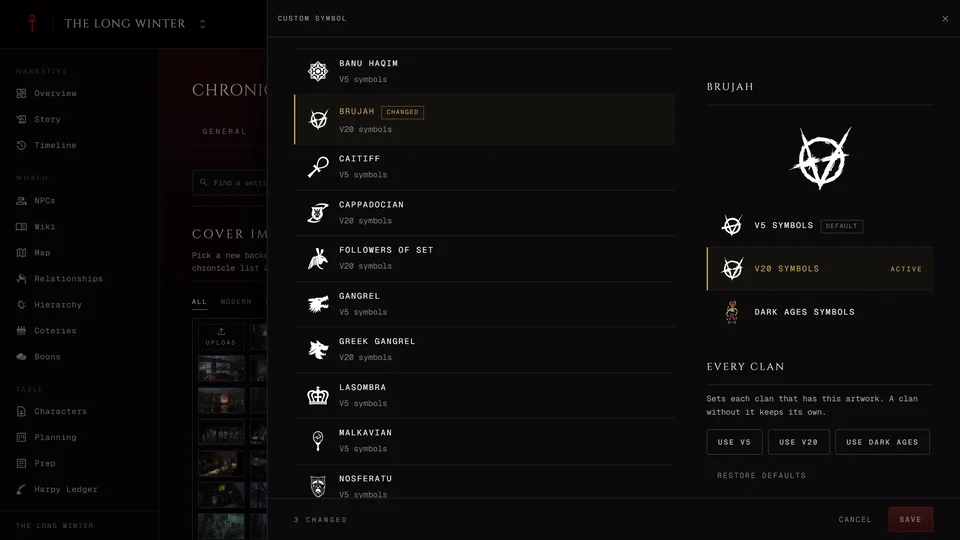
Map appearance sets the look of every map in the chronicle. It needs the Map section. Backdrop is the colour behind every page of the chronicle, live sessions included. Lettering picks the typefaces for headings and subheadings, each one shown in its own face under How it reads. Character sheets keep their own fonts. A Dark Ages chronicle also has Clan symbols: Monochrome draws every clan mark in one ink and Coloured lets each clan keep its own colour.
Everyone who opens the chronicle sees these choices. You can change all of them later. See Chronicle cover, theme and layout.
7. Review
Review lists every answer with a Change button that takes you back to its step. A preset you edited by hand reads "modified". The card beside the list, What players will see, is the chronicle as a new player meets it. Check the system one more time here since it decides who can join. When it all looks right press Create Chronicle.
8. Invite (optional)
The chronicle now exists and the earlier steps are closed. Change anything else in settings instead.
A join link is already made for you with a QR code beside it. Anyone who opens it asks to join and gets in once you approve them. It works for 30 days. Copy copies it, Link expires makes a new link with another lifetime and New link makes a fresh one. Send the link opens a messaging app with the link and a short message filled in. Discord can't take that, so for Discord it copies the text for you to paste. Invite by name or e-mail takes a GhoulApp username or an e-mail address. Invite players has the details.
Press Open the chronicle to go in or Invite later to leave this for now. The link and the code wait for you in Members under Invites & Requests. The first time you open your new chronicle a short storyteller tutorial walks you through it. It shows once on each device.
A common mistake
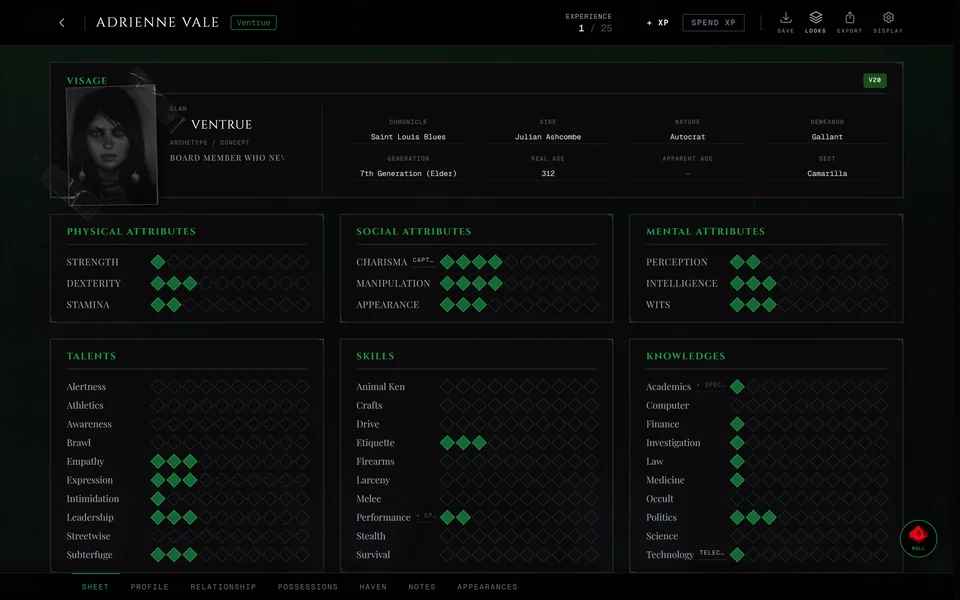
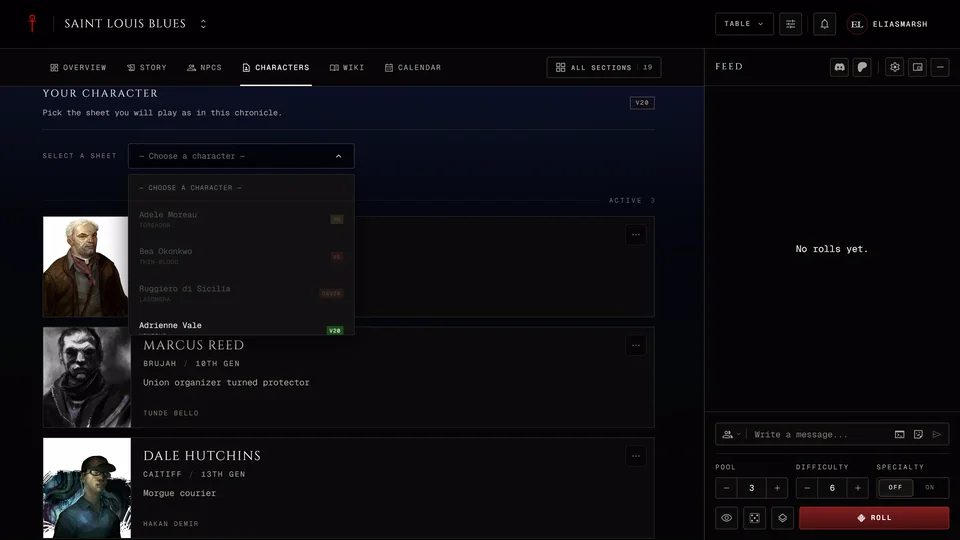
Check the system before you create the chronicle. If your players already have characters in different editions or someone plays V6, pick Custom Chronicle. A V5 chronicle won't take a V20 sheet and a V20 chronicle won't take a V5 one.
Related articles
About this article
- Type
- Guide
- Editions
- V5, V20, Dark Ages, V6, Custom
In this article
Need more help?

Ask the team in #ghoulapp-feedback on the Player Companion Discord. Or try #ghoulapp. GhoulApp players are active there and help each other.
Open Discord(New tab)