


Invite players
- NeronAuthor
- OzzEditor

On this page 4
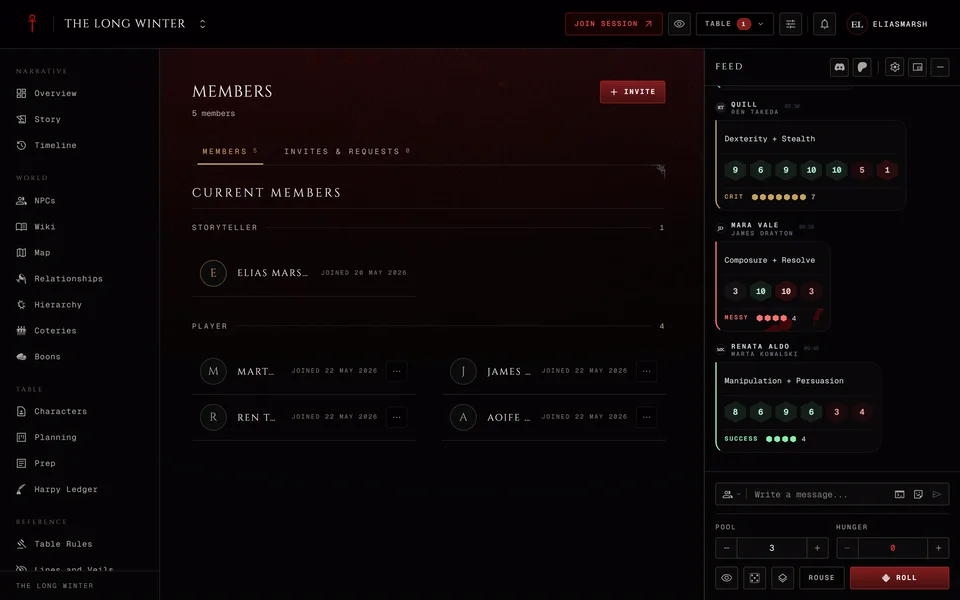
You can invite someone three ways: send an invite link, type their GhoulApp username or type their e-mail address. Every link also carries a short code that works on its own. It all starts on the chronicle's Members page. Press at the top and the menu offers Invite Member for a username or an address and New Invite Link for a link.
Inviting is for the storyteller, co-storytellers and moderators. A moderator sees Invite Member only with the Manage members permission and New Invite Link only with Manage invites. See Storytellers, players and moderators for the permissions.
An invite link
A link is the easy way when you're writing to the whole table at once. The same link works for everyone until it runs out.
- On Members press Invite and then New Invite Link.
- Set Usage Limit, the number of people who can use the link. It starts at 5. Leave it empty and the link has no limit.
- Pick Default Role on Join: Player or Observer. An observer can read the chronicle but has no character at the table.
- Pick Link expiry. It starts on No expiry. You can also choose 24 hours, 7 days or 30 days.
- Decide on Require approval to join. It starts on: people who use the link wait for you to let them in. Turn it off and they're in the moment they open it.
- Press Create Link.
You see "Invite link ready" and the link is already copied for you. If your browser wouldn't let the app copy it, select the field and copy it yourself. The panel also shows the link's code. Someone who only has the code pastes it into the Join a Chronicle card on their Chronicles page. Press Done to close the panel or Create another to make a second link with different settings.
You can't edit a link after you make it. For a different limit, role or expiry make a new link and revoke the old one.
A username or an e-mail address
- On Members press Invite and then Invite Member.
- Type a GhoulApp username or an e-mail address in Username or e-mail.
- Pick a Role.
- Press Send Invitation.
With a username the person finds the invitation on their Chronicles page. It's in the My chronicles tab under Invitations with Accept and Decline. Accepting puts them straight in. If the name is wrong you see "no user found with that username".
The roles you can pick depend on who you are. The storyteller can invite someone as a co-storyteller, moderator, player or observer. Co-storytellers and moderators don't get the co-storyteller choice. Pick moderator and the window opens the permission list so you can choose a Preset or tick what they may do.
An e-mail address gets a mail with a button that opens the invite and the invite code written out. If they don't have an account yet they make one on the way in. The invite in that mail works once and lasts 14 days. If they open it with an account that uses the same address they're in at once. A forwarded mail opened from another account waits for your approval like any request.
Moderator is greyed out for an e-mail invite. Invite them as a player and change their role once they've joined. If you send a lot of e-mail invites in one day you may see "Too many invites sent from here today. Try again tomorrow." The link works in the meantime.
Managing your invites
Everything still open is on the Invites & Requests tab of Members. The tab only shows for people who can manage invites. It has up to four lists.
Pending Member Invites are the people you invited by username who haven't answered yet. Cancel Invite asks "Withdraw this invitation?". Press Withdraw to take it back or Keep to leave it.
Pending Join Requests are the people who used a link that needs approval. Each row shows the role they'll get. Press Approve to let them in or Reject to turn them away.
Invites Sent by E-mail shows each mail as Sent or Not delivered. It only appears once you've sent one. Withdraw takes an invite back and the link inside the mail stops working. A mail that wasn't delivered also has Send again.
Active Invite Links lists every link with its code, its role and how often it was used. A link reads "Full" once it reaches its limit and "Expired" when its time is up. Copy copies it and Revoke turns it off for good, with no second question. The link inside an e-mail invite is listed here too.
A link for players also has Copy creator invite. That version opens the character creator inside the chronicle right after the person joins, so a new player can go straight to making a character for your table.
Settings has a way here too. On the Access tab press Open Invites & Requests.
Things to know
The last step of creating a chronicle makes a link for you. It needs approval, joins people as players and lasts 30 days. You'll find it under Active Invite Links like any other.
Someone who left the chronicle or was removed can come back through any invite that still works, the usual join link included. If an invite doesn't work for the person you sent it to, The invite link doesn't work goes through the usual causes.
Related articles

About this article
- Type
- Guide
- Editions
- All editions
In this article
Need more help?

Ask the team in #ghoulapp-feedback on the Player Companion Discord. Or try #ghoulapp. GhoulApp players are active there and help each other.
Open Discord(New tab)