


The chronicle hub


On this page 6
The Chronicles page lists every table you run or play at. Open it with Chronicle in the top bar. It has five tabs along the top: Overview, My chronicles, Activity, Calendar and Discover. If you aren't signed in you only get Overview and Discover.
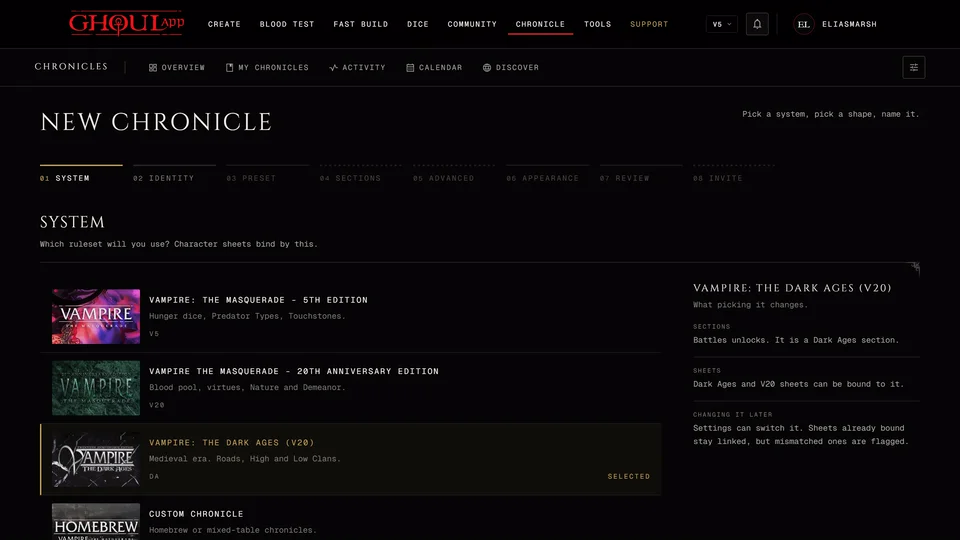
On the right of the tab bar are Join and New Chronicle. Join takes you to the box where you paste an invite link or code and puts the cursor in it. New Chronicle starts the setup (see Create a chronicle). On a phone Join isn't in the bar and New Chronicle shows as a plus sign. Use the Join a Chronicle card further down the page instead.
Overview
Overview is the short version of everything. At the top is the table you're most likely to want. If one of your tables has a session running it reads Playing now with Open chronicle and Join session. Otherwise it reads Where you left off and shows the table you played last.
Under it Waiting on you gathers what needs your answer: an invitation, a join request, XP requests, a wiki article, map pin or haven to review and played sessions that still have no recap. Each row has its own button, like Answer, Review or Write, that takes you to the right page. Put this down hides a row you don't want to see right now.
Then come Your chronicles as cards, with See all chronicles to open the My chronicles tab. Your characters lists the characters you have at these tables. A sheet you haven't bound to any chronicle isn't here. It stays in Characters. Near the end the Start a chronicle and Join a Chronicle cards let you make a new table or join one with a code.
The side column holds Activity and Coming up: the latest things that happened at your tables and the next session on the calendar. Public Chronicles at the bottom shows a few tables their storytellers opened to visitors and Browse all opens Discover.
Signed out you get an Overview with the start and join cards, a short "How it works" and the public chronicles.
My chronicles
Every chronicle you run or play in. Type in the search box to find one by name. Seat narrows the list to All, Storytelling, Playing or Quiet. Quiet means nothing was played in the last 30 days and no session is running. A choice only shows when it has chronicles in it. Edition picks V5, V20, DAV20 (Dark Ages) or Custom. There's no V6 choice because a V6 character plays in a Custom chronicle. Sort orders the list by Last activity, Next session or Name. On a phone the filters fold behind one button that shows how many are set.
The view buttons above the list switch between Board, Covers and List. Board gives each table a card with its seat, its last session and what's waiting on you there. Covers shows the cover pictures. List is a compact table with the edition, your role and the last activity.
If a storyteller invited you by username you'll find the chronicle under Invitations below your list. Press Accept or Decline. Further down, Show archived lists the chronicles you archived. Each one has a Restore button that brings it back to everyone's list. Only the storyteller who owns a chronicle sees it there.
Activity
What happened at the tables you sit at: sessions played or started, XP decisions, new NPCs, wiki articles and people joining. The chips at the top (Everything, Sessions, XP, Cast, Wiki and Roster) narrow it to one kind. A chip only shows when it has something in it. If you play at more than one table you can filter by table in the side column. All notifications opens your full notification list.
You only see what the table lets you see. A storyteller's hidden NPC doesn't show up in a player's activity.
Calendar
Sessions and dates from every table you sit at in one month view. Under the grid Ahead lists what's coming up. For a session you can answer Going, Maybe or Not going. Press the same answer again to take it back. Played in the side column lists past sessions.
If you run a table you also get Schedule a session. Pick the table and it opens that chronicle's own calendar. Press a day in the grid first and that day is filled in for you.
Discover
Chronicles their storytellers made public. Anyone can read them, signed in or not. Search by chronicle or storyteller name. You can filter by edition, by how recently the table played, by sect, by the language the table plays in and by the number of players. The sect and language lists only offer what the public tables actually use. Sort by Recommended, Most active or Newest. Most followed joins them once any public table has followers.
When you're signed in each card has Follow so the table's news reaches you. It appears in the card's corner when you point at the card. Press it again (it reads Following) to stop.
A public chronicle shows its story, NPCs and world. It never shows its dice, live sessions, member list, planning or XP. See Make a chronicle public.
Choices for this page
Chronicle page at the end of the tab bar holds a few choices for this page. It's there when you're signed in and the choices are saved in this browser only. Where you left off shows or hides the Playing now band on Overview. Sticky live session bar keeps a bar at the top of the page while one of your tables is playing. Activity in the sidebar shows or hides the Activity column on Overview. Default list view picks Board, Covers or List for your chronicle lists. Press Esc or anywhere outside to close it.
Related articles
About this article
- Type
- Guide
- Editions
- All editions
In this article
Need more help?

Ask the team in #ghoulapp-feedback on the Player Companion Discord. Or try #ghoulapp. GhoulApp players are active there and help each other.
Open Discord(New tab)