


Chronicle cover, theme and layout
- BluenchanterAuthor
- OzzEditor


On this page 3
A chronicle's look comes in two parts. The cover, backdrop, fonts and symbols are set by the storyteller in Settings and everyone sees them. The layout is how the pages are arranged on your own screen. Each person sets it for themselves unless the storyteller sets one for the whole table.
Cover, backdrop and fonts
Open Settings and go to the Appearance tab. Everything here saves the moment you pick it, except the symbols, which have their own Save.
Cover image is the picture on the chronicle list and the Overview. Pick one of the app's pictures (filter by Modern or Dark Ages). Upload uses your own PNG, JPEG or WebP file. A big picture is scaled down for you. None leaves the chronicle with no cover. A Dark Ages chronicle opens the picker on the Dark Ages set. When you replace a cover you uploaded the old file is removed.
Theme sets the Backdrop, the colour behind every page of the chronicle including its live sessions. The choices are Default, Crimson, Emerald, Gilded, Indigo, Violet, Teal and Ash. Below it pick a Heading font and a Subheading font. "How it reads" shows your chronicle's name in the fonts you picked. Character sheets keep their own fonts whatever you choose here.
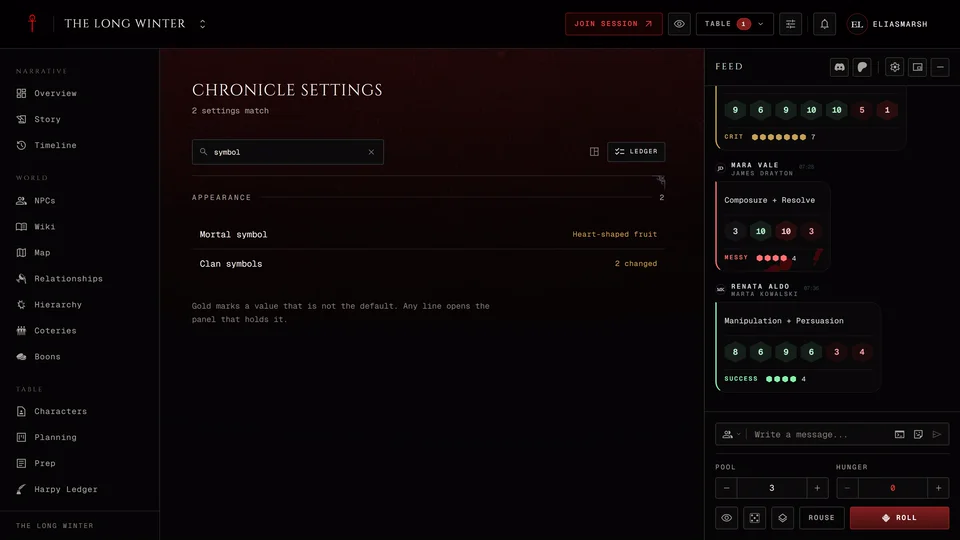
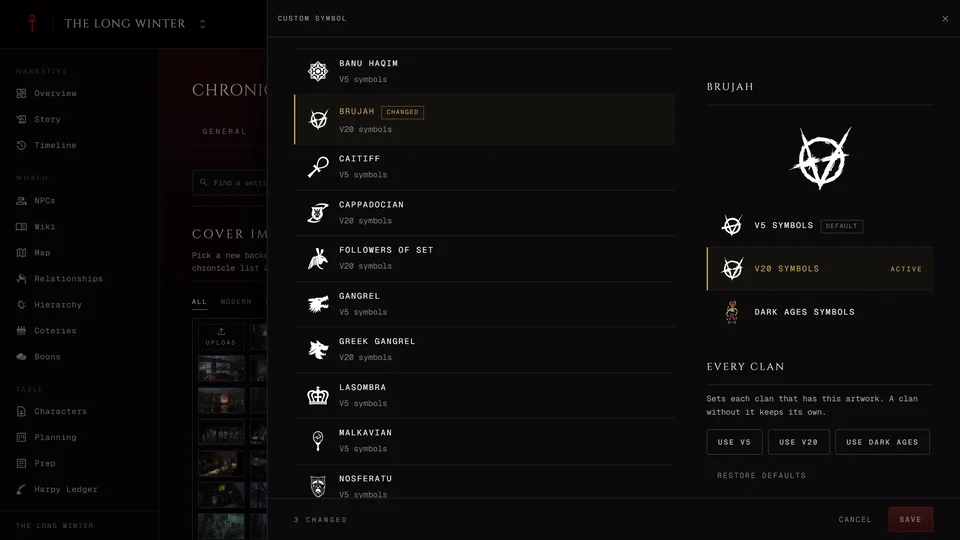
Custom Symbol picks the art used for mortals and for each clan. Press Change on a row to open it in a panel at the side. Mortal symbol has four marks: Classic, Fractured heart, Heart-shaped fruit and Heart with thorns. In Clan symbols you can give every clan the V5, V20 or Dark Ages art in one go or choose clan by clan. Find a clan narrows the list. The Dark Ages art also comes in Monochrome or Coloured. Restore defaults goes back to your edition's art. Press Save at the foot of the panel. If you close it with changes still unsaved you're asked whether to drop them.
Map appearance sets the map's colours: Default, Classic, Crimson, Emerald or Gilded. It's only there while the Map section is on. You see the change at once. Other people see it the next time they open the chronicle.
A moderator allowed to edit the chronicle can change the cover. The rest is for the storyteller and co-storytellers.
Your layout
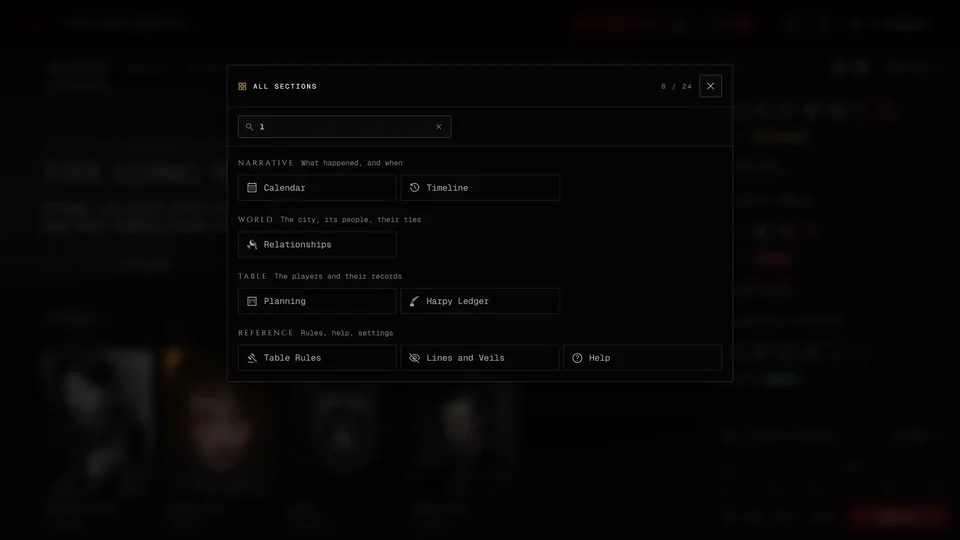
Press Layout in the chronicle's header. On a phone it's the last item in the sections menu and opens from the bottom of the screen. The panel says "Your view of this chronicle" because these choices are yours and are saved in this browser. Press Esc or anywhere outside the panel to close it.
The first group, Every page, has two choices. Navigation is Band, Groups or Rail (see Find your way around a chronicle). Dice tray is Docked or Bubble. Docked keeps the tray open at the side of every page and Bubble folds it into a small button in the corner. The dice tray choice is only on computers and it's always your own.
The Overview page group arranges the chronicle's first page. Arrangement is Editorial (the last session, the table and the sections), Tiles (every section as a picture card), Hub (laid out like the Chronicles page) or Classic (the cast, the story and every section on one board). Cover decides how the cover sits at the top. Cover runs it behind the top of the page, Plate leaves the picture out and Banner frames it above the title. Side column is Open or Closed.
Older looks brings back a few earlier designs. Header shortcut icons puts Calendar, Members, Notes and XP Requests in the header as icons in place of the Table menu. It isn't offered on a phone. Classic gallery brings back the earlier portrait tiles in the NPC and character galleries. Cover behind every section washes the chronicle's cover down the top of every section. Without it the cover is only on the Overview.
All settings at the bottom opens your app-wide display settings.
A layout for the whole table
The storyteller and co-storytellers see one more switch at the top of the panel, Layout you are changing, with Yours and Everyone. Pick Everyone and every choice you make becomes the chronicle's layout. Every member opens the chronicle that way. Your own view stays as you arranged it under Yours. The dice tray isn't part of it because it's always each person's own.
By default members can't change a layout you set. Their panel says the storyteller set this chronicle's layout and the choices are read only. Turn on Members can change it under Everyone and your layout becomes where they start. They can rearrange it for themselves from there. Remove the chronicle layout takes it away and everyone goes back to their own.
Related articles
About this article
- Type
- Guide
- Editions
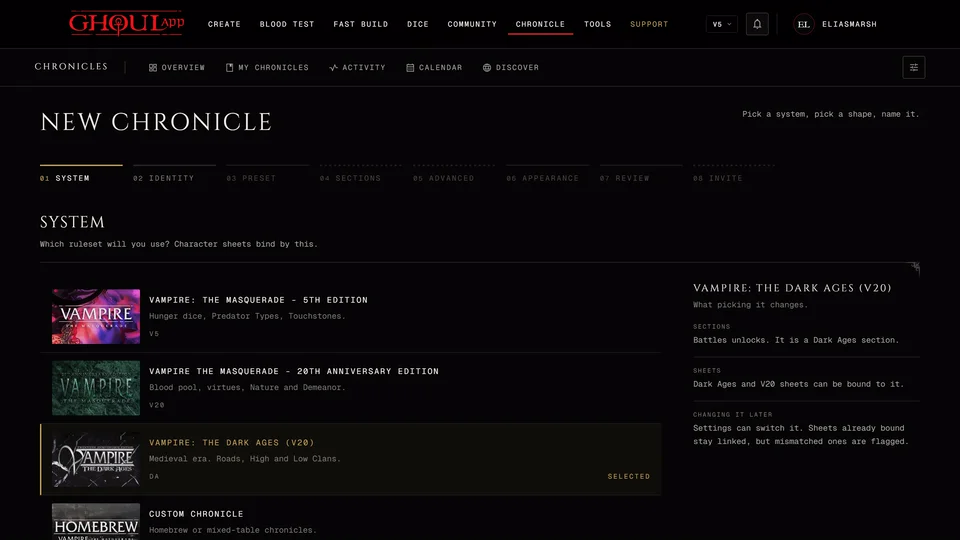
- V5, V20, Dark Ages, V6, Custom
In this article
Need more help?

Ask the team in #ghoulapp-feedback on the Player Companion Discord. Or try #ghoulapp. GhoulApp players are active there and help each other.
Open Discord(New tab)