


Live sessions
Running and joining a session, music and the log.
Guides 18
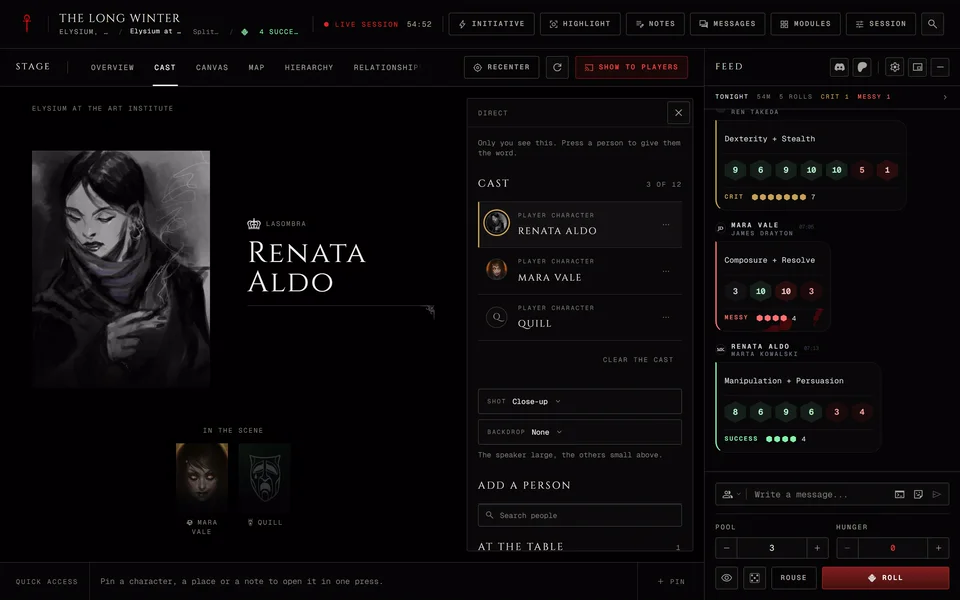
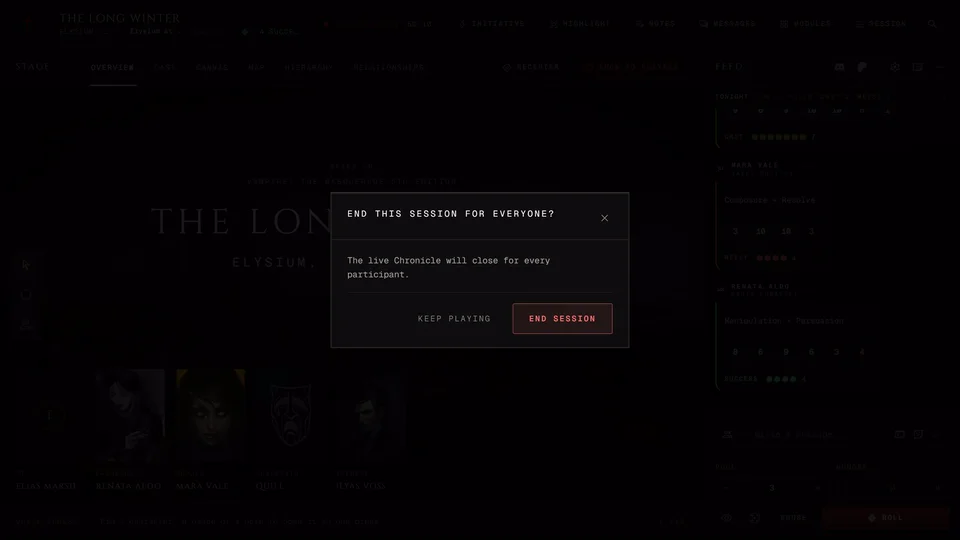
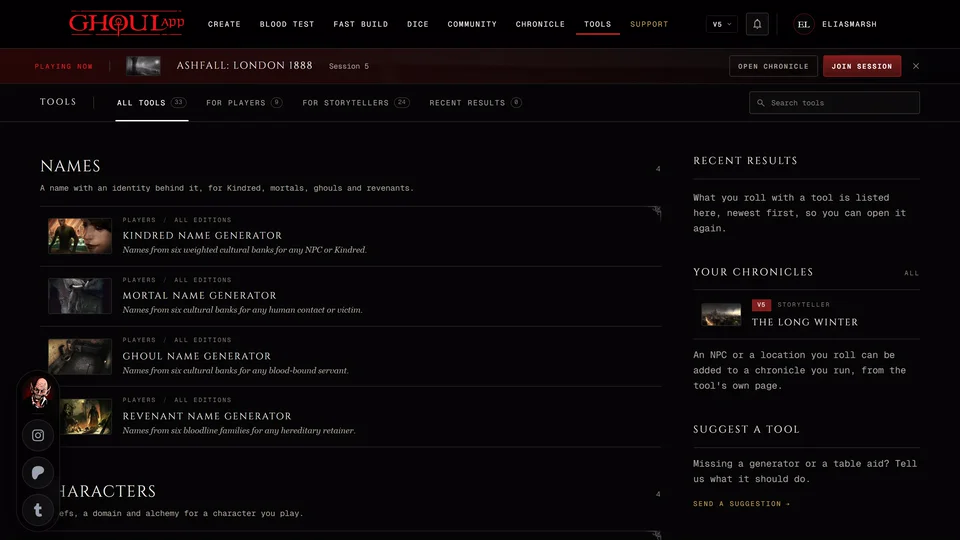
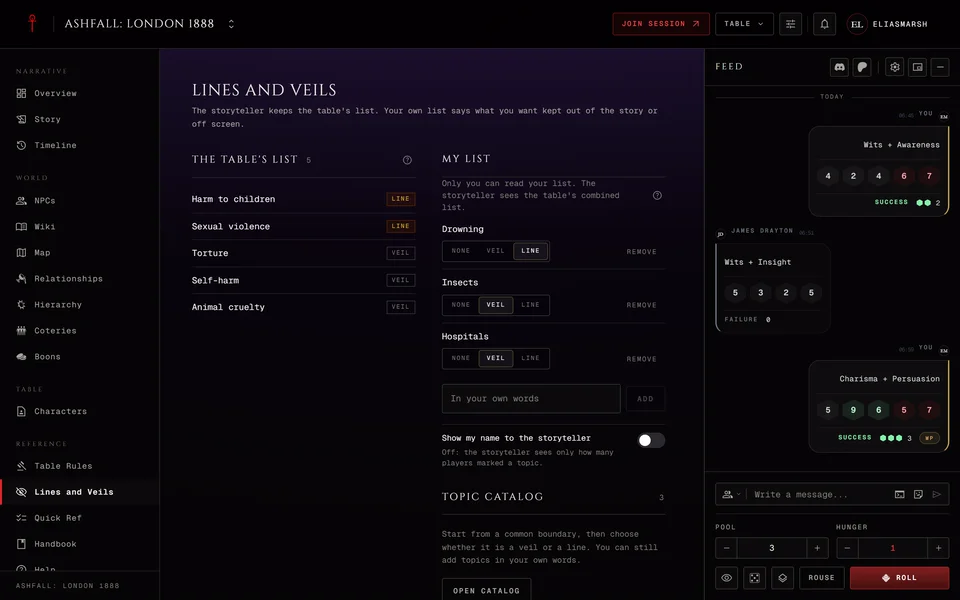
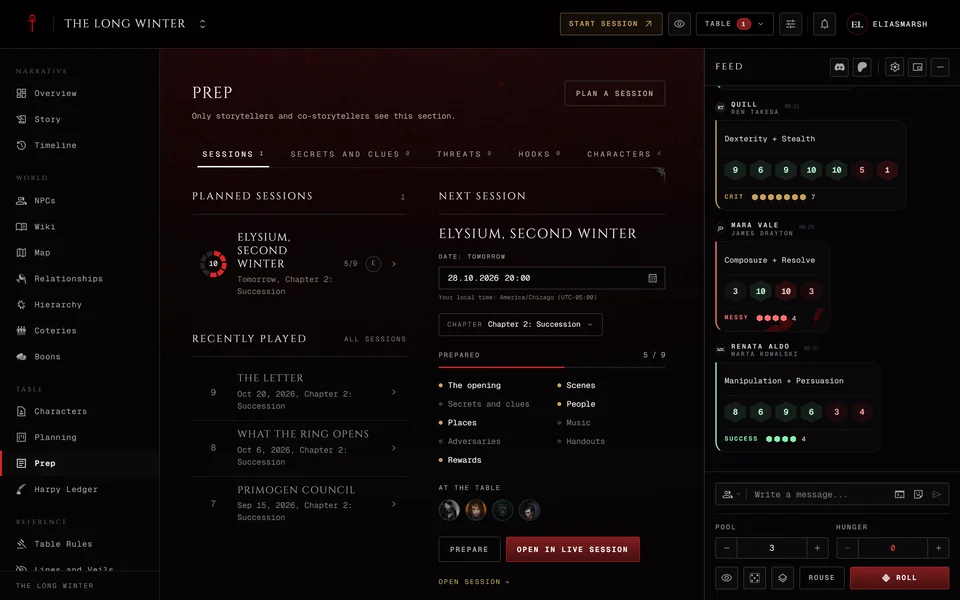
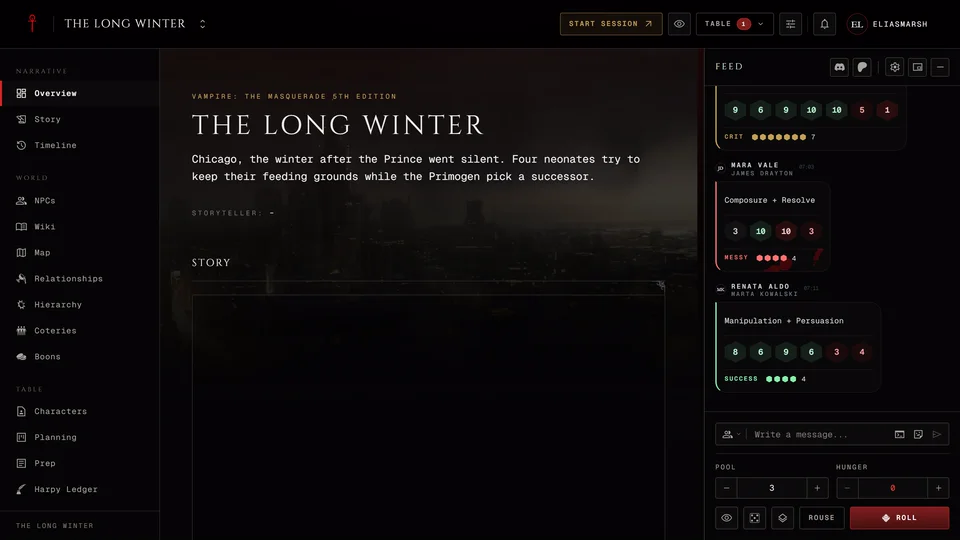
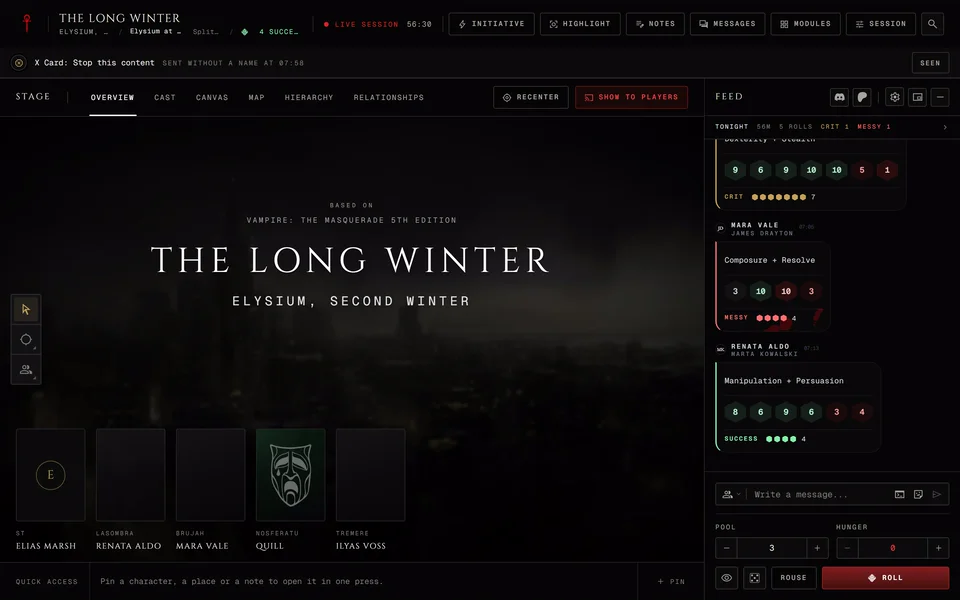
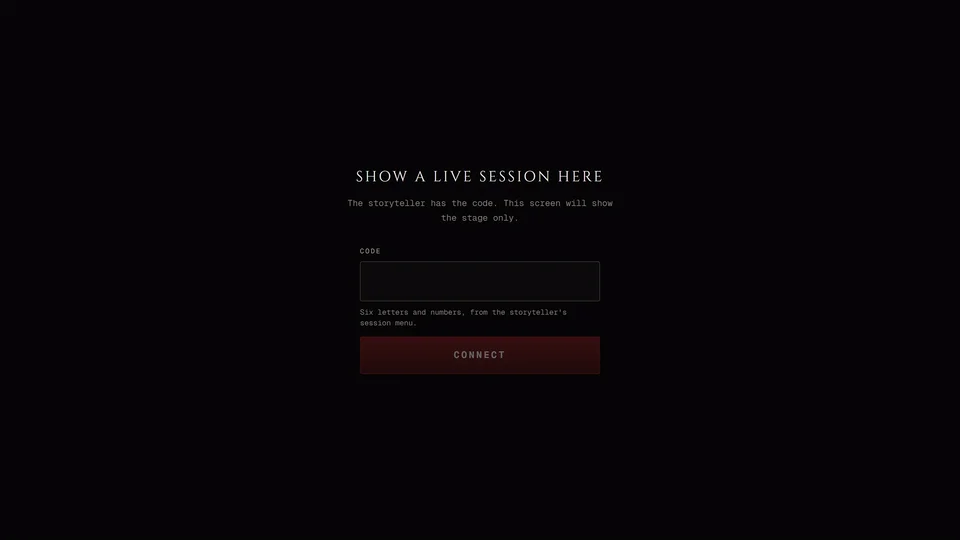
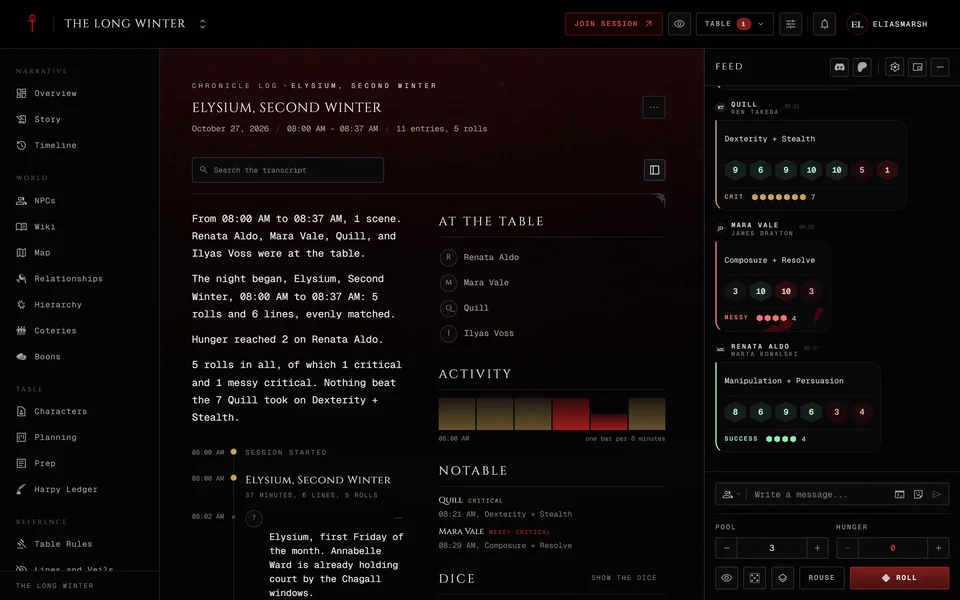
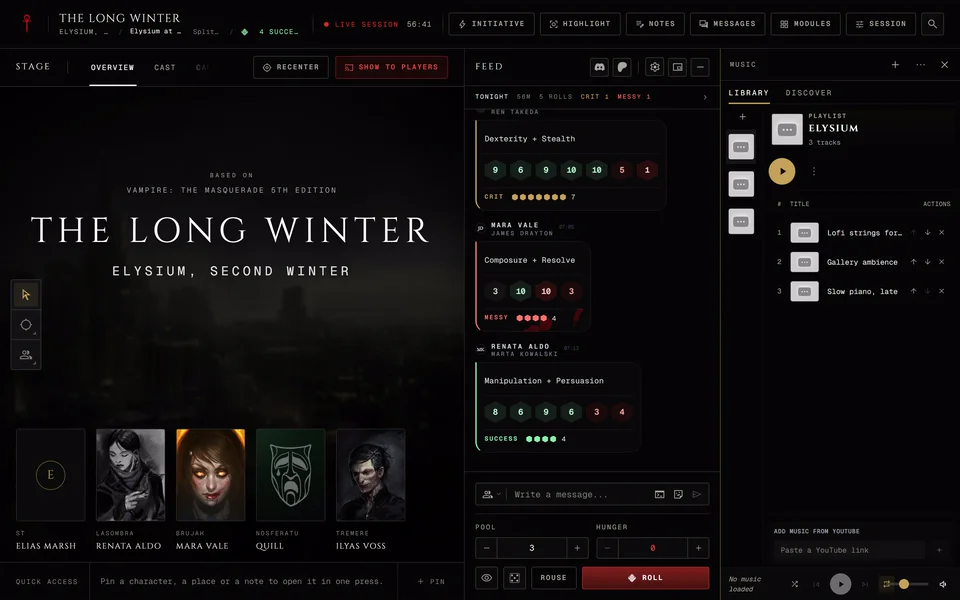
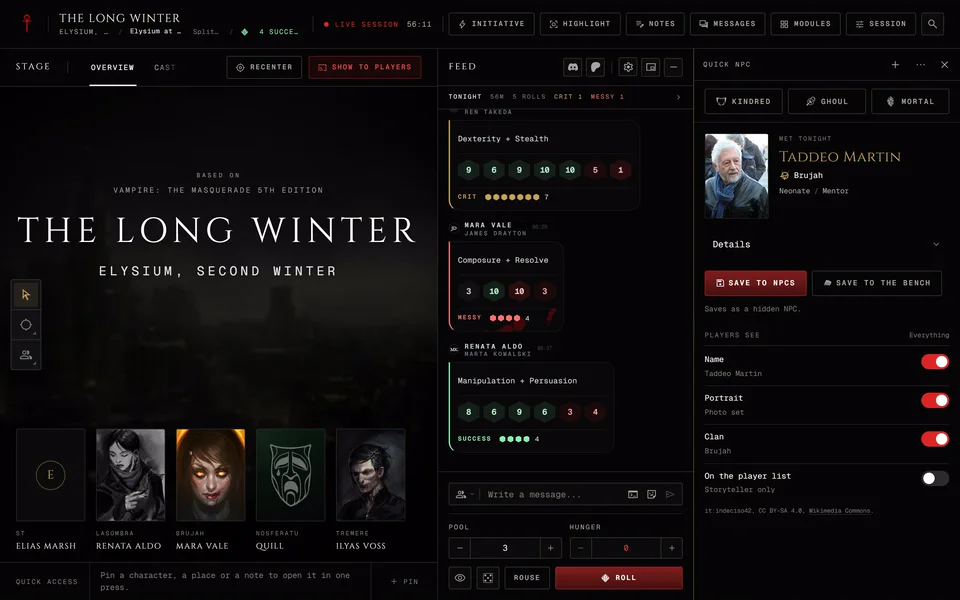
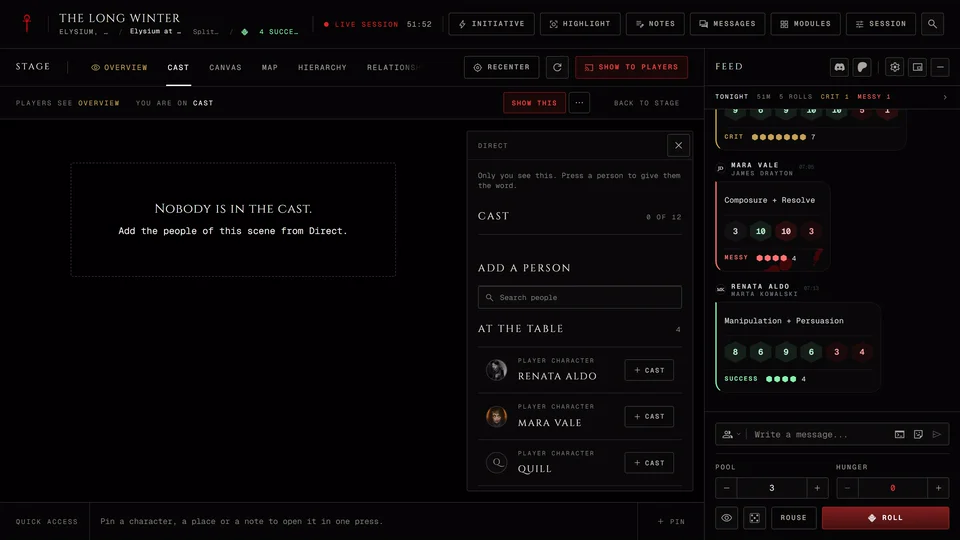
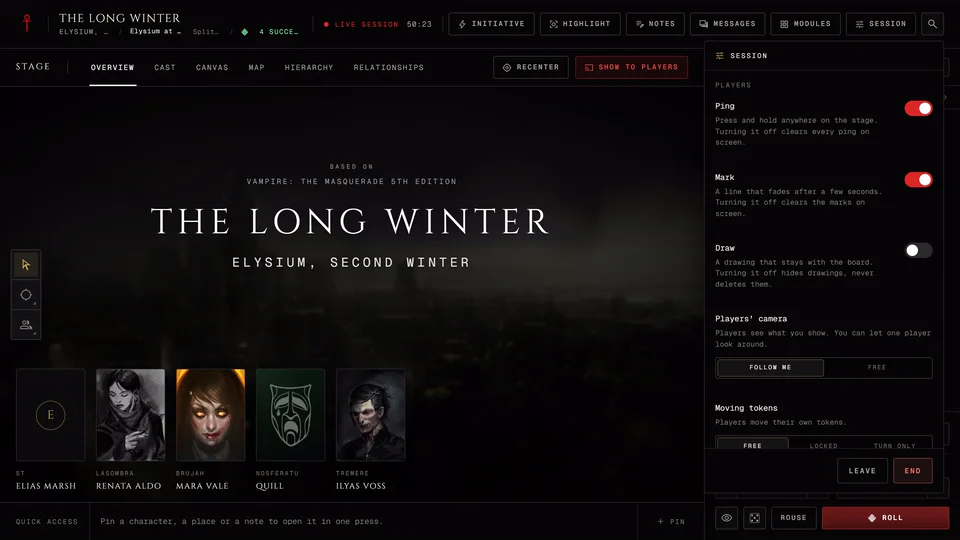
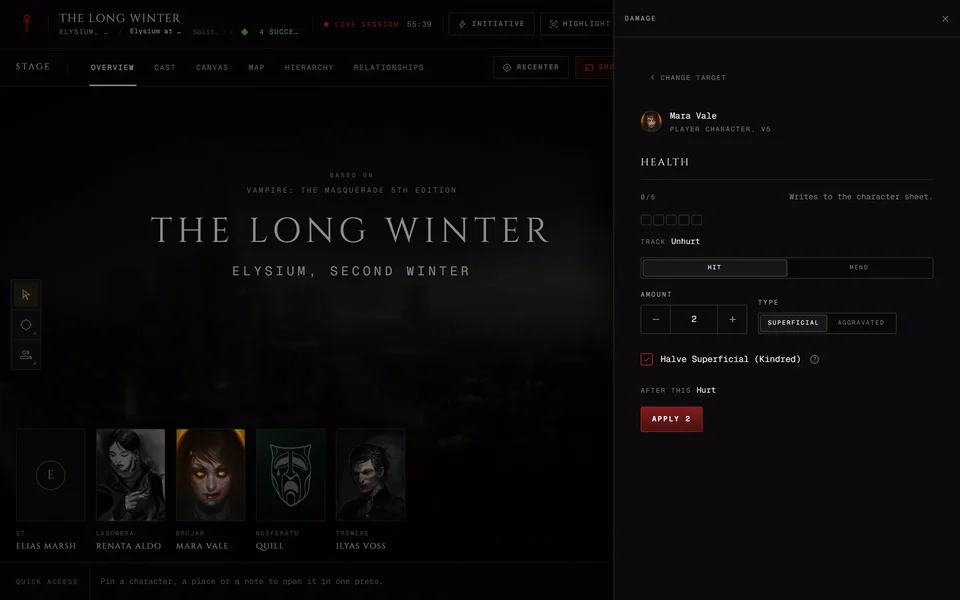
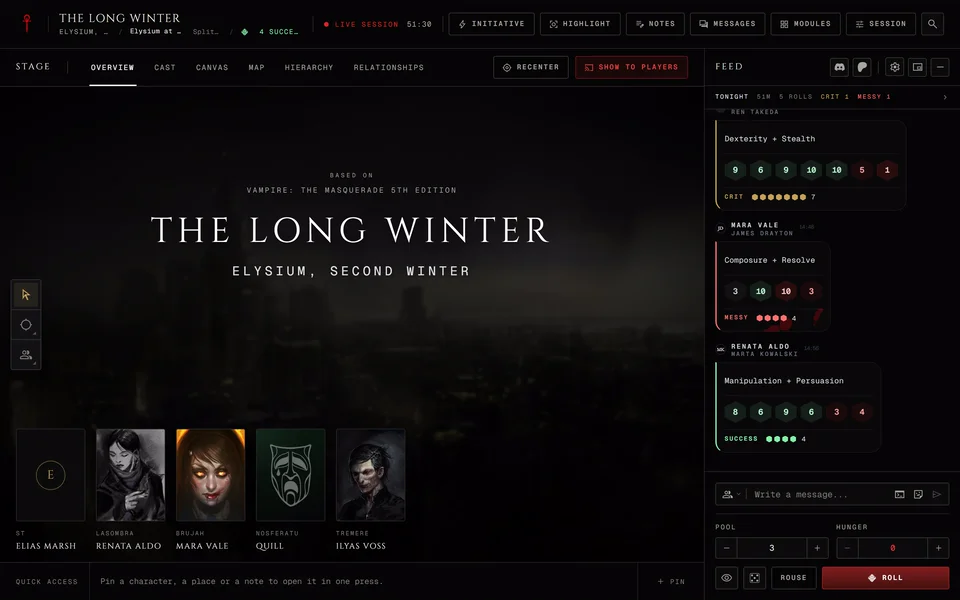
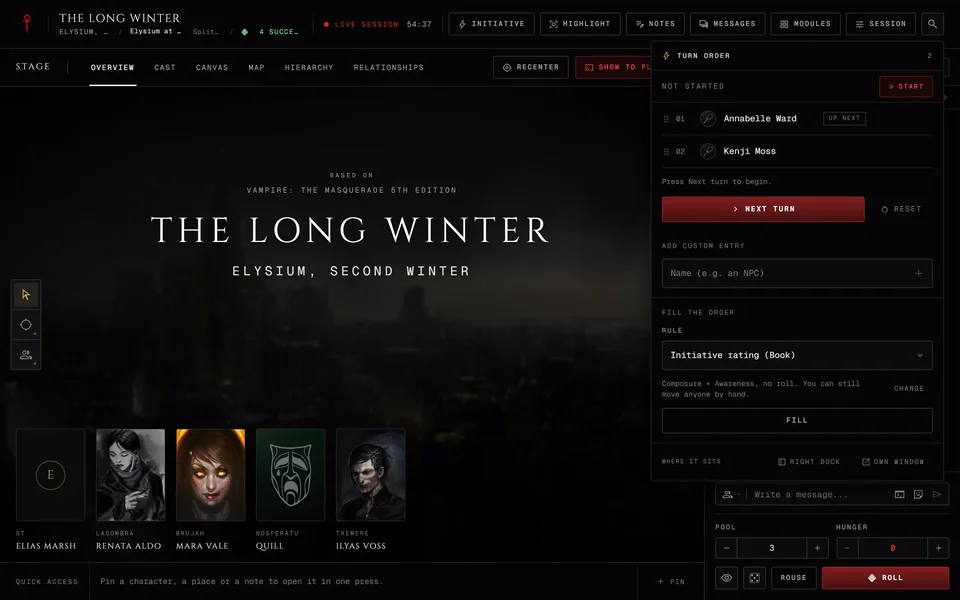
GuideV5, V20, Dark Ages, V6, Custom onlyThe adversary benchKeep a fight's opponents on a bench at the live table with their threat, Health, Willpower and dice pools, mark their damage and roll for them in each edition.GuideThe Cast stagePut the people of a scene on the table's stage, give one of them the word, pick a shot and a backdrop and see what players get.GuideEnd a session and save itEnd the live session for everyone, save an unplanned night to your story, grant XP from the end card and what players can send you afterwards.GuideJoin a live session as a playerFind the Join button when your storyteller starts, see what's waiting before the table opens, use your sheet at the table and what to do when no character is linked.GuideLines and VeilsKeep a shared list of what stays out of the story or off screen, keep a private list of your own and pick topics from the catalog.GuidePrep: get the next session readyPlan the next night in Prep, from the opening line to the people and handouts you'll need, then open the table with it ready and tick it off as you play.GuideV5, V20, Dark Ages, V6, Custom onlySecrets, threats and hooks in PrepKeep the chronicle's secrets and clues, reveal them to chosen players, move threat clocks, gather hooks and read what drives each player character, in every edition.GuideStart a live sessionStart a live session from the chronicle, pick which night it is, prepare the table before players arrive and save a night that was never filed.GuideSend a safety card at the tableHow players send the X Card or another safety card during a live session, what the storyteller sees and which cards a storyteller can offer.GuideShow the table on a second screenPut the stage on a TV or tablet with a six-character code or open a stage window on your own computer for a second monitor or a stream.GuideThe chronicle log after a sessionRead back every roll, chat line and scene change from a night, search it, filter it by person, export it and turn it into a recap.GuideMusic in a sessionPlay YouTube playlists for the whole table, keep everyone on the same track, let players set their own volume and find playlists other storytellers shared.GuideV5, V20, Dark Ages, V6, Custom onlyRoll a quick NPC at the tableRoll up a new NPC in one press during a session, lock the details you like, save it to your chronicle and show it to the players when you're ready.GuideKeep the players' stage while you look something upLinked, Hold and Stage window decide whether the players follow every tab you open. How to hold a scene, show another tab and go back.GuideThe Session menu, views and layoutsEverything in the live table's Session menu, the four ways to lay out the table, saved layouts and the layout a storyteller sets for the players.GuideV5, V20, Dark Ages, V6, Custom onlyDamage and conditions at the tableApply damage to a sheet or an NPC at the live table, put conditions on characters, roll for a crippling injury and give a V5 Compulsion, in each edition.GuideThe live tableWhat's on the live session table, the buttons in its header, quick access and My actions, the keyboard keys and how the table works on a phone.GuideV5, V20, Dark Ages, V6, Custom onlyTurn order, timer and countersFill and run the turn order at the live table in each edition, start a timer the table can see and keep shared counters like danger or resources.
Questions 4
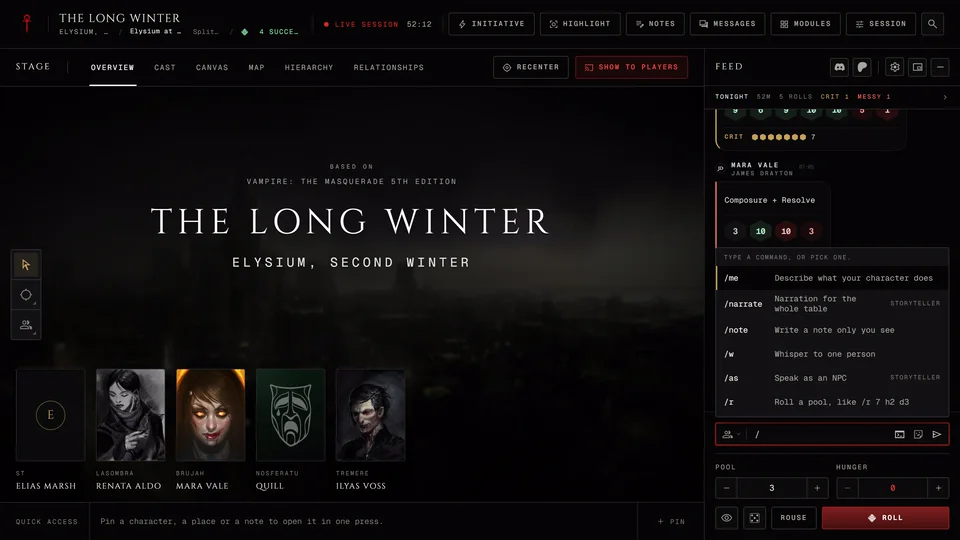
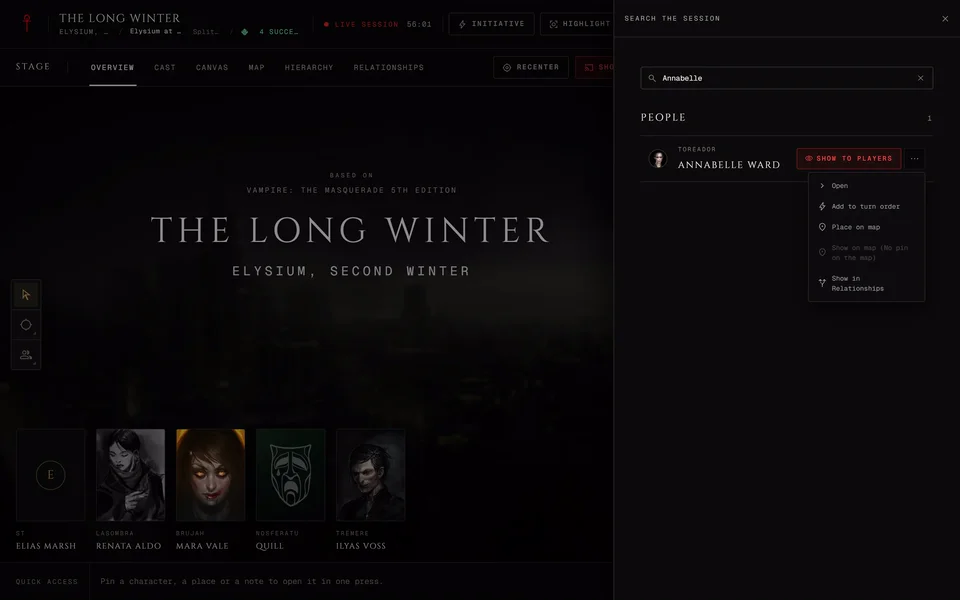
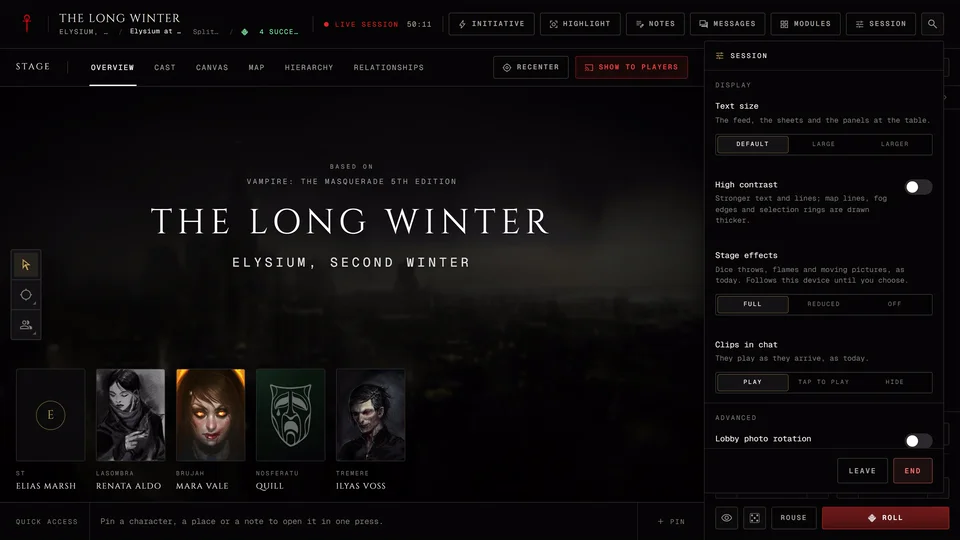
FAQWhy a session ends when nobody is activeAfter 25 quiet minutes the table asks if you're still there. What happens next depends on whether you're a player or the storyteller.FAQV5, V20, Dark Ages, V6, Custom onlyCommands in the chat boxThe six commands you can type in the live table's chat box, who can use each one and how /r rolls a pool in V5, V20, Dark Ages and V6.FAQSearch the sessionFind a person, a place or a module at the live table with Ctrl K and act on it from the result, like showing an NPC or adding it to the turn order.FAQCan I turn off the dice animations and moving clips at the table?Calm the live table down with Stage effects, Clips in chat, Text size, High contrast and Faces on the stage. They change only your own screen.
Need more help?

Ask the team in #ghoulapp-feedback on the Player Companion Discord. Or try #ghoulapp. GhoulApp players are active there and help each other.
Open Discord(New tab)