


Start a live session


On this page 5
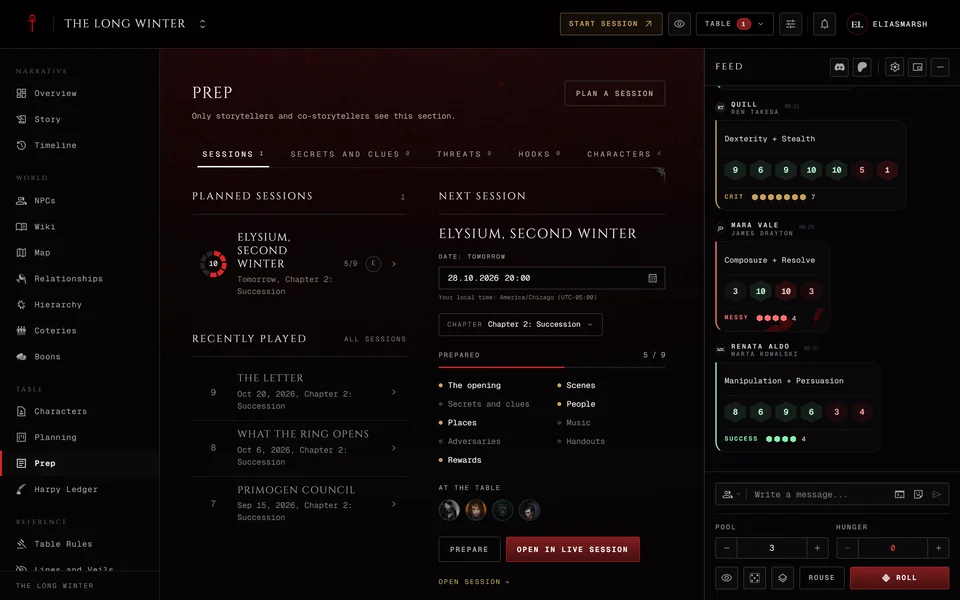
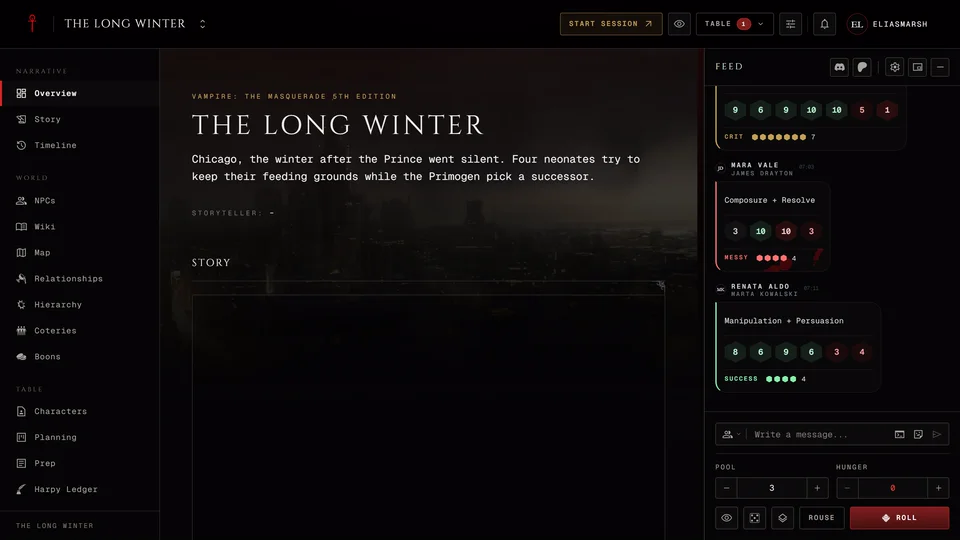
When your players are ready press Start session in the chronicle's header. The table opens in a new browser tab and your players can join right away. If your browser blocks new tabs the table opens in the same tab.
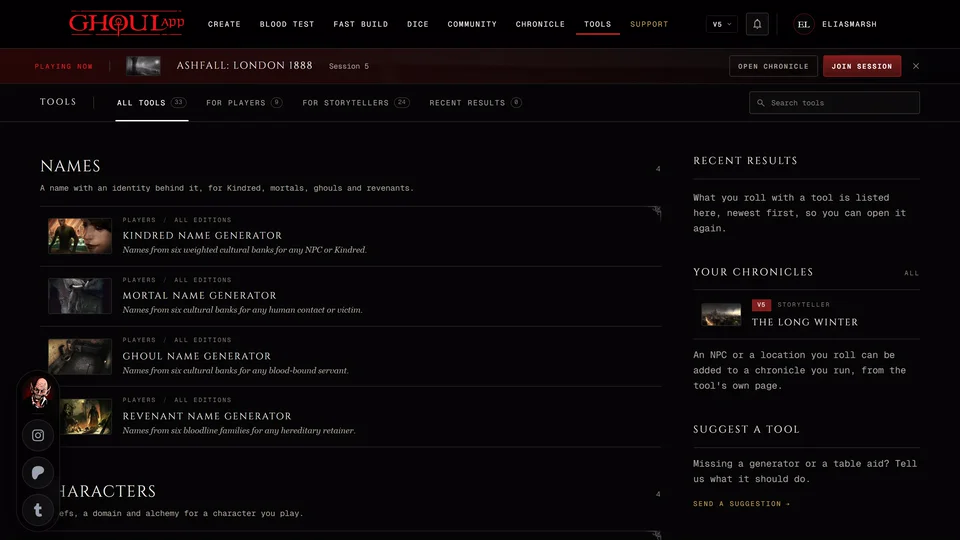
Only storytellers see that button and only while nothing is live. Once a session is running the same spot turns into Join session for everyone, you included. On a phone the header button says Start and a running session shows as a Join cell in the bottom bar. There's also a Start the session button on the chronicle's Overview page. Your way around the header is in Find your way around a chronicle.
Which night it starts
Pressing Start session picks the session for you. If you have sessions planned in Story it starts the one dated nearest from today on. With no date ahead it takes the first planned one. If nothing is planned it starts a new one called "Live session" and you name it at the end.
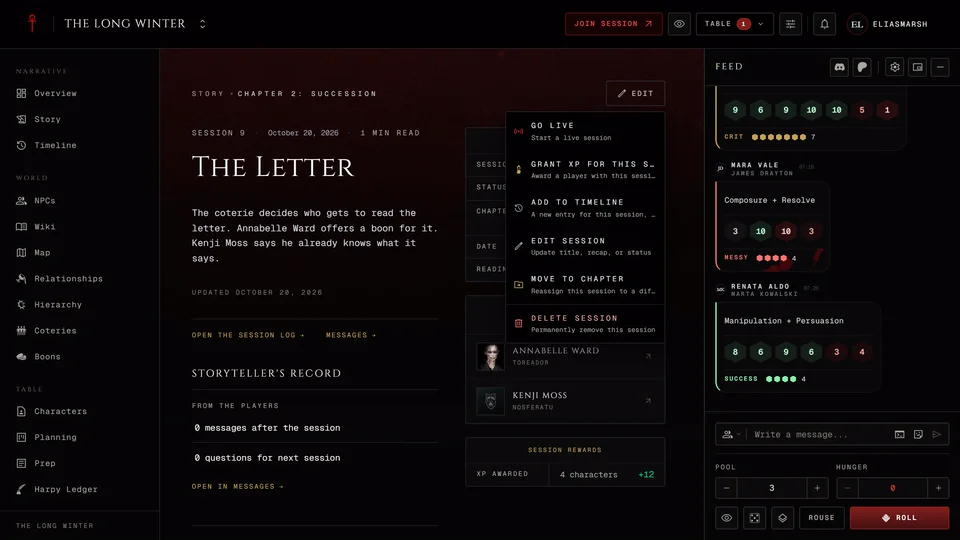
To start a particular night open that session's page in Story and choose Go live from the menu there.
If another session is still live in the chronicle the app asks whether to end it and start this one instead. If the session you're starting already has play time on it the app warns that a new timer starts. The time already recorded is kept.
The start page
You land on the start page when you open the live session without pressing Start session. You also land there when last time's session is still waiting to be saved.
It shows the session that's about to start with its date and title. Each one is marked Planned or A new session. A night you started and never finished is marked that way too. When there's more than one to choose from the page says how many more there are. Press Change to pick another. Change isn't there when there's nothing else to pick.
A new session gets a Session title field so you can name it now. It's filed in Story when the session ends. Enter in the title starts the session.
Then you have three buttons. Start session opens the table for everyone. Prepare first opens it for you alone so you can set the stage before the players get in. Back to chronicle leaves without starting anything.
Prepare first
With Prepare first the table opens in prep. Only you see it. Your players see the table at rest with "The storyteller is preparing" and the session's title. A gold line at the top of your table reminds you of that. If you started a new session this way it's filed in Story as a planned session right away.
Set things up the way you want them, then press Go live on that line and everyone can join. In prep the Session menu has no End and no Pause. More on getting a night ready in Prep: get the next session ready.
A session that wasn't saved
A night started without a planned session has to be saved at the end. If it wasn't the start page shows "Your last session wasn't saved" under the start card with how long you played. The title is filled in as "Session" and the next number.
Name it and press Save to story or Enter. Save stays greyed out while the title is empty. Discard asks first, then deletes the session and its play time. While that offer is waiting Start session in the header brings you here first. Only the storyteller who started the session sees it and it's there for 48 hours after the session ended.
While you play
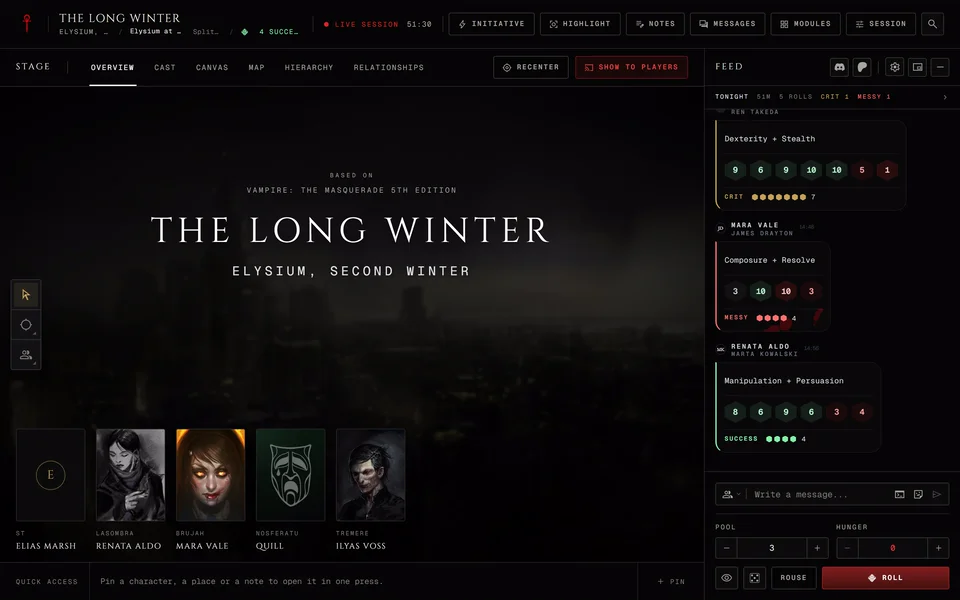
The table has everything for the night. The live table walks through it and The Session menu, views and layouts covers the menu.
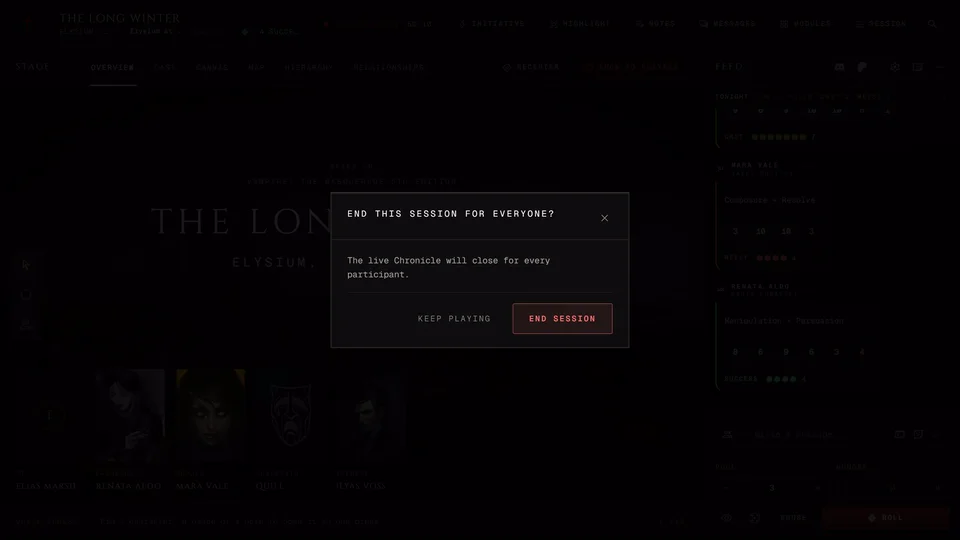
If nobody touches the table for a long time the app asks whether you're still there. See Why a session ends when nobody is active. How to close the night is in End a session and save it.
Starting and ending work the same in V5, V20, Dark Ages and Custom chronicles, the Custom ones that hold V6 characters included.
Related articles

About this article
- Type
- Guide
- Editions
- All editions
In this article
Need more help?

Ask the team in #ghoulapp-feedback on the Player Companion Discord. Or try #ghoulapp. GhoulApp players are active there and help each other.
Open Discord(New tab)