


Send a safety card at the table

On this page 3
A safety card lets a player stop or steer a scene without explaining why. The storyteller isn't told who sent it. Cards work the same in every edition.
Sending a card
On a computer press More signals, the little arrow beside Raise hand in the table's header. The Signal panel opens with the cards. On a phone tap the hand in the header. The same panel opens from the bottom with Raise hand as its first row.
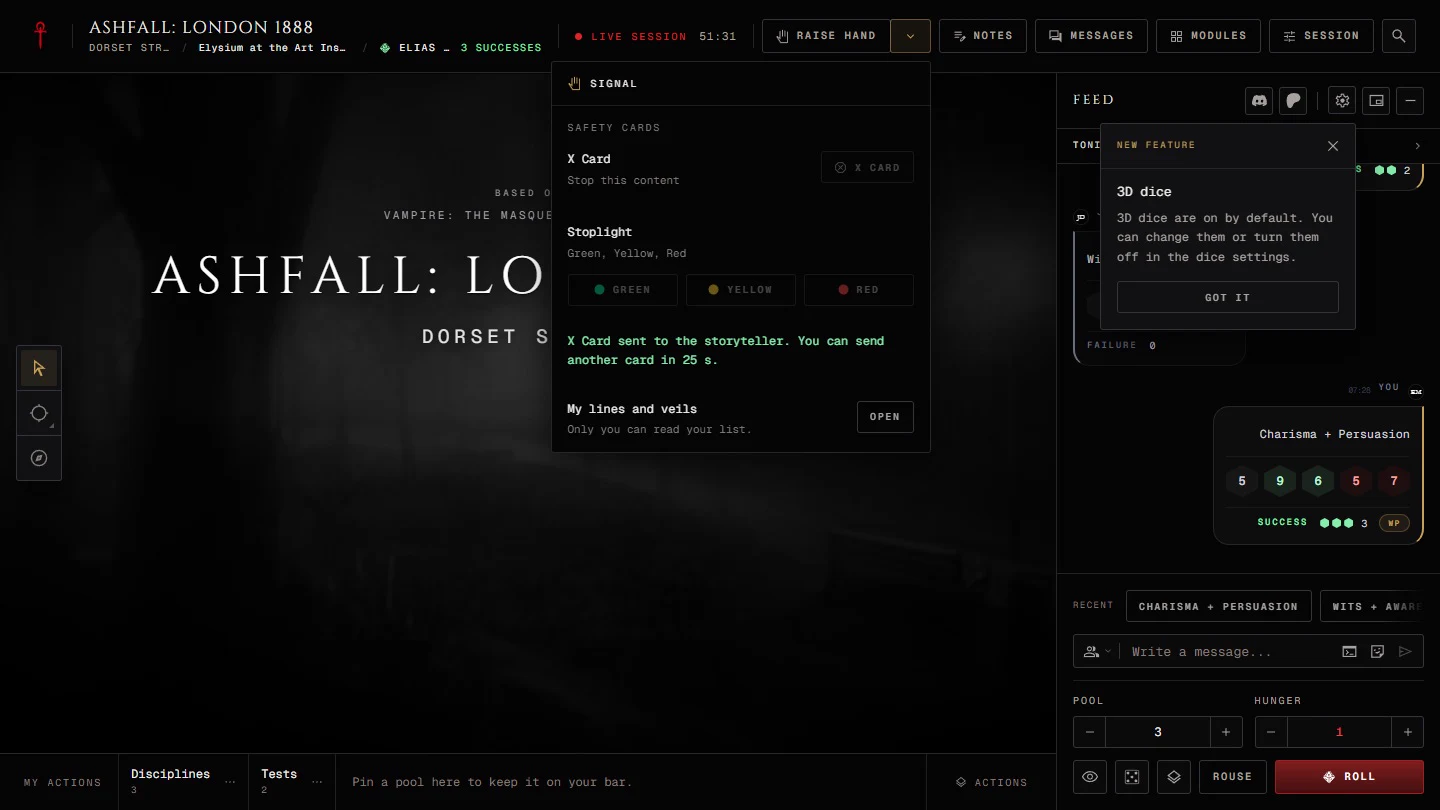
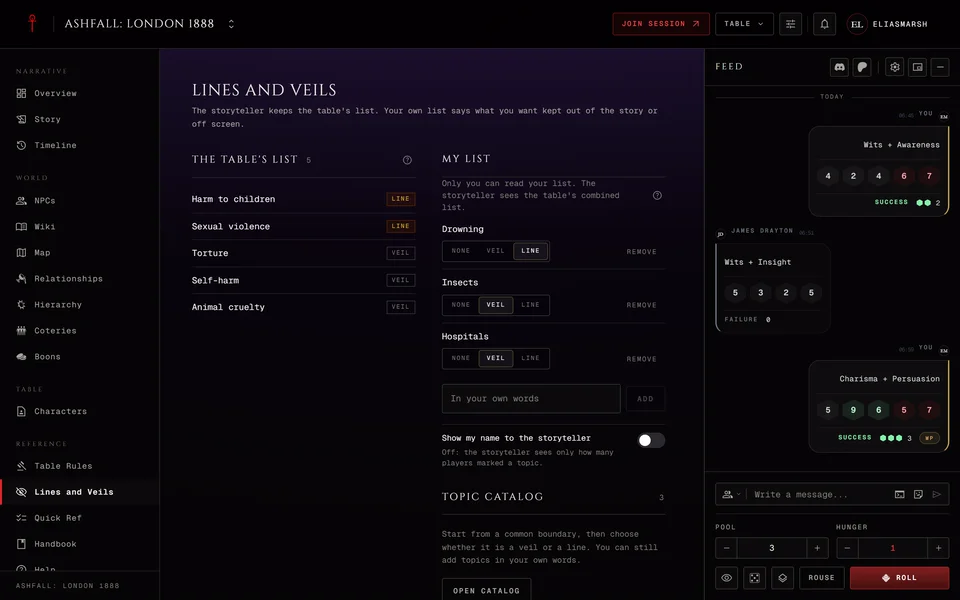
Press a card to send it. The panel then says the card was sent to the storyteller and "You can send another card in" with a count. You wait 30 seconds before the next one. The panel also has My lines and veils with Open so you can check or change your own list.
The X Card says stop this content. The Stoplight has Green (fine, go on), Yellow (careful, slow down) and Red (stop, change course). Those two are on unless the storyteller turns them off.
The storyteller can also offer more.
- Fade to black asks to cut away. The scene goes on off screen.
- Pause asks for a pause. The table pauses only if the storyteller pauses it.
- Rewind asks to go back and change it and Fast-forward asks to skip ahead. These two come as a pair.
- Leave the scene says you're stepping away for a moment.
Observers and the storyteller don't get the Signal panel.
What the storyteller sees
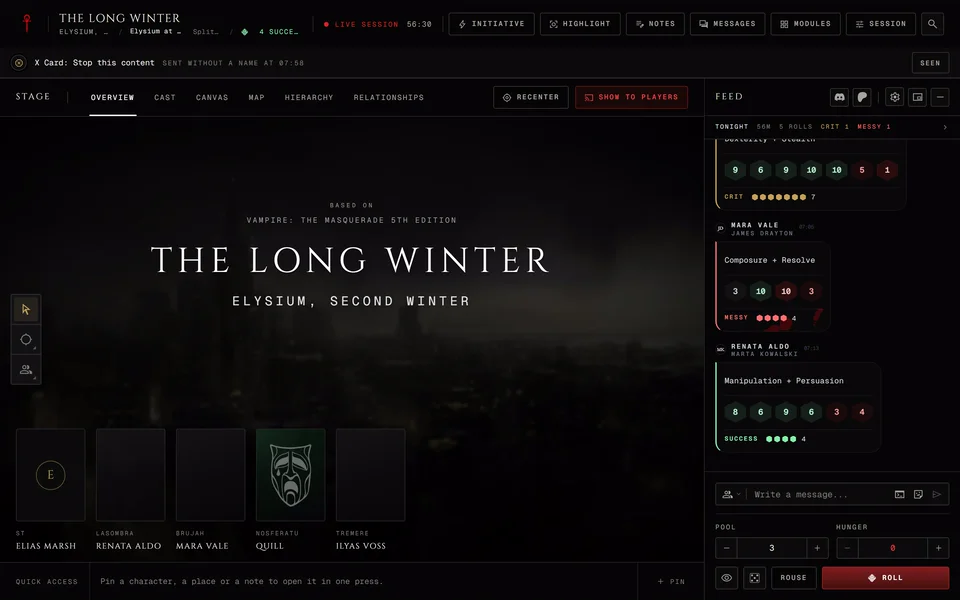
A card shows up as a band at the top of the storyteller's table with the card, what it means and "Sent without a name at" the time. It stays there until they press Seen. If the same card comes again the band counts the repeats. There's no sound and no popup.
The other players don't see the card unless the storyteller turns on Show cards to the whole table. Then everyone reads "A card was shown" with the card's name. A card never pauses the table by itself. That's still the storyteller's call.
At a small table the storyteller may still guess who sent a card. The panel says so under the cards.
Choosing the cards
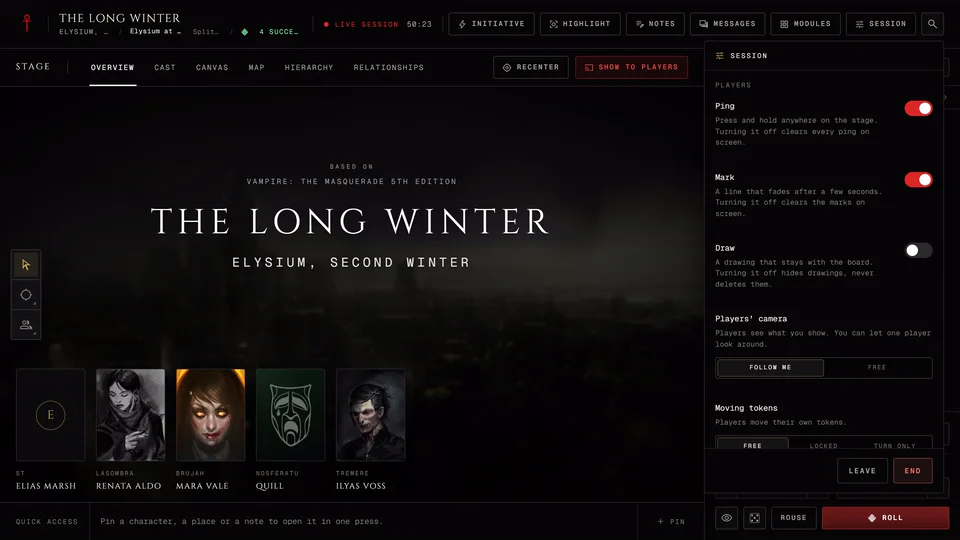
The storyteller picks the cards in the Session menu. Its Safety region has a Safety cards row that lists the cards that are on. Press Change to turn each one on or off and to set Show cards to the whole table. The same choices are in the chronicle's Settings under Features.
Related articles
About this article
- Type
- Guide
- Editions
- All editions
In this article
Need more help?

Ask the team in #ghoulapp-feedback on the Player Companion Discord. Or try #ghoulapp. GhoulApp players are active there and help each other.
Open Discord(New tab)