


Music in a session


On this page 7
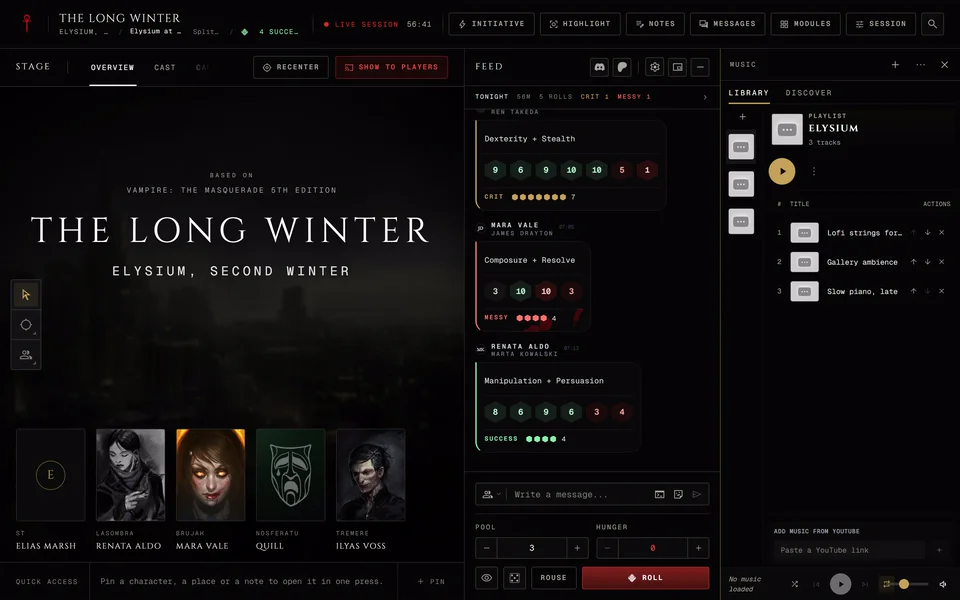
The storyteller can play music for the whole table from YouTube links. Everyone at the table hears the same track at the same moment. If someone's music drifts more than a couple of seconds behind the app pulls it back in line.
Only storytellers can open the Music module. It's under Sound with the other table tools. Players hear the music but can't change it. Music works the same in every edition.
Making a playlist
- Open Music from your modules at the table.
- Press New playlist. A playlist called "New playlist" appears with its name ready to change. Type a name and press Enter. Esc keeps the old name.
- Paste a YouTube link into Paste a YouTube link and press Add or Enter. The track's title comes from YouTube. If YouTube doesn't give one it reads "Untitled track".
- Add as many tracks as you like. Use Move up and Move down to change the order and Remove track to take one out.
If the link isn't a YouTube address the panel says "Not a valid YouTube link." and the link stays in the box so you can fix it.
Playlists belong to the chronicle, so they're there for the next session too. Your Library tab lists them with a search box at the top.
Playing
Press Play playlist (the big round button) to start from the first track. The bar at the bottom has Shuffle, Previous, play and pause, Next and the repeat button. Repeat steps through Repeat playlist, Repeat track and Repeat off. Stop shows up while a track is loaded. A track that won't play or doesn't start within a few seconds is skipped.
While the Music panel is closed you still have a thin music strip at the top of the feed with the track's name, play or pause, Next Track and the volume. If you pin Music to quick access its caret also offers Play or pause and Next track.
A playlist's menu
More actions on one of your own playlists has Play, Rename, Make public (or Make private) and Delete. Delete asks first and can't be undone. A playlist you follow has Play, Copy to library and Unfollow instead. In that menu ↑ and ↓ move and Esc closes it.
Playlists other people shared
Discover shows public playlists from other storytellers. Search them or sort by Trending or Newest and press Follow to keep one in your library under Following. You can play a followed list but you can't change it. Copy to library makes your own copy for this chronicle that you can edit.
The same public playlists are on the Community Playlists page at
ghoulapp.com/community/playlists. You can browse them there without a
session.
Volume
As the storyteller you set the volume for the room. The volume button opens a slider marked "Heard by everyone in the session".
Players can't change the room's level. Each player gets one button that mutes or unmutes the music on their own device. On a computer it appears when they hover over the music strip.
If you want players to set their own level turn on Let players set their own volume in your volume popover. It's off at first. With it on each player gets a slider that only changes their device and Follow room volume takes them back to yours.
What players see and hear
Players see the music strip at the top of the feed with the track's name and their own mute or volume. On a wide computer screen a small "Now playing" tag also sits at the top left of the stage while a track plays.
Browsers don't play sound on a page until you've clicked or pressed a key on it. A player who opened the table and hasn't touched it yet may hear nothing. One click anywhere on the page starts the music.
When the storyteller pauses the table the music waits too. On a computer the storyteller pauses with Space. The music stops when the session ends.
When a phone is showing the table in a room with a TV the music plays on the TV and the phone stays quiet.
Picking music ahead of time
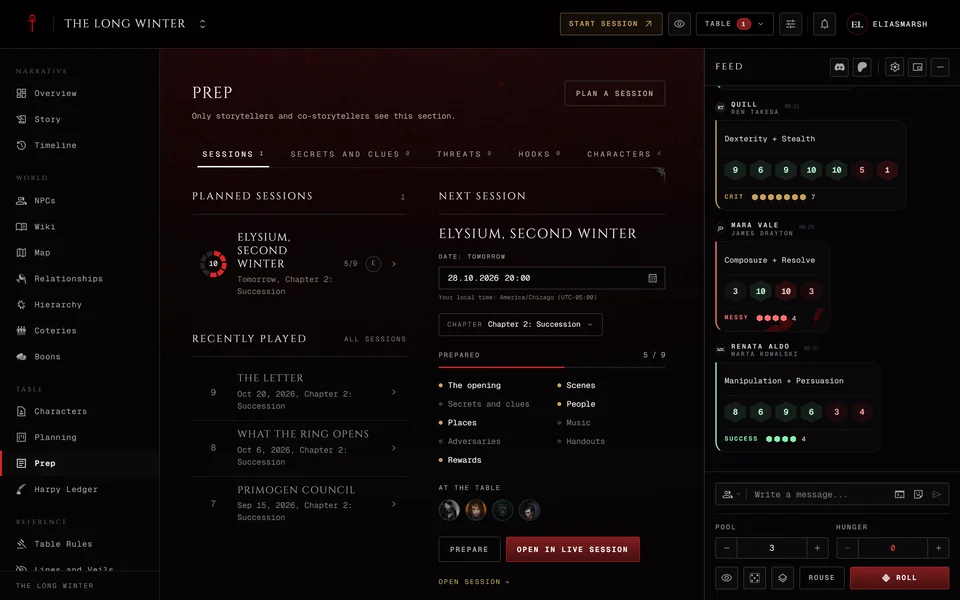
From a session's Prep page you can open the same Music panel. There each playlist has a Use button in place of play. Press it and it reads Chosen, so the playlists for that night are ready when you start.
Related articles
About this article
- Type
- Guide
- Editions
- All editions
In this article
Need more help?

Ask the team in #ghoulapp-feedback on the Player Companion Discord. Or try #ghoulapp. GhoulApp players are active there and help each other.
Open Discord(New tab)