


Can I turn off the dice animations and moving clips at the table?


On this page 5
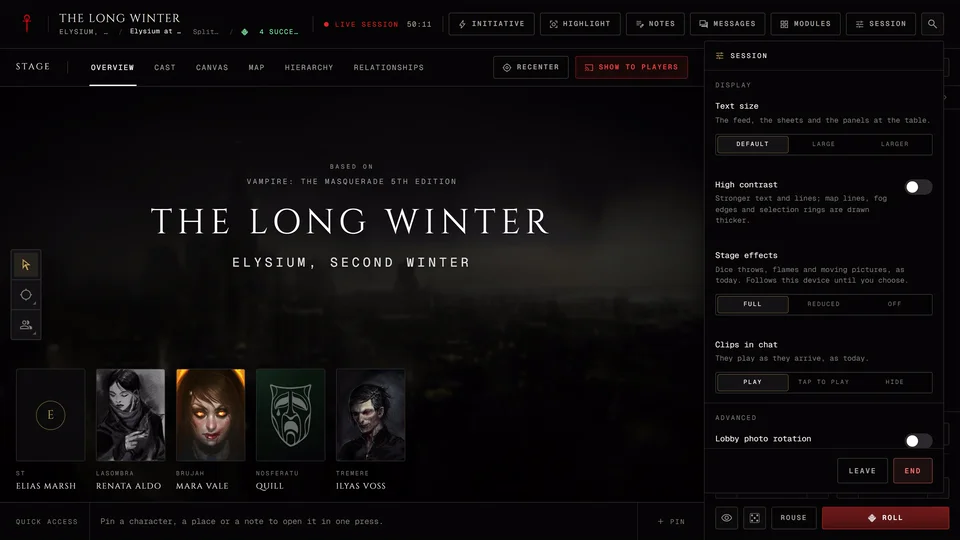
Yes. Open the Session menu at the table and scroll to Display. On a phone the same menu is in the Tools cell of the bottom bar. Everything there changes your screen only. The storyteller can't set it for you and you can't set it for anyone else. None of it depends on the chronicle's edition.
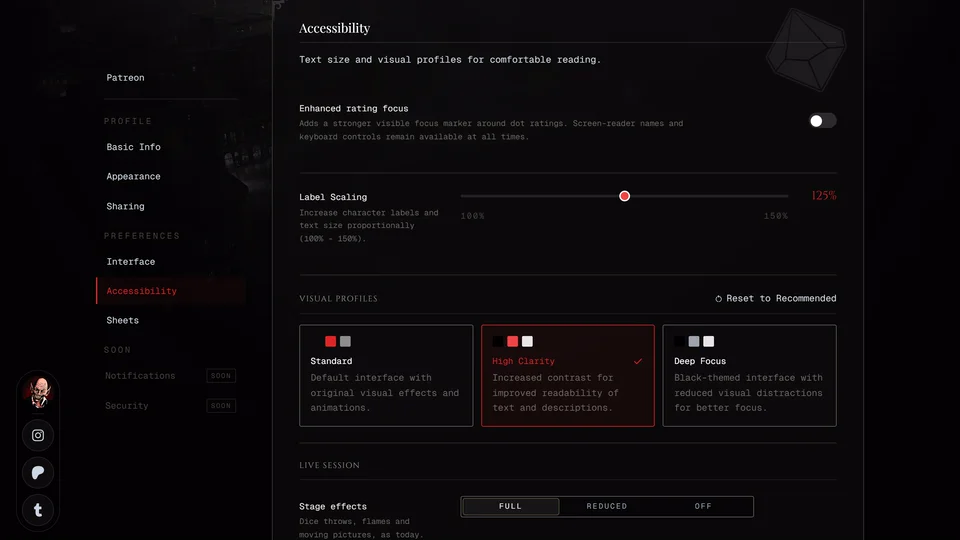
Stage effects
Stage effects has three steps. Full is the table with dice throws, flames and moving pictures. Reduced keeps a short dice throw but drops the flames and the blur and the pictures stay still. Off shows only the results and nothing moves. You still see every roll and every handout. On Off a chapter card turns into one line with its title instead of filling the screen.
Until you pick one the table follows your device. If your phone or computer asks apps to reduce motion you start on Reduced. The line under the switch then says "Follows this device until you choose."
Clips in chat
Clips in chat is for the GIFs and clips people post in the feed. Play runs them as they arrive. Tap to play shows a still picture and plays the clip without sound when you tap it. Hide shows a line with the clip's name and doesn't load it at all.
If you'd turned off media in the dice tray before this switch existed you start on Hide. To stop GIFs and stickers everywhere and not only at the table use GIFs and media in Dice settings.
Text size and High contrast
Text size makes the feed, the sheets and the panels at the table bigger. Default is the normal size, Large is a quarter bigger and Larger is half again. If you set a size between those on the Settings page the line reads "Custom" with your number until you pick one of the three.
High contrast draws stronger text and lines. On the map the lines, fog edges and selection rings get thicker. Until you touch it it follows your device's own contrast setting.
These two change the whole app and not only the table.
Faces on the stage (phone)
On a phone you also get Faces on the stage for the row of people at the table. Full shows each face with its clan and name. Small makes the faces smaller with the name. Folded turns the row into one button that says how many people are there and opens the People list.
The same switches in Settings
You'll find all of these in Settings under Accessibility. Stage effects, Clips in chat and Faces on the stage are in the Live session card. Text size is the Label Scaling slider there. High contrast is the Visual Profiles choice. Turning High contrast on picks High Clarity. If you'd chosen Deep Focus it keeps that one. Turning it off goes back to Standard. Change one place and the other follows.
Signed in your choices follow your account to your other devices the next time the app opens there. Signed out they stay in this browser. More about that page is in Accessibility settings.
Related articles
About this article
- Type
- FAQ
- Editions
- All editions
In this article
Need more help?

Ask the team in #ghoulapp-feedback on the Player Companion Discord. Or try #ghoulapp. GhoulApp players are active there and help each other.
Open Discord(New tab)