


Accessibility settings
- BluenchanterAuthor
- OzzEditor


On this page 5
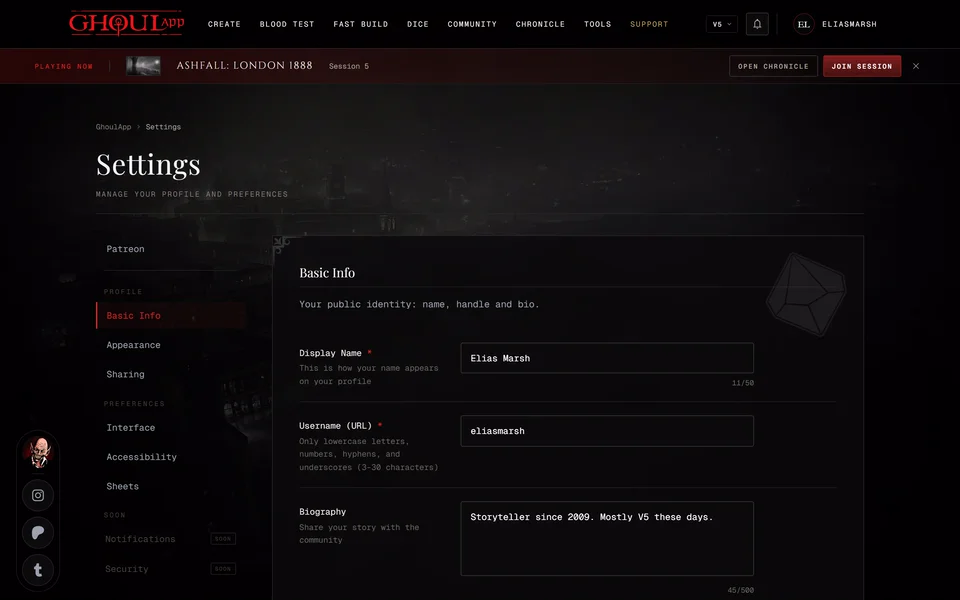
Open Profile Settings from the menu under your picture (Profile at the bottom on a phone) and choose Accessibility. Every change takes effect as you make it. There's no save step.
Text size and contrast
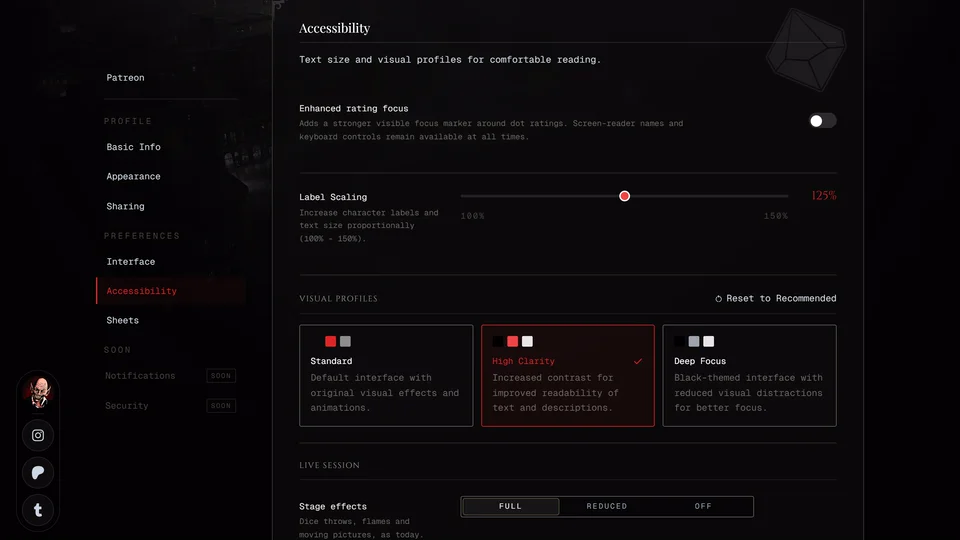
Label Scaling is a slider that makes the labels and text on character sheets larger. It goes from 100% to 150% and shows the size beside it.
Visual Profiles changes the look of the whole interface. Standard is the default with the original visual effects and animations. High Clarity raises the contrast so text and descriptions are easier to read. Deep Focus is a black interface with fewer visual distractions. Until you pick one GhoulApp follows your device's contrast setting.
Reset to Recommended at the top of Visual Profiles puts text size back to 100% and the profile back to Standard. It leaves the other settings on this page as they are.
Dot ratings with the keyboard
Enhanced rating focus draws a stronger marker around the dot ratings when you move through them with the keyboard. Tab to a rating and use the arrow keys: Right or Up adds a dot and Left or Down takes one away. Home sets the lowest rating and End the highest.
Live session
The Live session group sets how a live session looks for you. Stage effects can be Full, Reduced or Off. Until you pick one Stage effects follows your device's reduce-motion setting. Clips in chat decides whether clips Play, wait for Tap to play or Hide. Faces on the stage can be Full, Small or Folded and only applies on a phone.
Where they're kept
The note at the bottom of the section says where your choices are kept. Signed in, they follow your account to every device where you sign in. The text size and high contrast here are the same values as the Display part of the live session menu, so changing one changes the other. Signed out, they're kept on this device only.
Other things that help
If your device is set to reduce motion GhoulApp follows that setting. The app has a dark interface only and there's no light theme. You can change the language in the footer. See How do I change the app's language?
The accessibility statement in the footer lists what doesn't work well yet. The chronicle map and the relationship graph are examples: they have no screen reader version, but the same records are in ordinary lists elsewhere in the chronicle. If something blocks you write to info@playercompanion.com or tell us on Discord. Say which page, what you were trying to do and the browser and assistive software you use.
Related articles

About this article
- Type
- Guide
- Editions
- All editions
In this article
Need more help?

Ask the team in #ghoulapp-feedback on the Player Companion Discord. Or try #ghoulapp. GhoulApp players are active there and help each other.
Open Discord(New tab)