


I can't sign in


On this page 5
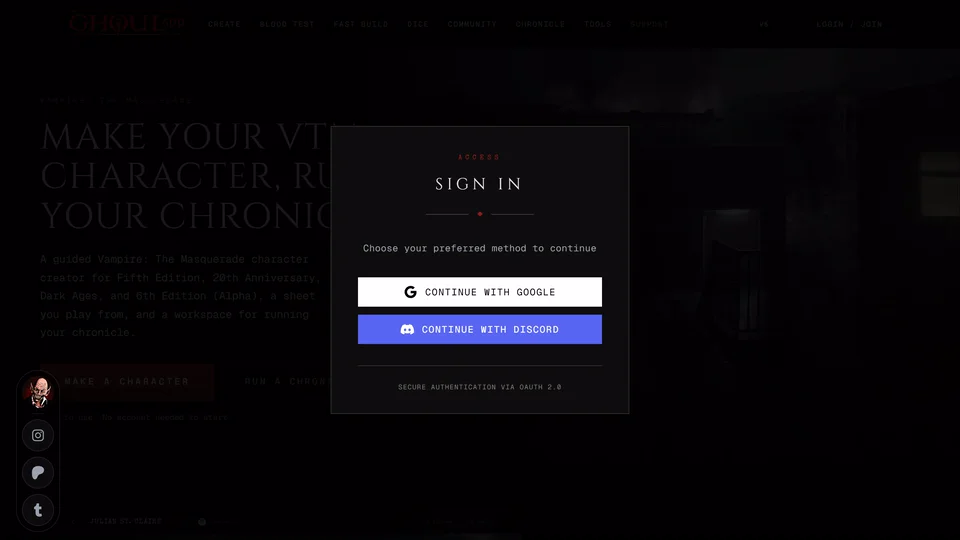
You chose Continue with Google or Continue with Discord and something went wrong: you aren't signed in afterwards, you see an error or you're in an account that has none of your characters. Check these causes in order.
You opened GhoulApp inside another app
A link you open from Discord, Instagram, Facebook, Messenger, WhatsApp, TikTok, Snapchat, X or a similar app opens in that app's own built-in browser. Google often refuses to sign anyone in there and the built-in browser can lose your sign-in on the way back.
When GhoulApp notices this the sign-in window says "You may be using an in-app browser." Choose Copy Link, open Chrome or Safari, paste the link and sign in there. Most apps also have a menu option to open the page in your browser. An invite link shows its own note on the invite page when it's opened inside an app. The fix is the same.
Your browser blocks site data
GhoulApp keeps you signed in with data stored in your browser. If the browser blocks site storage for GhoulApp or a privacy extension clears it you can't stay signed in. Allow site data for GhoulApp or try a normal window. Private windows lose the sign-in.
You're signed in but your characters are missing
You may have signed in with Google the first time and Discord now or the other way round. If your Google and Discord accounts use different e-mail addresses they make two separate GhoulApp accounts. Choose Log Out (see How do I sign in?) and sign in again with the one you used before.
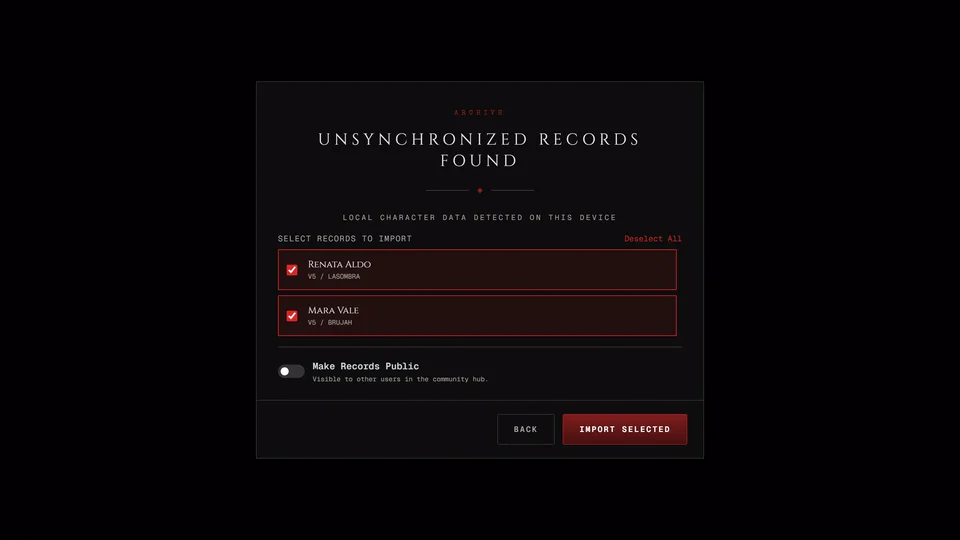
Characters you made without an account are kept in the browser you made them in. They aren't in any account until you import them. See Can I use GhoulApp without an account?
The sign-in window shows an error
Close the sign-in window and try again. If it keeps happening sign out of Google or Discord in that browser, sign back in there and then try GhoulApp again.
If an invite page says "Sign-in could not be completed" open the invite link in Chrome or Safari and sign in from there.
Still not working
Ask on our Discord server or write to info@playercompanion.com. Tell us which one you sign in with, your browser and device and the exact text of any error.
Related articles


About this article
- Type
- Troubleshooting
- Editions
- All editions
Need more help?

Ask the team in #ghoulapp-feedback on the Player Companion Discord. Or try #ghoulapp. GhoulApp players are active there and help each other.
Open Discord(New tab)