


Your settings
- BluenchanterAuthor
- OzzEditor


On this page 4
Open the menu under your picture at the top of the page (Profile in the bottom bar on a phone) and choose Profile Settings. You need to be signed in.
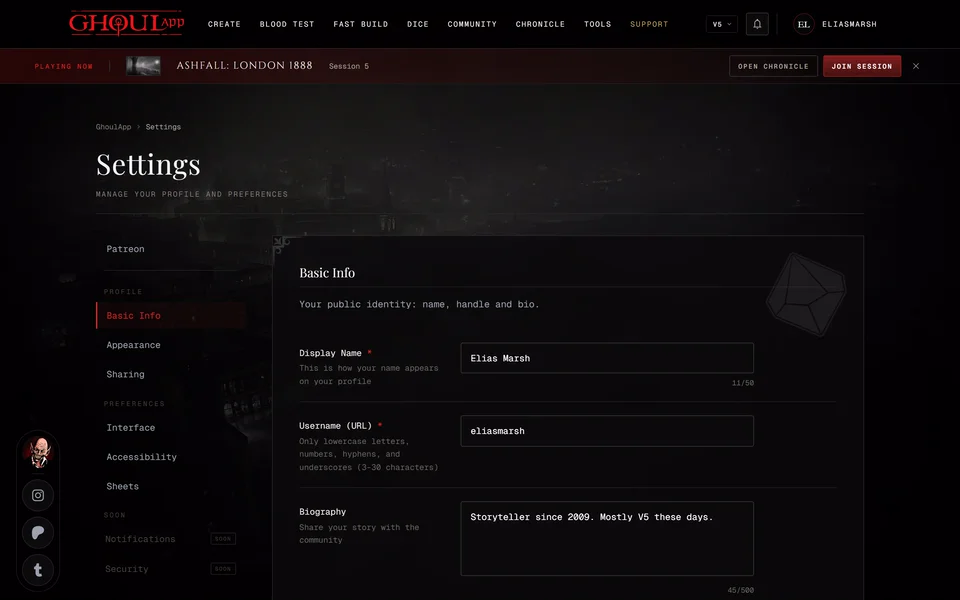
The sections are listed down the side or across the top on a phone. Patreon comes first. Then comes the Profile group for what other people see and the Preferences group for how the app looks and behaves for you.
Saving
In Basic Info, Appearance, Sharing and Sheets a bar with Unsaved changes shows up at the bottom when you change something. Choose Save Changes to keep it or Cancel to go back. If you leave the page without saving the change is lost.
Interface and Accessibility take effect as soon as you choose. There's no save step.
Patreon
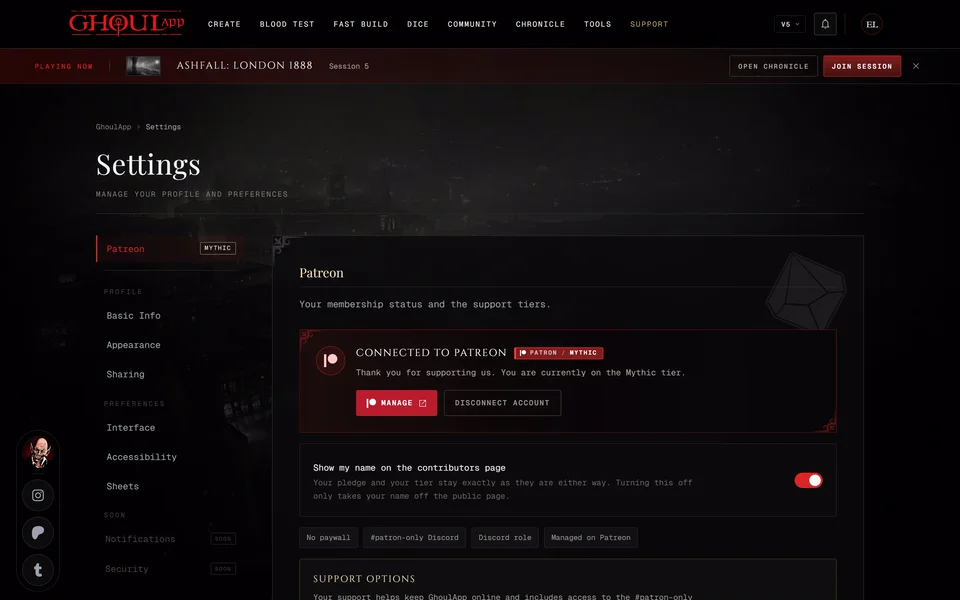
The top card shows your Patreon membership if you have one and a way to link it. Under it Support options lists the six tiers with their monthly price. Each has a Support button that opens Patreon. Your own tier is tagged Current and its button reads Manage. Once your Patreon account is linked there's also a switch for your name on the contributors page. See Link your Patreon account and Can I keep my name off the contributors page?
Profile
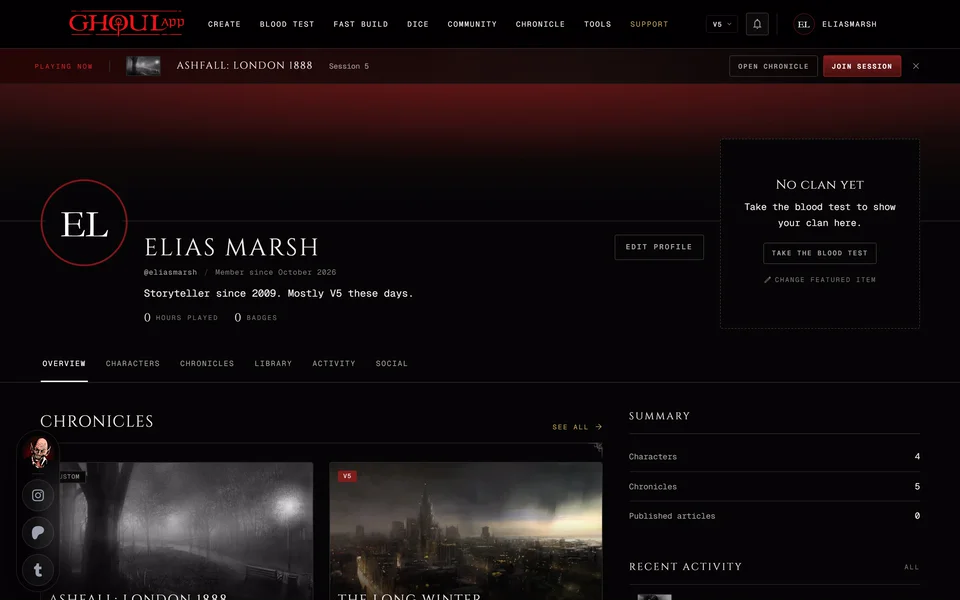
Basic Info holds your names and a few lines about you. Display Name is the name shown on your profile. It can be up to 50 characters with spaces and any characters you like. Username (URL) is your handle and also your profile address. It's written in lowercase as you type. See Change your name, username or profile link. Biography is up to 500 characters. Display Name and Biography count the characters as you type.
Appearance is how your profile looks. Profile Avatar lets you upload a picture, use your Google or Discord picture or paste a link to an image. Under it you pick a Profile frame and for some frames a Frame color. Profile cover is a wide picture across the top of your profile: JPG, PNG or WebP up to 15 MB. You can set which part of it stays in view. Featured on your profile shows a clan, a character or a chronicle beside your name. Only public characters and chronicles can be featured. Clan Affinity is the result of the Blood Test quiz with Take the test or Retake test to open it. If you run a chronicle you also get Website or Social Link for a link on your profile.
Sharing shows Your Profile URL with Copy Link. Anyone with the link can see your public profile. Hide Social Counts hides your follower and following counts on your profile. You still see them here under Social Stats with your number of public characters.
Preferences
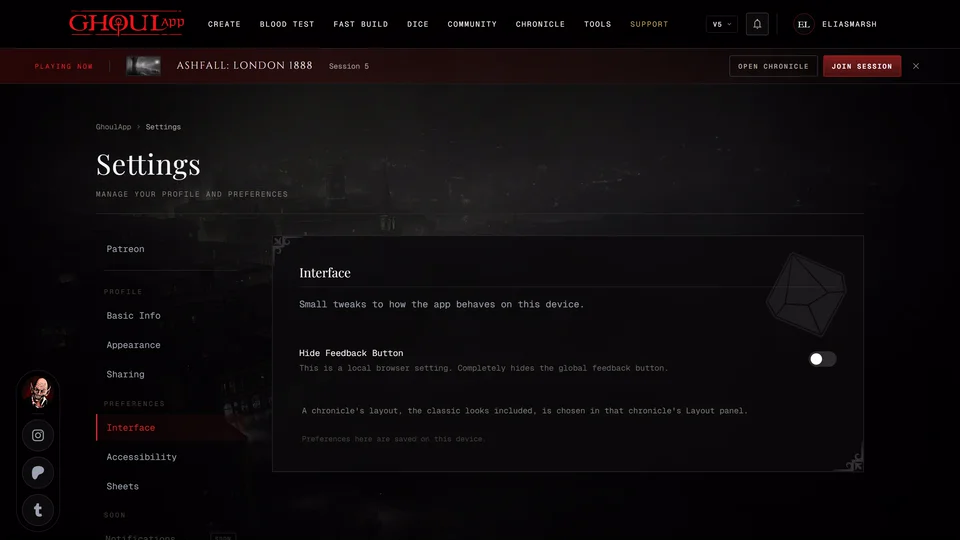
Interface has Hide Feedback Button. It removes the feedback button from every page in this browser. These preferences are saved on this device only. The look of a chronicle isn't set here. Each chronicle has its own Layout panel for that.
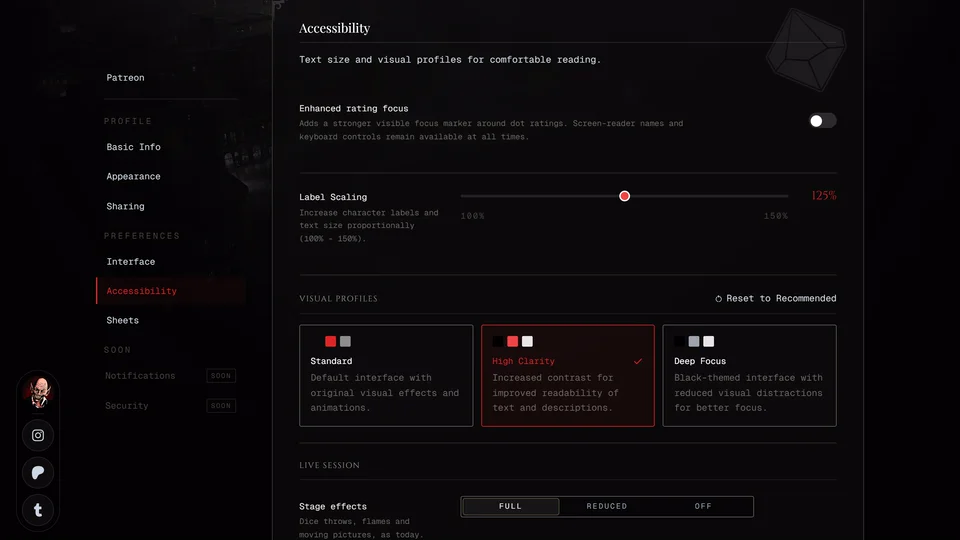
Accessibility has text size, contrast, focus and live session display settings. See Accessibility settings.
Sheets sets the default look for all your character sheets: the theme, fonts, colours, layout, portrait and clan crest, a background picture and display options like decorations, borders, the light sheet and the paged view. It's saved to your account. Reset to app defaults puts everything back.
Related articles

About this article
- Type
- Guide
- Editions
- All editions
In this article
Need more help?

Ask the team in #ghoulapp-feedback on the Player Companion Discord. Or try #ghoulapp. GhoulApp players are active there and help each other.
Open Discord(New tab)