


Show the table on a second screen


On this page 5
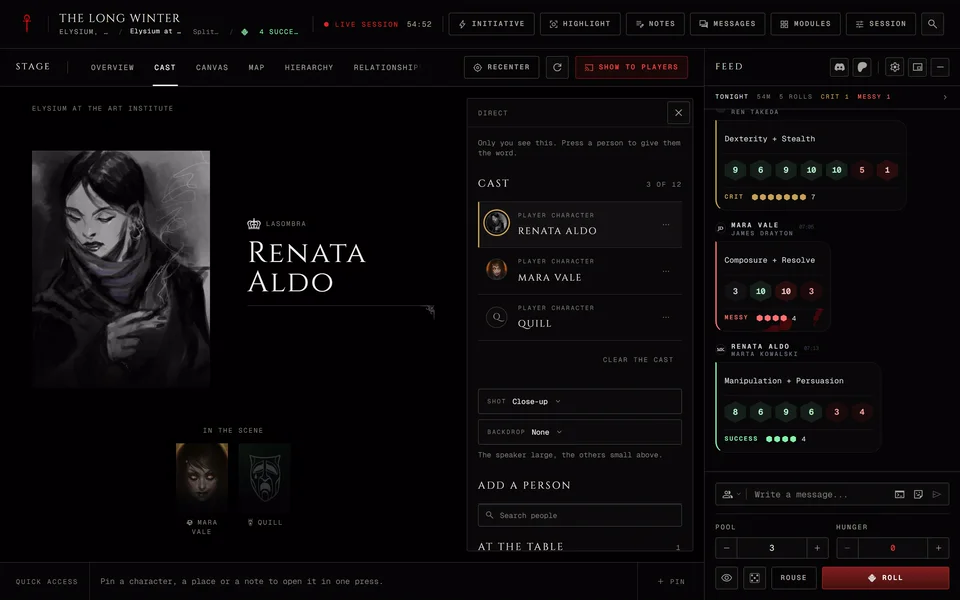
There are two ways to show the table somewhere else. Connect a display puts the stage on a TV or a tablet in the room and that device doesn't sign in. The Stage window opens the stage in a separate window on your own computer for a second monitor or for streaming.
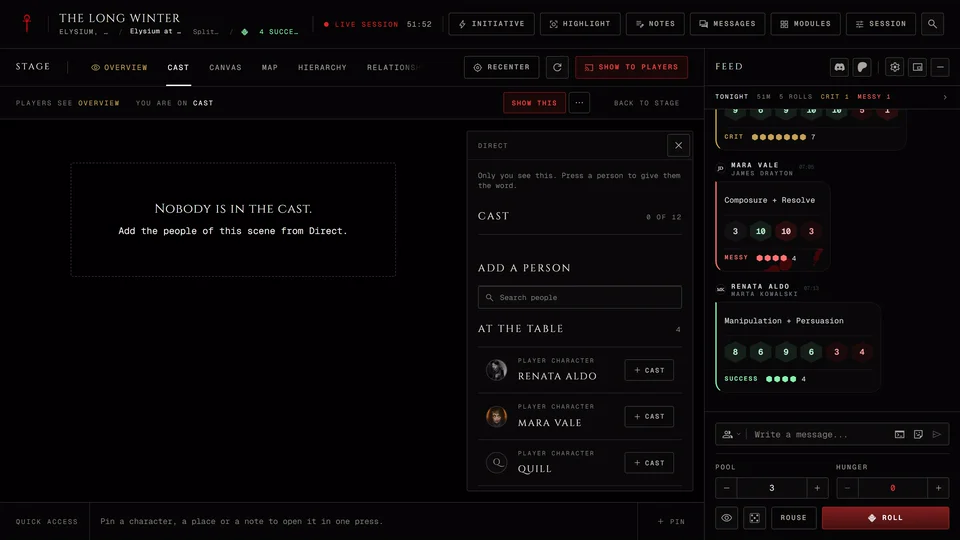
Both belong to the chronicle's storytellers and co-storytellers. Players never see them. Both live in the Session menu under Stage. Connect a display only shows up while a session is running and disappears once it has ended. If you're a storyteller of a running session and neither of them is in your Session menu then broadcasting isn't open at this table. Ask in the GhoulApp Discord and tell us the chronicle.
They work the same in every edition. The pictures of NPCs and characters follow the chronicle's edition the way the rest of the table does.
A TV or a tablet
- In the Session menu find Connect a display and press Connect. The drawer opens with a new code already made.
- Type a name into Name this display if you like, such as "Living room TV". You can change it later. It saves when you leave the field.
- On the TV or tablet open the address the drawer shows. It ends in
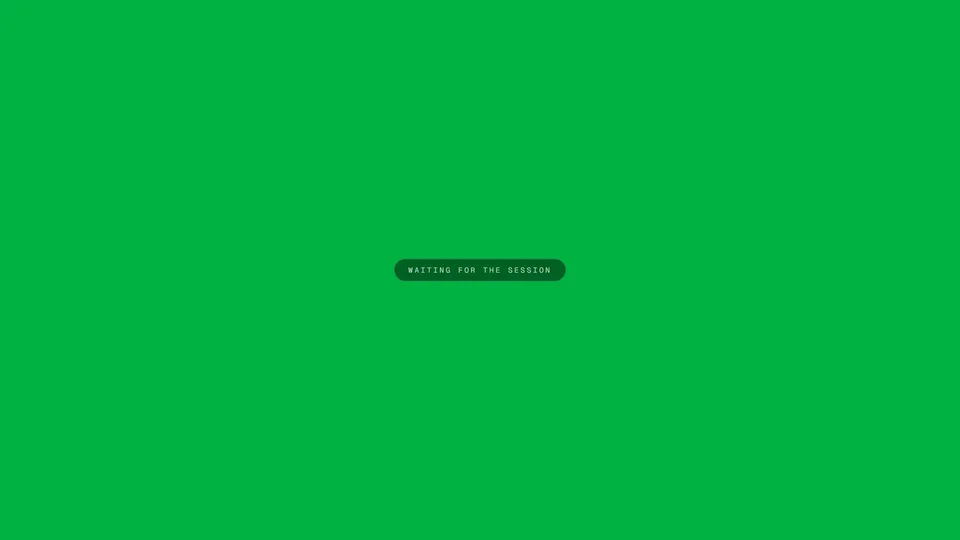
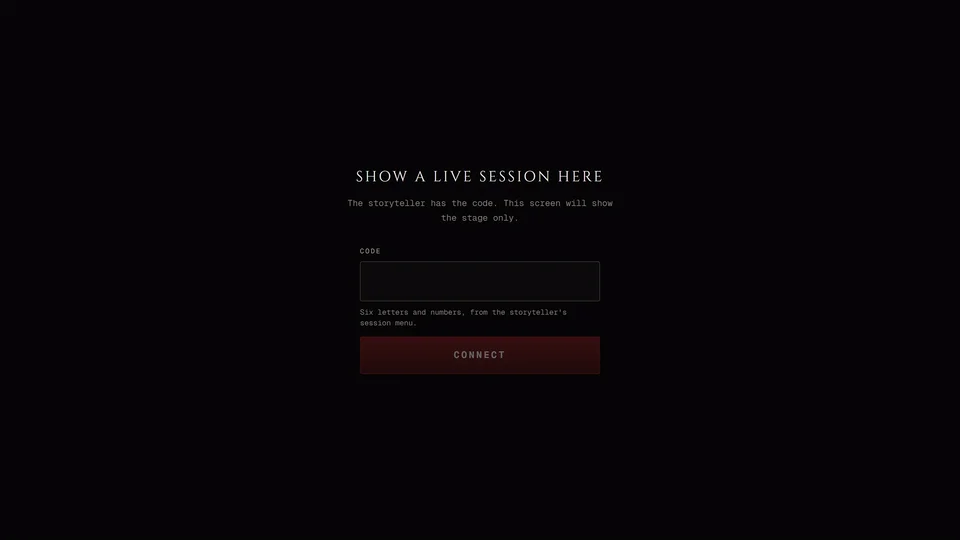
/display. Open the display page here opens it in a new tab on your own computer if you want to try it first. - The page there reads "Show a live session here". Type the six letters and numbers into Code. Lowercase turns into capitals by itself and Connect wakes up once all six are in. Press it or press Enter.
The drawer says "Waiting for the display" until the screen picks up the code. Then it says the display is connected. Each code works once and for ten minutes. The drawer counts down the minutes left. When it runs out it says "The code ran out." and New code makes another. If a code can't be made at all try New code again.
A connected screen stays connected when you reload it. On a phone Connect a display is in the Session menu inside the Tools cell. The drawer opens after the menu closes.
What a display shows
A display shows the stage and nothing else. It never shows chat and it always draws on a dark background.
It shows one thing at a time in this order: a chapter card while one is up, then a handout you've opened for everyone, then the record of whoever holds the spotlight, then a record or a picture you've shown to everyone. A record or picture lifts after two minutes. Rolls show as they land.
Two things never reach it. Anything you show to chosen players stays off. So does anything you showed before the display connected.
Controlling it from your table
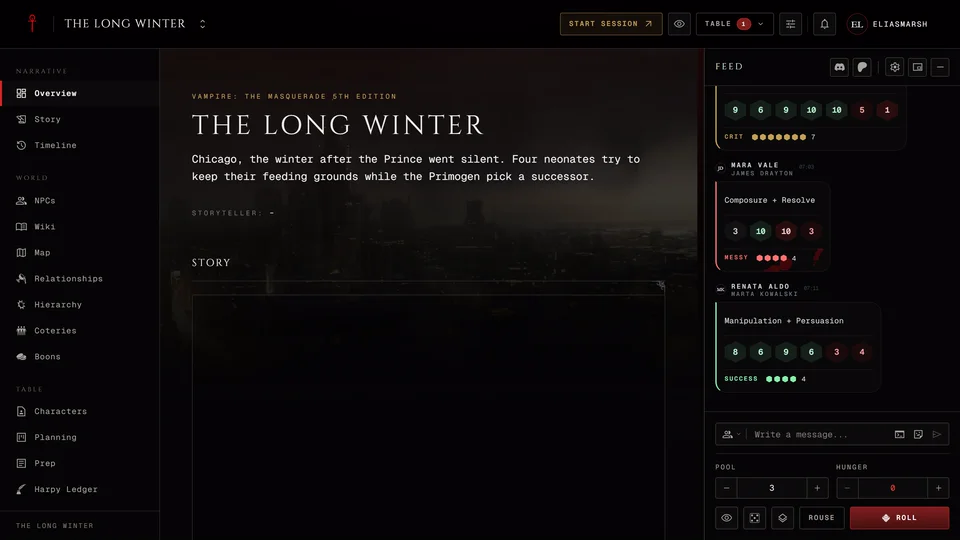
While a display or the stage window is on your computer's table shows a line under the stage with a small live picture of what it shows and the names of the connected displays.
Blank display hides everything but the chronicle's name. It blanks the stage window too. Use it while you set up a scene. Show the stage again brings it all back. Disconnect cuts off every connected display at once. To connect one again you need a new code.
These buttons are on a computer only. The phone table doesn't show that line.
A stage window on your computer
In the Session menu at How the stage follows pick Stage window. The stage opens in a window of its own that you can drag to a second monitor or capture in your streaming software. A phone doesn't have this choice.
Your browser may block the window. The Broadcast panel then says "The browser blocked the window. Allow pop-ups for this site, then try again." Allow pop-ups for the site and press Open window.
While the window is open you work in your own tabs and the window keeps the table's view. A line under the stage reads "Stage window open". Show this sends the tab you're on to the window. When you close the window the stage goes back to Linked. How Linked and Hold work is in Keep the players' stage while you look something up.
The window talks to your table through the browser. It has to stay in the same browser on the same computer as your table tab.
The Broadcast panel
Picking Stage window also opens the Broadcast panel where you set up what the window shows. A connected display follows the same setup apart from chat and the background.
Dice shows the roll in 3D, as a line in Chat or Off. Layout picks how the stage sits in the frame: Lower, Cast, Full, Dice or Chat. Cast decides who appears. Rollers shows whoever rolls, All PCs shows every player character and Custom opens a list where you pick people yourself.
Background has Green, Blue and Magenta for chroma keying in OBS, Dark for a plain look and Custom color for anything else. In OBS you capture the window and then key out the color.
Under Show four switches turn on or off the Cast strip, the Roll result, Highlight roller (it lights up the cast member who rolls) and Chat on stream. Stage scale makes everything bigger or smaller, from 75% to 150%.
Profiles keeps setups you like. Type a name and press Save profile or Enter. You can keep up to twenty. Each one can be renamed or deleted.
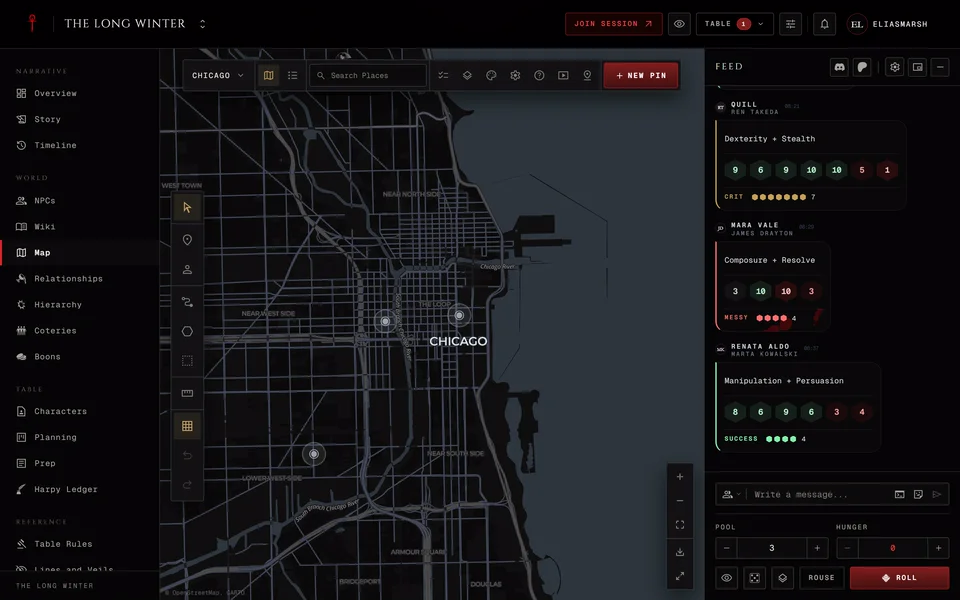
The map has its own player window for a projector. When it's open the same line under the stage gets map controls. That one is covered in The chronicle map.
Related articles
About this article
- Type
- Guide
- Editions
- All editions
In this article
Need more help?

Ask the team in #ghoulapp-feedback on the Player Companion Discord. Or try #ghoulapp. GhoulApp players are active there and help each other.
Open Discord(New tab)