


The Session menu, views and layouts


On this page 6
Press Session at the right end of the table's header and the Session menu opens. It holds how the table looks and runs. Players and storytellers get different parts of it and the regions below are in the order the menu draws them. On a phone the whole menu sits inside Tools in the bottom bar.
Safety and Workspace
Safety heads the menu. Players get My lines and veils there. The storyteller gets a Safety cards row with Change and a Lines and veils row with Open, which also counts the topics and how many changed. Observers don't get this region. What the cards do is in Send a safety card at the table.
Workspace has Chat and dice. Its button opens the feed and puts the cursor in the chat box. Under it is a switch that reads Enter fullscreen or Exit fullscreen.
For the storyteller
Stage is the storyteller's and on a computer it starts with How the stage follows. Linked shows the table the tab you open. Hold keeps what the table sees while you work in other tabs. Stage window opens the stage in a window of its own for a second screen. It's offered when your chronicle can broadcast. How the three work while you play is in Keep the players' stage while you look something up.
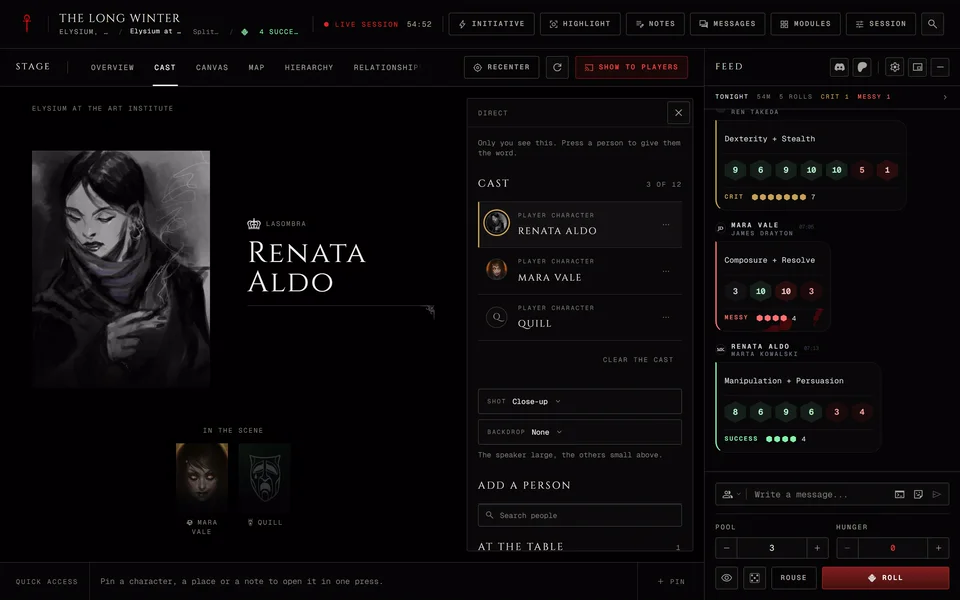
The region also has Stage tabs, See as a player and Connect a display. More in The Cast stage and Show the table on a second screen.
See as a player turns your table into what one player sees. Nothing you press there is sent.
The table holds the curtain. The switch reads Lower curtain while the stage is open and Raise curtain while it's down. With the curtain down players see "Scene change" and a line you can write in Line on the curtain. Tick Also set as the scene name and that line becomes the scene's name too. F does the same as the switch.
Pause puts a veil over the players' stage. The stage, the turn order, music and timers wait and chat stays open. Every seat sees that the table is paused. The switch then reads Resume and Space does the same. Pause isn't in the menu while the table is in prep.
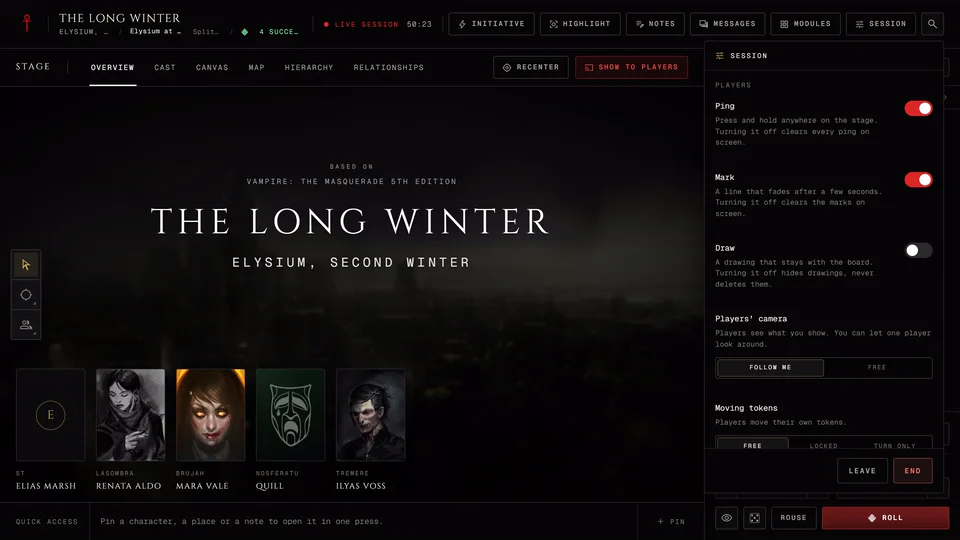
Players decides what players may put on the stage. Ping lets them press and hold to point at something. Mark draws a line that fades after a few seconds. Draw leaves a drawing on the board. Turning Ping or Mark off clears them from the screen. Turning Draw off hides the drawings and never deletes them.
Players' camera is Follow me when players should see what you show. With Free they look around on their own. Moving tokens is Free, Locked (only you move them) or Turn only (only the player whose turn it is). Each player has Change to give one player their own settings. When there are drawings on the stage Erase all clears every one of them.
For players
Players get Shown to you in place of those. It lists what the storyteller showed you tonight with the time. Press a row to open it again. Your handouts are listed under it.
Appearance and Display
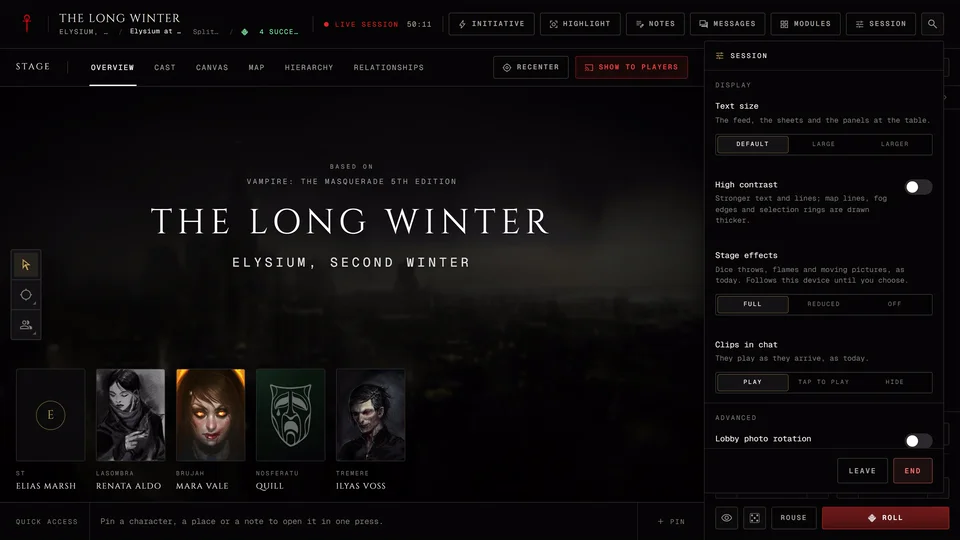
Appearance starts with View on a computer, which is described in the next section. Then come Layout with its Change button, Compact header, Hide portrait rail and on a computer Compact portrait rail while the rail is showing.
Display has your Text size, High contrast, Stage effects and Clips in chat. On a phone it adds Faces on the stage. Text size and high contrast are the same values as your accessibility settings. The effects are explained in Can I turn off the dice animations and moving clips at the table?
Advanced is the storyteller's last region.
- Join as my character puts your own character in the people rail where the storyteller card would be. It's only there when you have a character in this chronicle.
- Lobby photo rotation cycles the chronicle's revealed place photos behind the Overview stage.
- Roleplay chat adds an in character and out of character switch to everyone's chat box.
- NPC brief shows one line under the cast about the NPC who's speaking. Only you see it. It's on until you turn it off.
Lobby photo rotation and Roleplay chat change the table for everyone. The other two are yours alone.
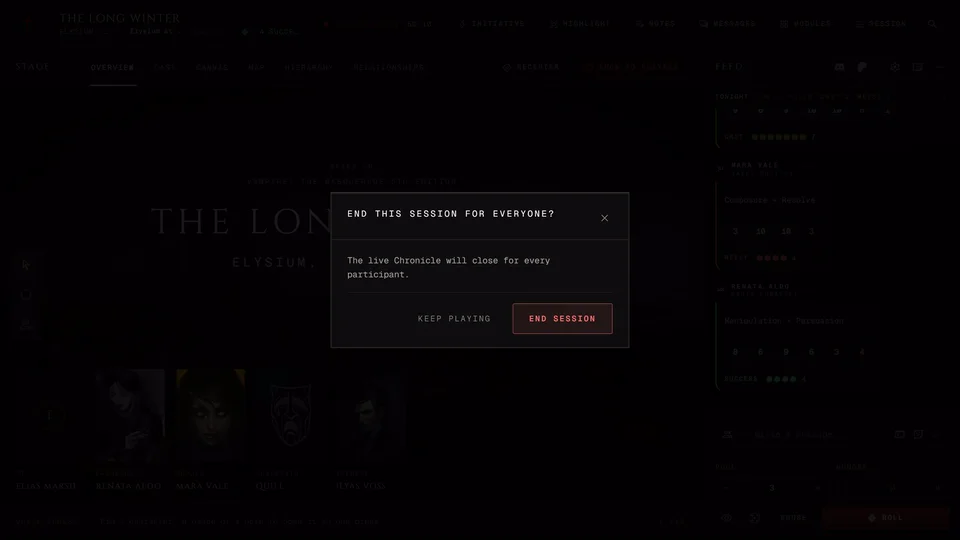
At the foot of the menu Leave takes you out and the session keeps going for the others. The storyteller also has the red End button, except in prep. What happens then is in End a session and save it.
Four views
Each person picks their own view under Appearance and it doesn't move anyone else's screen. The line under the switch says what the view does.
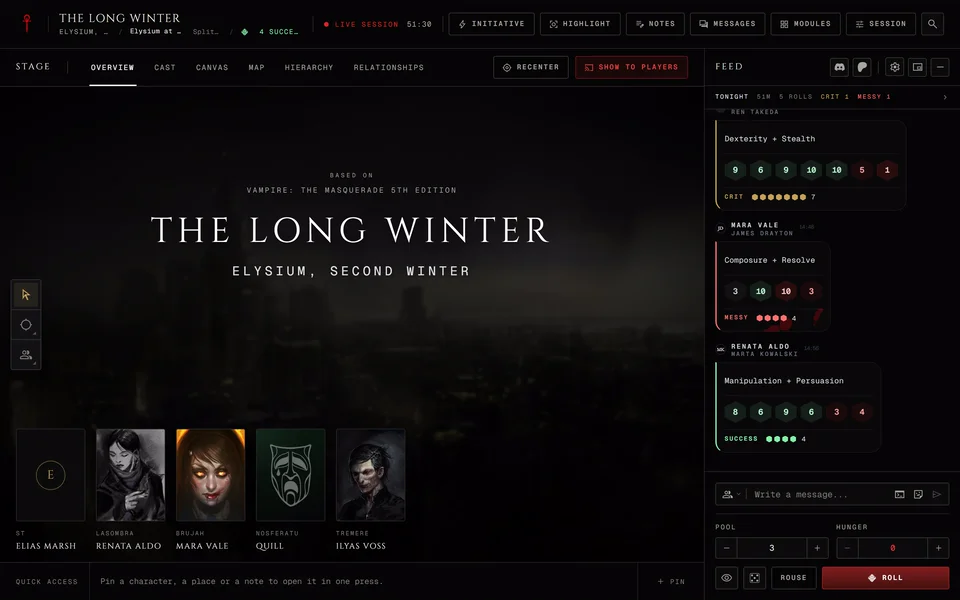
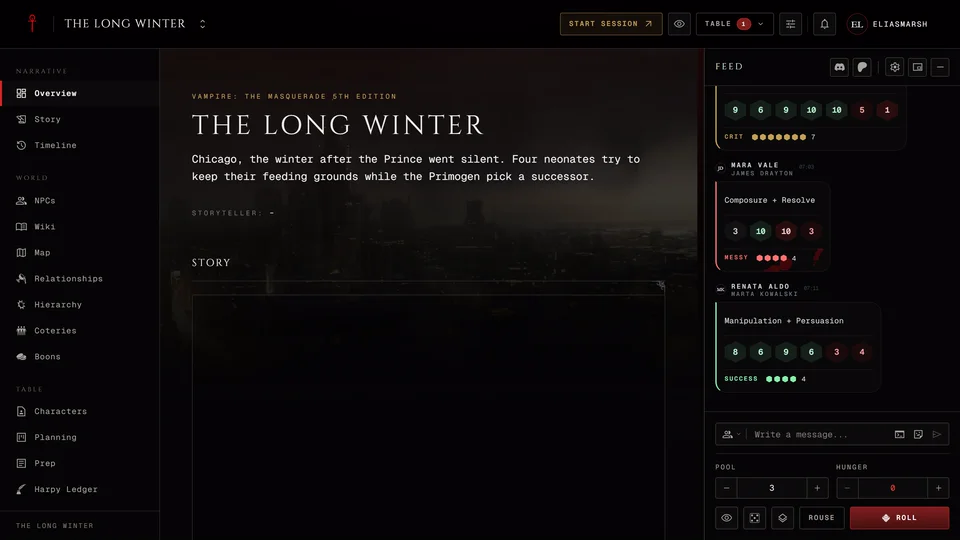
Bands is the default. The stage sits between the header and a quick access row with the feed beside it. Full stage lets the stage take the whole window. The header, the feed and quick access lie on top of it and Hide the bars folds them away. Show the bars brings them back. Columns puts the people in a column on the left, then the stage, then the feed. Islands is like Full stage with the bars floating as separate boxes.
In Columns the people column shows each character with their clan, who's away, whose turn it is and their conditions. The turn order sits under them. Press Fold the column to shrink it to a strip of faces.
On a phone there's only one view and the choice is hidden.
Layouts
A layout remembers your view, what's open in the side panels and the header switches. It never touches your pins, notes or the boards. Press Change on the Layout row to open the Layouts drawer.
There are a few presets to start from. Picking one changes only your screen.
- Minimal is the stage and the feed.
- Story puts the story and NPCs at the side. The storyteller gets the music at hand and a player gets their sheet.
- Combat switches to Columns. The storyteller gets the adversaries and Quick NPC docked on the right.
- Map lets the stage fill the window with NPCs at hand.
- Canvas lets the stage fill the window with a compact header.
- In the room is for players sitting around a real table. Their phone opens on their sheet and a line over the phone bar says what's on the TV and that the music plays there.
Arrange the table how you like it and press Save as new to keep it under Your layouts. You can Rename or Delete your own layouts. Reset to default takes you back to the table's default and keeps your saved layouts. Layouts are saved to your account so they follow you to another device.
A storyteller can pick the layout players start with under For the table. The one they picked is marked "Players start with this". Players who never changed theirs follow it. Players who picked their own get a suggestion from the storyteller they can Apply or Ignore.
Related articles
About this article
- Type
- Guide
- Editions
- All editions
In this article
Need more help?

Ask the team in #ghoulapp-feedback on the Player Companion Discord. Or try #ghoulapp. GhoulApp players are active there and help each other.
Open Discord(New tab)