


The dice tray
- OzzAuthor and editor

On this page 7
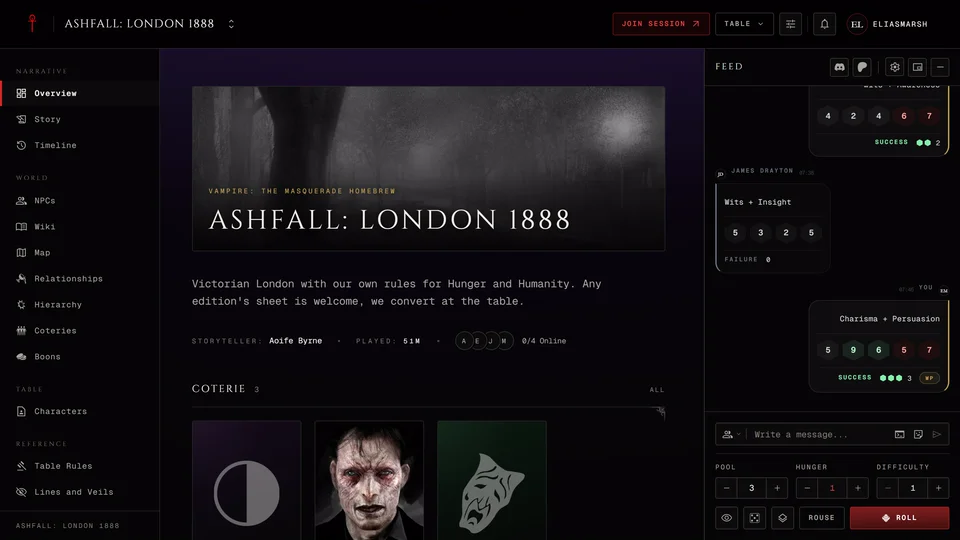
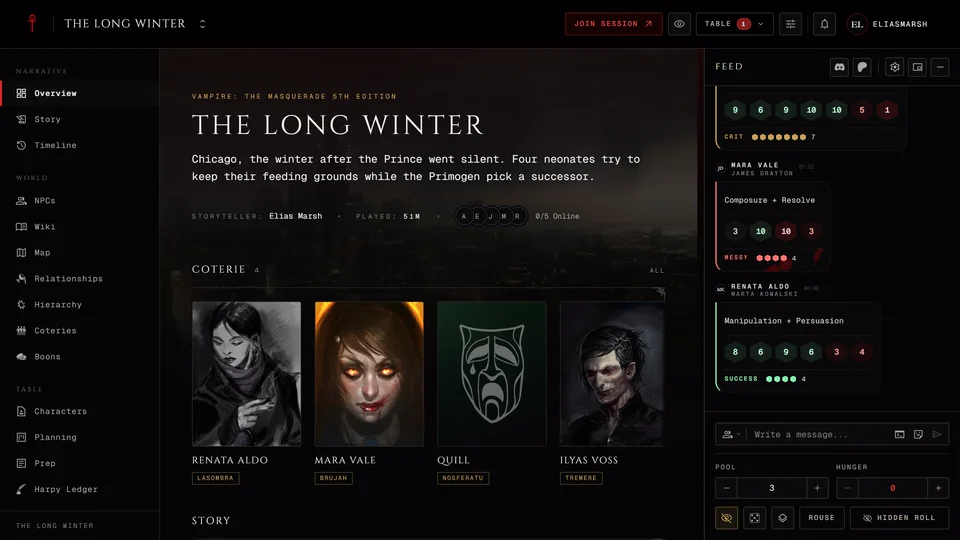
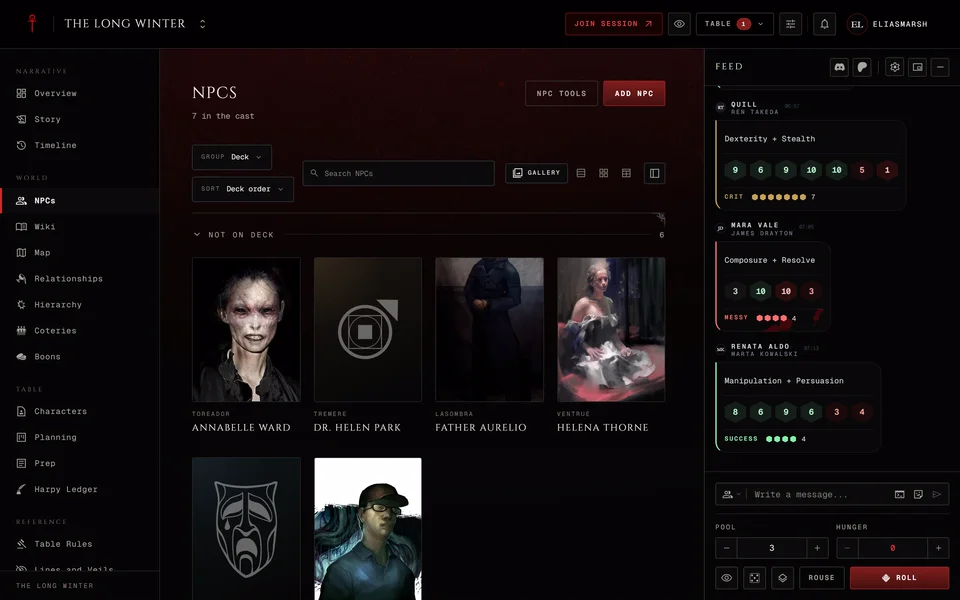
Every chronicle has one shared dice tray. When you roll there everyone who has the chronicle open sees the result, on the chronicle's pages and at the live table. The same feed carries the table's chat, so rolls and talk sit in one line.
Where to find it
On a computer the tray is the Feed rail on the right of the chronicle. Two small buttons at the top right of the rail change its size. One turns it into a peek window you can drag and resize. The minus button shrinks it to a round d10 bubble that counts the new entries you missed. Press the bubble to bring the tray back.
On a phone press Dice in the chronicle's bottom bar. At the live table the cell is called Feed. The tray opens from the bottom and you drag it down by its top edge to close it.
Making a roll
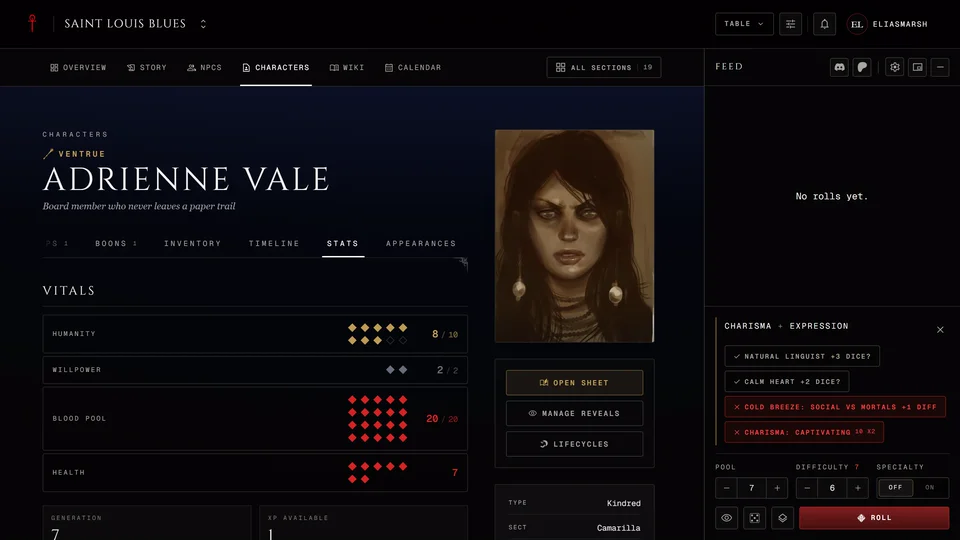
Inside a chronicle you build a pool from your sheet. Open it and press the names of the traits you want, like Strength and Brawl. The tray shows the pool with each trait as a chip you can remove and the name of the sheet it came from. You can also type a number into Pool yourself.
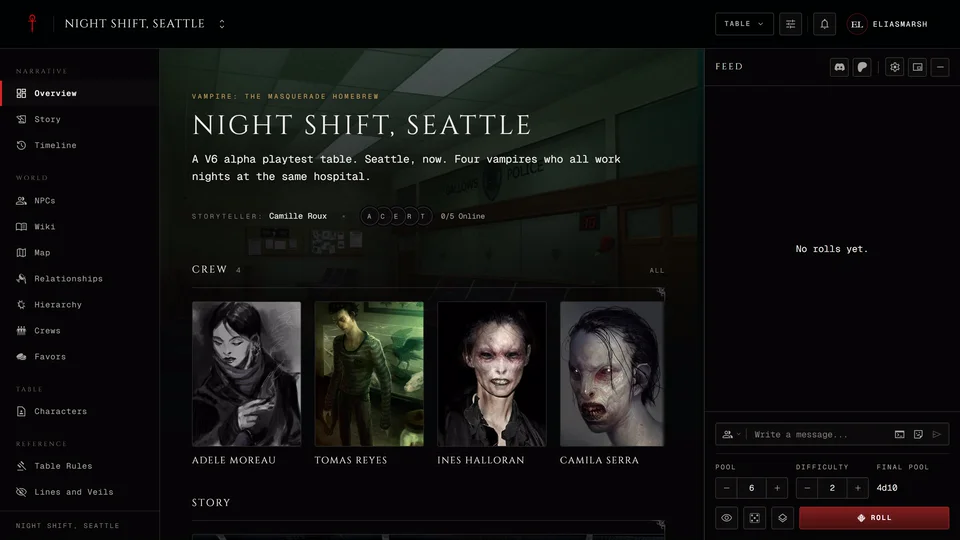
Next to the pool you'll see what your edition needs. In V5 that's Hunger. Difficulty joins it once you turn it on in the settings. V20 and Dark Ages have a Difficulty and a Specialty switch. V6 shows the Final pool after the difficulty has taken its dice. If your sheet has wounds or conditions that cost dice they show as chips on the line above the button.
Press Roll. Hold it for two seconds and it reads Charged while a gold line fills along its foot for three more seconds. At the end it reads Charged, max. When you let go everyone's feed waits as long as you held before the dice land. It doesn't change the dice at all. It's there for the suspense. Slide your finger or the mouse off the button to cancel.
From the keyboard, Tab to the button and press Enter or Space. That rolls at once with no hold.
How each edition reads the dice is in its own article: V5, V20 and Dark Ages and V6.
Lucky Dice holds a plain Roll D20 and Roll D100 for anything the rules leave to chance. V5 vampires with a sheet bound to the chronicle also get a Rouse button for a Rouse Check. At the live table R does the same. A V5 storyteller with no character bound gets Rouse too: it posts a plain Rouse Check that changes no Hunger. A player at the live table has Actions next to it: it sets up a Discipline or another action from the sheet without opening it.
Using the feed
Hover over one of your rolls and a small arrow appears beside its time. That's Prefill from this roll: it puts the same pool back in the tray so you can roll it again. The newest rolls are always there. Load older at the top of the feed fetches what came before and Open Chronicle Log takes you to the whole record.
Rolling in secret
The eye button beside the roll button keeps a roll away from the table. For a player it reads Roll privately to the storyteller and the roll button reads Roll privately. Only the storytellers see that roll. The eye turns itself off afterwards so your next roll is public again.
For a storyteller the eye reads Hide rolls from players and it stays on until you turn it off. The button reads Hidden roll while it's on and every hidden roll shows "Hidden: only you can see this roll". Rolls you make for an NPC start hidden every time you open the chronicle. Storytellers can still read hidden rolls later in the Chronicle Log.
Talking in the feed
Type in the same box and press Enter or the send button to post a
message. If you write a line and a roll label together put a | between
them, like I swing at him | Strength + Brawl.
Type / or press Commands to see the commands, such as /me for
an action or /r 7 to roll seven dice. ↑ and ↓ move through the
list, Enter or Tab picks one and Esc closes it. Type @ and a
name to mention someone. The same keys pick from that list. What each
command does is in Session commands. Who reads your
messages is in Can we chat in the app?.
For storytellers
On a chronicle page your row has Pools next to Lucky Dice. Pools lists an NPC's saved dice pools and puts one in the tray without opening the NPC's page. A saved pool made of plain numbers fills the pool. One written with trait names goes into the label so you can finish the count yourself.
At the live table these fold into one menu called Roll tools. It holds Ask for a roll to send players a request for a pool, then Pools, then the d20 and d100.
Dice settings
Dice settings at the top of the tray opens your choices. They're kept in this browser, so your phone and your computer can differ.
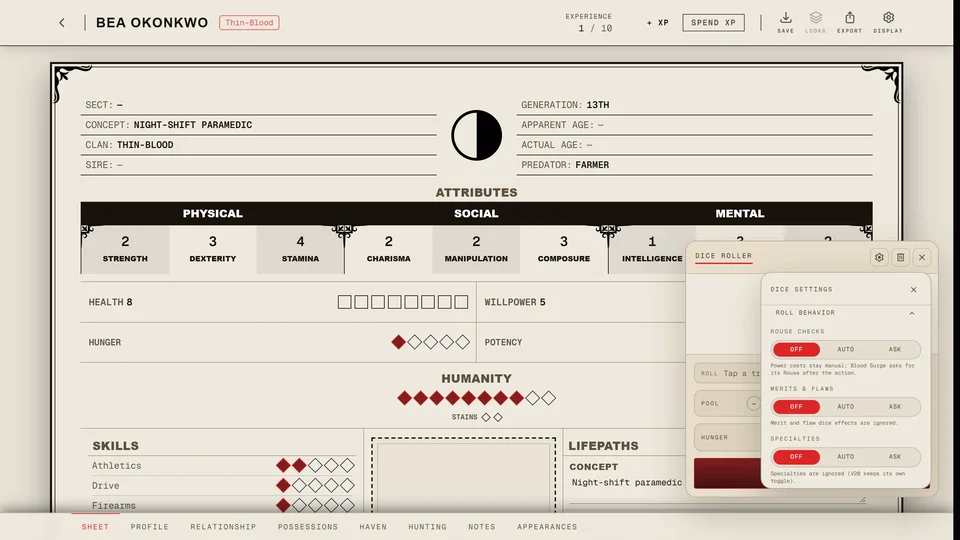
Under Dice you pick the System your rolls use. Changing it sets the difficulty back to that system's default. 3D dice throws the dice across the screen. Official V5 dice draws the symbol faces from the V5 book and off it draws numbered dice. Show the roll formula writes how each pool was built under the roll. Highlight great rolls marks a critical or a large success in the feed. Difficulty turns the difficulty cell on or off in V5 and V6. V20 always rolls against its target number so it has no switch. Storytellers in V5 can switch on Offer a Compulsion, which puts a "Compulsion?" prompt under a Bestial Failure for them alone.
Sound and media has separate switches for your own dice sounds and for everyone else's. GIFs and media shows and sends GIFs and stickers in the feed.
From the sheet decides what the tray takes from your character. Each row is Off, Auto or Ask and the line under it says what that choice does. Every edition has Merits and flaws plus Specialties. V5 adds Rouse checks. V20 and Dark Ages add Blood points and Willpower success. Ask puts a chip in the tray when it applies and you press it to use it. If you dismiss those chips for good Reset reminders shows up under the row and brings them back. When your table has a dice rule in Table Rules the row is locked and says "Set by the table."
Clear history at the bottom empties the feed on this device. Nothing is deleted: every roll stays in the Chronicle Log and Load older brings them back.
At the live table animated GIFs and clips also follow Clips in chat under Appearance in the session menu.
Related articles
About this article
- Type
- Guide
- Editions
- All editions
In this article
Need more help?

Ask the team in #ghoulapp-feedback on the Player Companion Discord. Or try #ghoulapp. GhoulApp players are active there and help each other.
Open Discord(New tab)