


Move your browser characters into your account


On this page 8
You can make a character in GhoulApp without an account. That character is saved in the browser you made it in and nowhere else. There's no backup. If the browser's site data is cleared or you use a private window that forgets everything when it closes, the character is gone and nobody can bring it back.
Signing in fixes this. Once you're signed in GhoulApp offers to move those characters into your account. There they're kept in your account and open on any device you sign in from.
How to tell if you have characters in this browser
On the front page look for a section called On this device. It lists the finished characters this browser is holding, with the line "Finished characters saved in this browser only, with no backup." If you don't see that section this browser has no finished characters waiting to be moved.
Unfinished characters show in a different section called Continue creating. Those are drafts and they aren't part of the move. More on that below.
Move them
You need to do this in the same browser where you made the characters. Another browser can't see them. Neither can the same browser on another device.
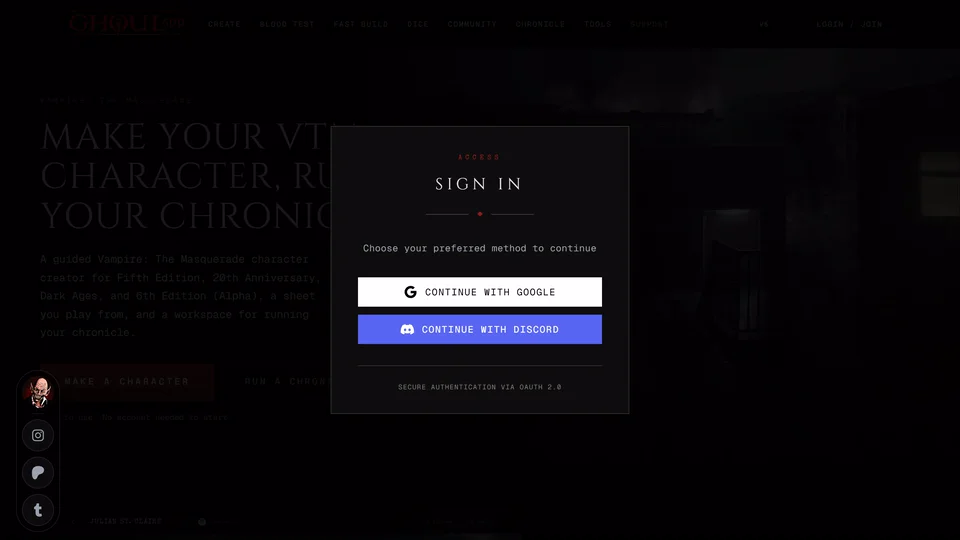
- On the front page press Sign In next to the On this device list.
- Choose Continue with Google or Continue with Discord. GhoulApp has no e-mail and password sign-in.
- After signing in you come back to GhoulApp and what happens next depends on whether the account is new.
If this is a new account
The account setup takes you through a few steps. One of them is called Your sheets and it only appears when this browser has characters to move.
- On Your sheets you see a list headed Found in this browser. Every character starts ticked. Untick any you don't want to move.
- Leave Make them public off if you want the characters private to you. You can change each one later.
- Press Continue.
When it works you see "Moved 1 character to your account." or the number you moved. Then the setup goes on to its next step. If you're not ready press Keep them here for now instead. The characters stay in the browser and you can move them later.
If you already had an account
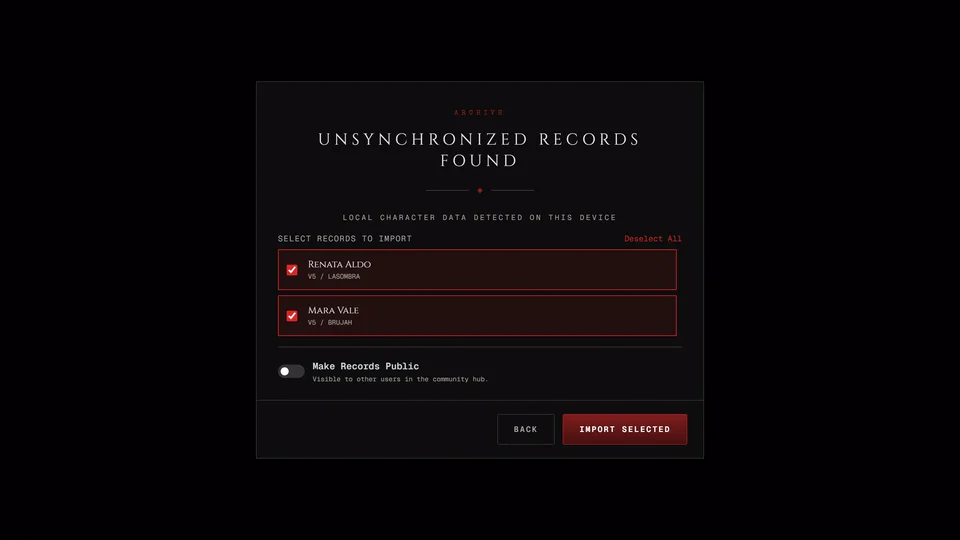
GhoulApp notices the characters when the page loads. It opens a window titled Unsynchronized Records Found that says how many characters it found saved only in this browser.
- Press Review & Import.
- Every character starts ticked, with its name, edition and clan. Untick any you don't want to move. The button at the top of the list reads Deselect All while everything is ticked and Select All once something isn't. Back returns to the first screen.
- Leave the Make Records Public switch off to keep them private. Turned on it shows them to other users in the community hub.
- Press Import Selected and wait. You can't close the window while the move is running.
- When it's done the window's title changes to Transfer Complete and it says Migration Successful. Press Close. The page reloads and the characters are in your account.
The same window also has Remind in 2 Weeks, which asks again in two weeks. Don't Ask Again stops the window from opening by itself.
Moving them later
You don't have to wait for the window to come back. While you're signed in the home page shows the On this device section whenever the browser still holds characters. It has an Import to account button that opens the same window. So you can move them at any time, even after pressing Don't Ask Again.
What actually happens to each character
Each character is saved to your account as a new character. Nothing already in your account is changed or replaced.
The copy in the browser is removed only after GhoulApp has confirmed that the character was saved to your account. If a save fails or your sign-in expires halfway through that character stays in the browser and you can try again.
If some or all of the characters didn't move GhoulApp says so and that they're still in the browser. Try again from Import to account.
A character that reached your account isn't offered again, even in the rare case where its browser copy stayed behind.
Unfinished characters
Drafts in Continue creating aren't moved. They stay on this device until you finish or delete them. If you open a draft while you're signed in and finish it, the character is saved straight to your account. Then there's nothing to move.
Common mistakes
- Signing in on a different browser or device. The characters are only in the browser you made them in. Sign in there.
- Clearing the browser's data before moving them. That deletes them and there's no way back. Move first.
- Deleting from On this device. Each row there has a Actions menu with Delete in it. It asks "Delete" followed by the character's name, then removes it from the browser for good. It doesn't go to your account's recently deleted list because it was never in your account.
If a character is missing and none of this explains it see My character is gone.
Related articles
About this article
- Type
- Guide
- Editions
- All editions
In this article
Need more help?

Ask the team in #ghoulapp-feedback on the Player Companion Discord. Or try #ghoulapp. GhoulApp players are active there and help each other.
Open Discord(New tab)