


Change your picture, cover and frame
- NeronAuthor
- OzzEditor

On this page 2
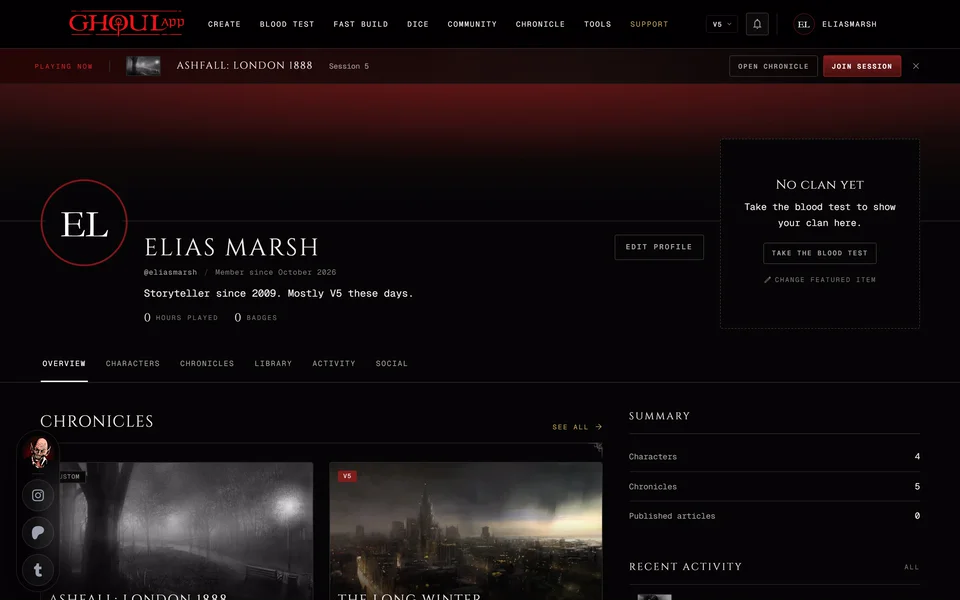
You change your picture and cover on your own profile page. Your picture has a camera button on it, Change profile picture. The cover has two buttons of its own: Add cover reads Add cover until you have one and Change cover after. Remove cover deletes it.
Picking and cropping
- Press the camera on your picture or on the cover.
- Pick a JPG, PNG or WebP file up to 15 MB. Wide pictures work best for a cover.
- The crop window opens. Drag the picture to move it. Zoom with the Zoom slider, Zoom in and Zoom out, the mouse wheel or two fingers. A double click zooms in. Reset puts it back the way it loaded.
- For a cover Phone view shows what a phone will cut off.
- Press Apply. Cancel closes the window and keeps what you had.
The crop window answers to keys too. The arrow keys move the picture and Shift with an arrow moves it further. + zooms in, - zooms out and 0 resets. Esc closes the window.
A file of the wrong type says "Use a JPG, PNG or WebP image." One that's too big says "That image is over 15 MB. Pick a smaller one."
Remove cover asks "Remove the cover?" first. The picture is deleted from your profile and you can add a new cover any time.
In your settings
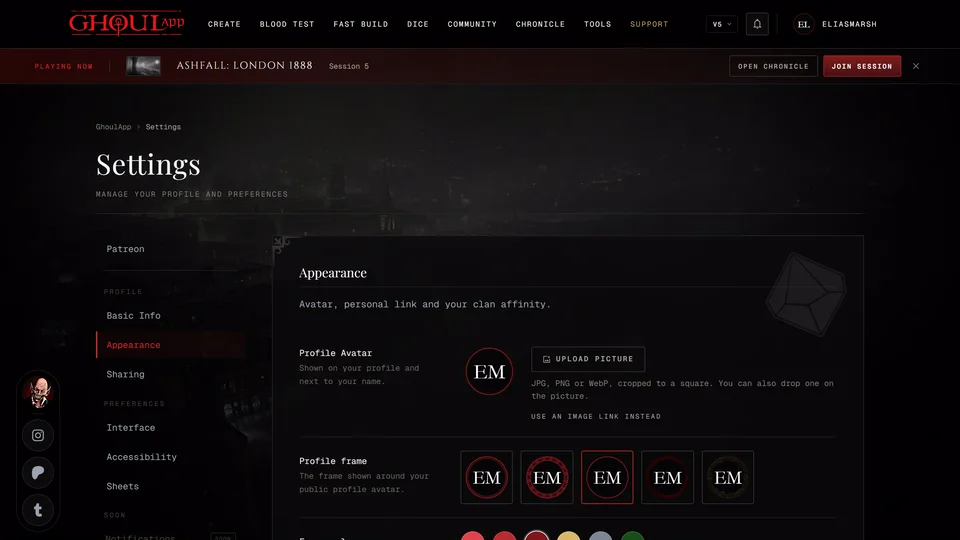
Edit profile opens your settings. Under Appearance you'll find the same picture and cover plus a few things the profile page doesn't have.
Profile Avatar is your picture. Profile frame is the frame drawn around it, from Frame I to Frame V. The first three take a Frame color from a set of colours named after the Patreon tiers, like Supporter, Bloodbound and Champion. Frames IV and V keep their own colours.
Profile cover has Upload cover or Change cover and Remove. Its Focal point decides which part of the picture stays in view. Set it once for Desktop and once for Mobile.
The rest of your profile settings are in Your profile.
Related articles
About this article
- Type
- Guide
- Editions
- All editions
In this article
Need more help?

Ask the team in #ghoulapp-feedback on the Player Companion Discord. Or try #ghoulapp. GhoulApp players are active there and help each other.
Open Discord(New tab)