


Your profile
- NeronAuthor
- OzzEditor

On this page 7
Your profile is your page on GhoulApp. It shows your characters, your chronicles
and what you've done lately. Open the menu under your name in the top corner
and choose Profile. On a phone it's Profile in the bottom bar. Anyone
can open your public profile at ghoulapp.com/id/ followed by your username,
even without an account.
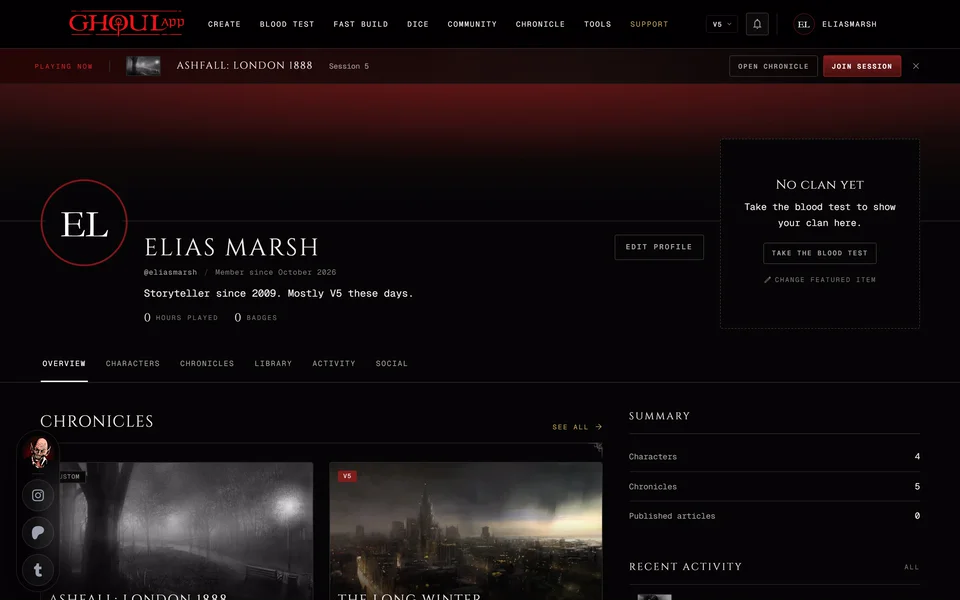
The top of the page
A wide cover picture runs across the top. Below it your picture sits in the frame you chose, with your display name and any marks: a Patreon tier mark shows while your pledge is active. Then come @username, Member since with the month and year you joined and your website if you added one. Your biography sits under them.
On your own page Edit profile opens your profile settings. On someone else's page this button is Follow or Unfollow. Changing your picture and cover is in Change your picture, cover and frame.
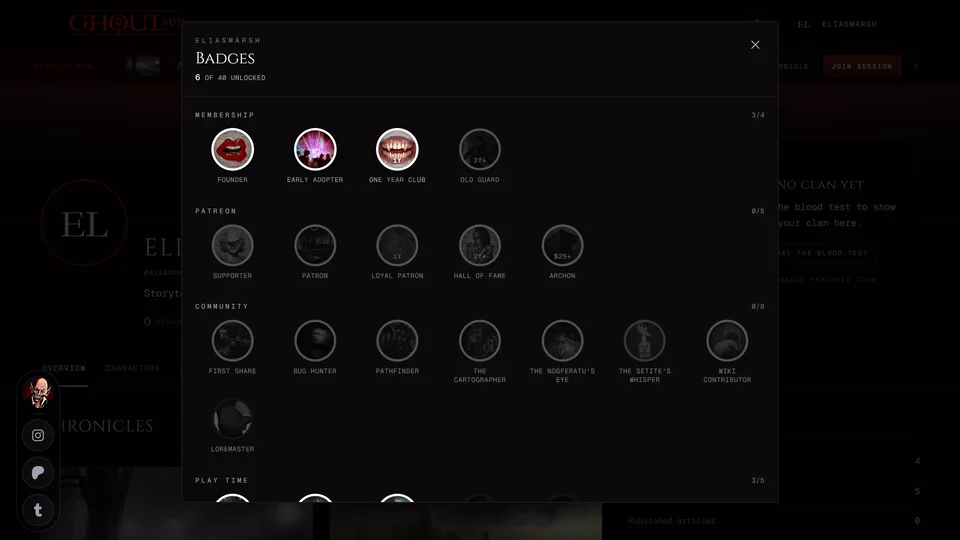
Under that is a row of counts: Followers, Following, Hours played and Badges. The badge count shows three of your badges. Choose it to see them all. See Badges.
Featured
One card shows what you want people to see first: a Featured character, a Featured chronicle or your Clan. Until you pick something it's your clan from the clan quiz. If you haven't taken the quiz the card offers Take the blood test. Visitors only see a clan card when you have a clan.
To change it choose Change featured item. Only your public characters and the public chronicles you run can be featured. If the featured one stops being public your profile goes back to your clan. Settings then says "Your featured item is no longer public, so your profile shows your clan."
The tabs
Overview shows your recent work, two chronicles, a summary of how many characters, chronicles and published articles you have and your recent activity.
Characters lists your characters. Search them and filter by edition, clan and type. You can also filter by Visibility, which only you see. Show them as Portraits, a Gallery or a List. Each card's menu has Make public or Make private and Delete. A deleted character can be restored for 7 days from Recently deleted, which shows in the tab's toolbar while something is in it.
Chronicles shows the chronicles you're Running, Playing and Following. Library has articles you've written in chronicles, your uploads and the characters you've saved from other people. Activity lists characters created and updated, chronicles started, articles written, badges earned and pictures added. Social shows the people who follow you and the people you follow.
What visitors see
Visitors see the same page with less in it:
- Characters shows only your public characters. Characters in a chronicle's premade pool aren't shown to anyone.
- Chronicles shows only the chronicles you run that are public and not archived. Chronicles you only play in never show.
- Library shows only articles that are published and shown to players in a public chronicle you own.
- Activity leaves out your uploads.
If a character has a Facade visitors see its Facade name, clan, picture and type. See The Facade page: what others see.
Signed-in visitors can like and save your public characters from the card's menu with Like and Save. A visitor who isn't signed in is asked to sign in first.
Your profile settings
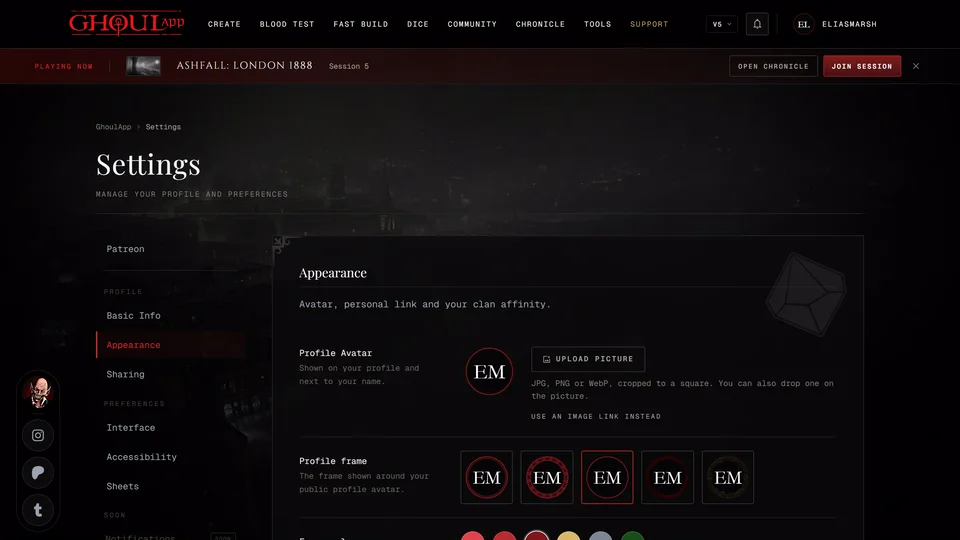
Edit profile opens your settings. The profile parts are in three groups.
Basic Info has your Display Name (up to 50 characters), your Username (URL) and your Biography (up to 500 characters). A username takes lowercase letters, numbers, hyphens and underscores, 3 to 30 of them. It shows Available or Taken as you type. See How do I change my name, username or profile link?
Appearance has your picture, frame and cover, what's Featured on your profile, your Website or Social Link and your Clan Affinity from the clan quiz with Take the test or Retake test.
Sharing has your profile link with Copy Link, Hide Social Counts and a card with your public characters, followers and following.
Changes wait in an Unsaved changes bar. Press Save Changes to keep them.
Following
Press Follow on someone's profile to follow them. The counts change at once. The people you follow are listed under Social, Following. Following someone doesn't add anything to your home page or send you their updates.
Following a chronicle is a different thing. Those chronicles are listed under Chronicles, Following.
What you can keep private
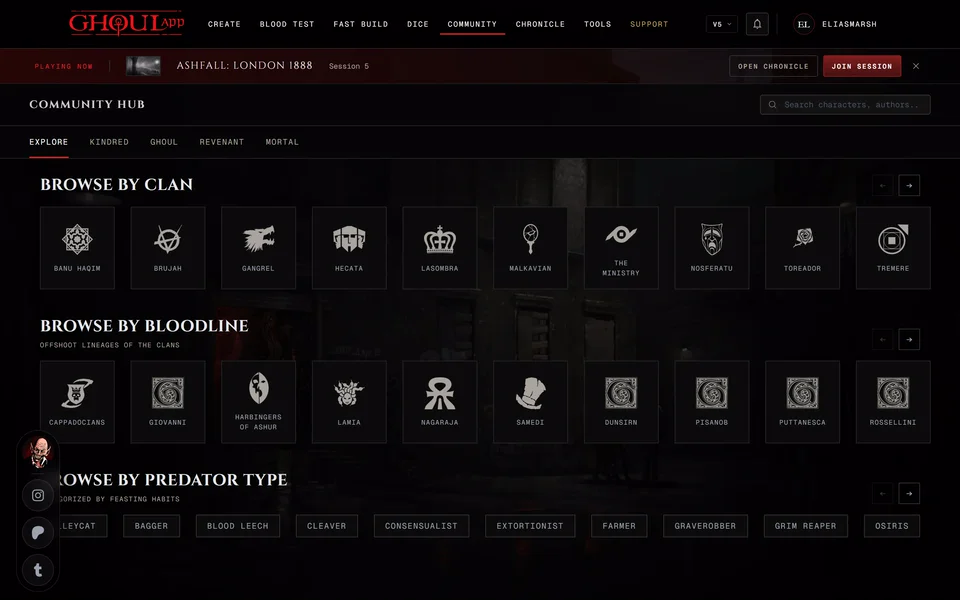
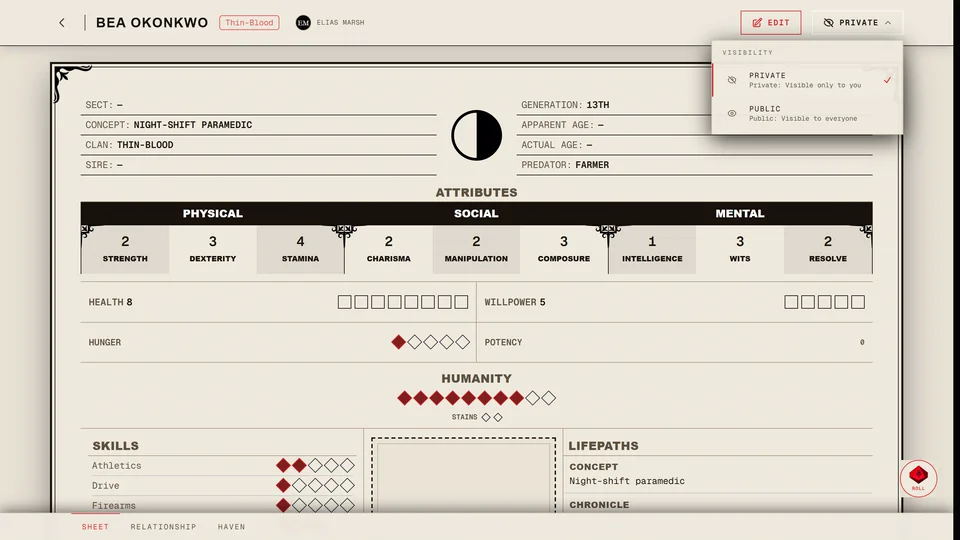
- Each character is public or private. A public character is listed in the community pages and on your profile and anyone can open it. Set it in the creator's last step, from the sheet or with Make public and Make private on your profile. New characters start public.
- Each chronicle is private until you turn on public sharing in the chronicle's settings.
- Hide Social Counts hides your follower and following counts from visitors. It also hides your hours played and your badges. You stop showing in other people's follower and following lists. You still see your own counts on your profile and in Settings.
There's no switch to hide the whole profile. Your cover, picture, name, biography and featured item are always visible.
Related articles
About this article
- Type
- Guide
- Editions
- All editions
In this article
Need more help?

Ask the team in #ghoulapp-feedback on the Player Companion Discord. Or try #ghoulapp. GhoulApp players are active there and help each other.
Open Discord(New tab)