


Fast Build
- Lithaner555Author
- OzzEditor


On this page 8
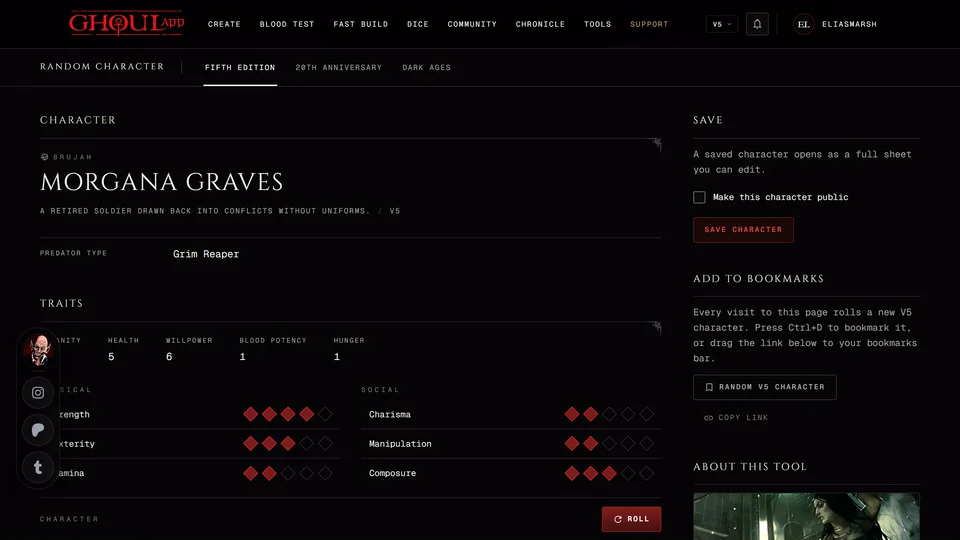
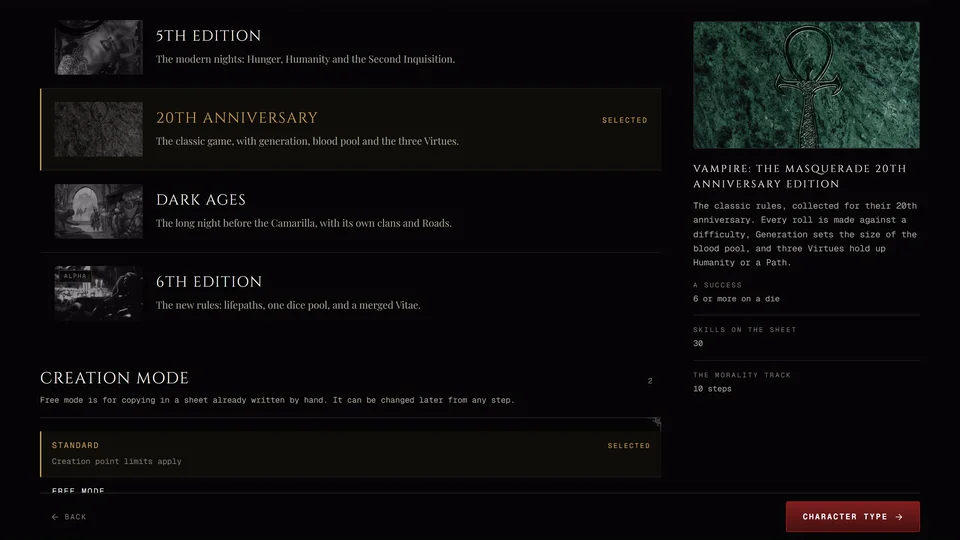
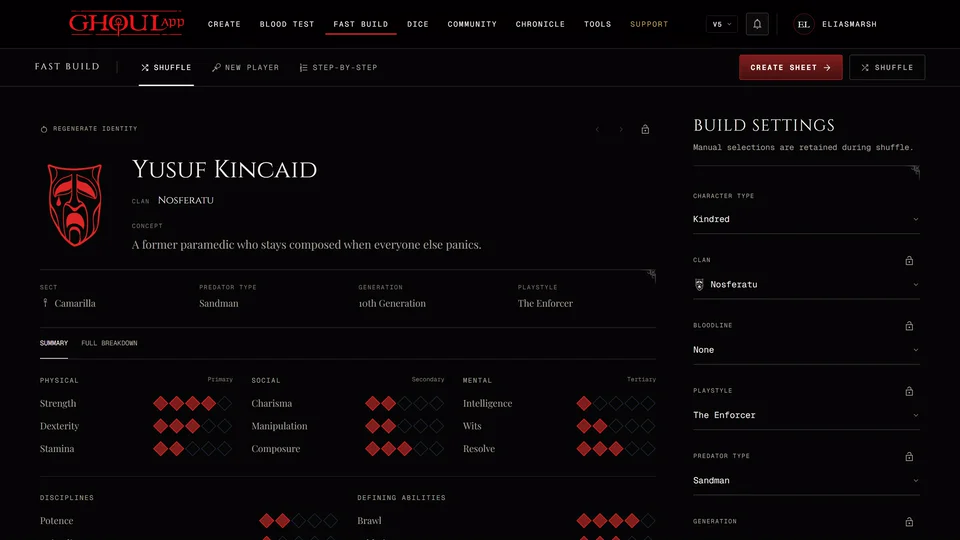
Fast Build gives you a complete character in one go, then lets you change whatever you want before you save it. It works in 5th Edition, 20th Anniversary, Dark Ages and 6th Edition.
Open it from Fast Build in the menu at the top or from Other ways in on the creator's first step. The creator's link opens it in a new tab and nothing you entered in the creator is carried over. It opens in the edition you're using. From the creator that's the one you picked on the Era step.
Three modes
The tabs at the top switch between them.
Shuffle
Fast Build rolls a whole character for you. Press Shuffle to roll again.
Anything you want to keep you can lock. Each part of the character (identity, clan, bloodline, role, predator type, generation, family) has a Lock next to it. Press it and the padlock closes. Locked parts stay the same when you shuffle. Choices you make by hand are kept when you shuffle too. Once every part is locked there's nothing left to shuffle and the button stops working.
Build settings holds the choices themselves and counts how many parts are locked. Unlock all beside the count frees them again. On a phone it's folded into a bar you open.
Regenerate identity above the identity rolls a new identity and leaves the rest alone. Undo change and Redo change step back and forward through your changes. The Summary and Full breakdown tabs show the character in short or in full.
New player
You answer plain-language questions about who the character is, how they act and what drives them. Fast Build turns your answers into traits and rules. Press Review character to check the result and then Use character.
Step-by-step
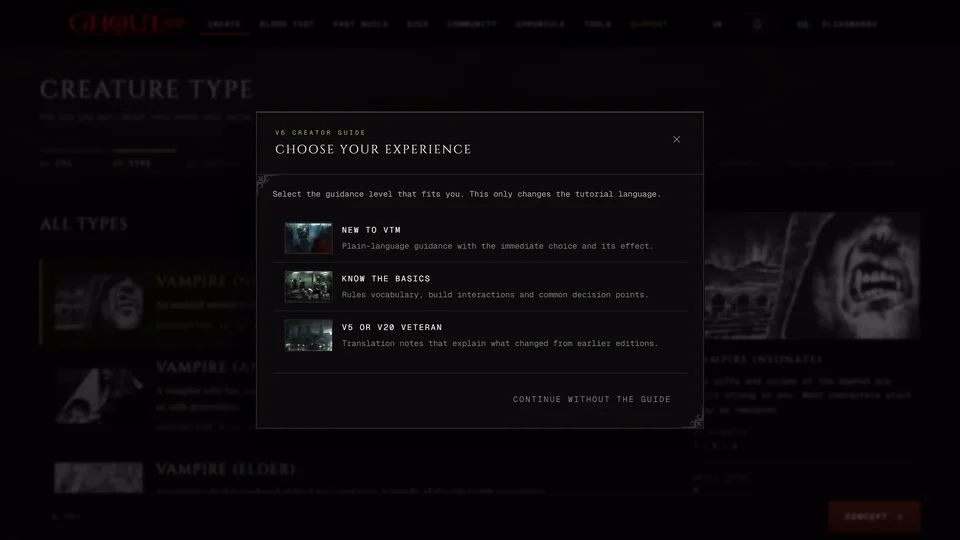
A guided version with a few big choices in order. For a 5th Edition vampire they are: Character type, Playstyle, Clan & bloodline, Predator type, Touchstone & Conviction, Attribute Priority, Top Skill Preferences, Generation, Identity and Review.
In 20th Anniversary and Dark Ages Nature & demeanor takes the place of Predator type and Touchstone & Conviction. Ability Priority and Backgrounds take the place of Top Skill Preferences. A 20th Anniversary ghoul also gets a Ghoul rules step. A Dark Ages vampire also picks a Standing and a Road. 6th Edition asks for Lineage, Sire & generation, Lifepaths and Nature & Humanity.
The playstyles are The Face, The Enforcer, The Scholar, The Survivor and The Infiltrator. A playstyle guides where the dots go. It doesn't change the rules.
Character types
5th Edition, 20th Anniversary and Dark Ages offer Kindred, Ghoul, Revenant and Mortal. 6th Edition offers its five creature types. Ghouls, revenants and mortals skip the questions that don't apply to them.
Saving
In Shuffle press Create sheet. In New player and Step-by-step press Use character at the end.
If you're signed in a box titled Save Character? opens. Tick Make Publicly Visible if you want the character shown in the Community Hub and press Save Character. Back returns you to Fast Build with nothing saved. Once it's saved the sheet opens and the character is in your account.
If you're not signed in there's no box. The character is saved to this browser only and its sheet opens. Browser storage isn't a backup, so sign in and move it to your account. See Move your browser characters into your account.
If a save fails
Fast Build keeps the character on screen and shows Not saved or Save not confirmed. Press Save and open sheet to try again. A retry saves the same character, so it never makes a second copy. If you aren't sure whether the first save went through look at your characters list first.
Export reference copy downloads the character as a file for your own records. GhoulApp can't open that file again. Discard preview removes the character from this tab. It asks first because the save may have gone through after all. It never deletes a saved character. When the character no longer passes the creation rules Keep a backup and start over keeps it aside in this tab until you close it.
Languages
Fast Build is in English and Turkish. In other languages the parts that aren't translated yet show in English.
Related articles
About this article
- Type
- Guide
- Editions
- All editions
In this article
Need more help?

Ask the team in #ghoulapp-feedback on the Player Companion Discord. Or try #ghoulapp. GhoulApp players are active there and help each other.
Open Discord(New tab)