


How the character creator works


On this page 9
The creator walks you through a character one step at a time and checks the rules as you go. You pick the edition first and then answer each step in order. At the end you press Save and the finished sheet opens. You don't need an account to use it but read the part about saving below before you start.
This page describes the creator everyone gets today. The older one is still there if you want it. See Can I use the old creator?
Where to start
Press Create in the menu at the top of any page. Signed in, your home page also has New character. Signed out, the front page has Make a character. All three open the same first step.
If you want to build for a chronicle you've joined start from the chronicle instead. See Make a character for a chronicle.
The first step: Era
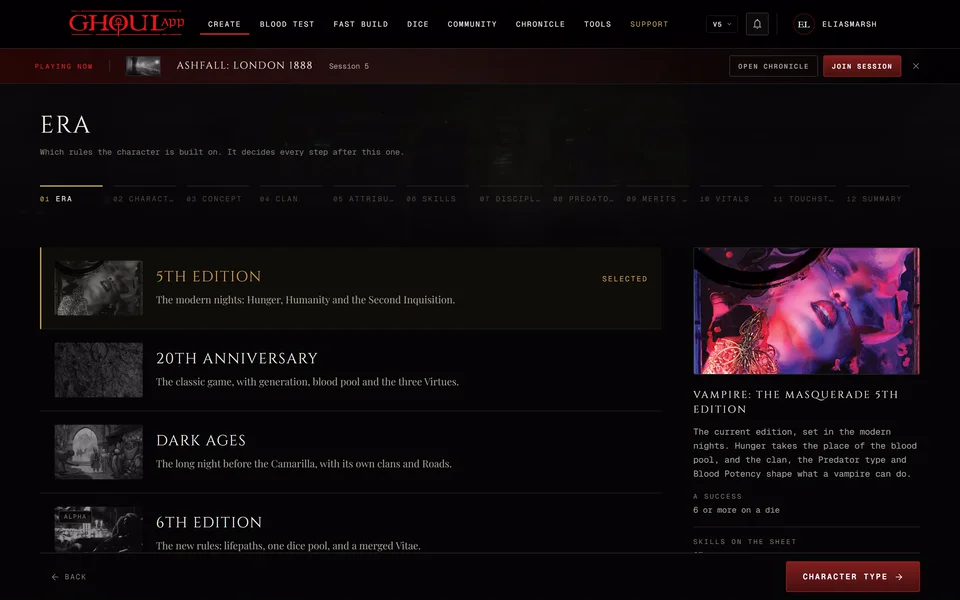
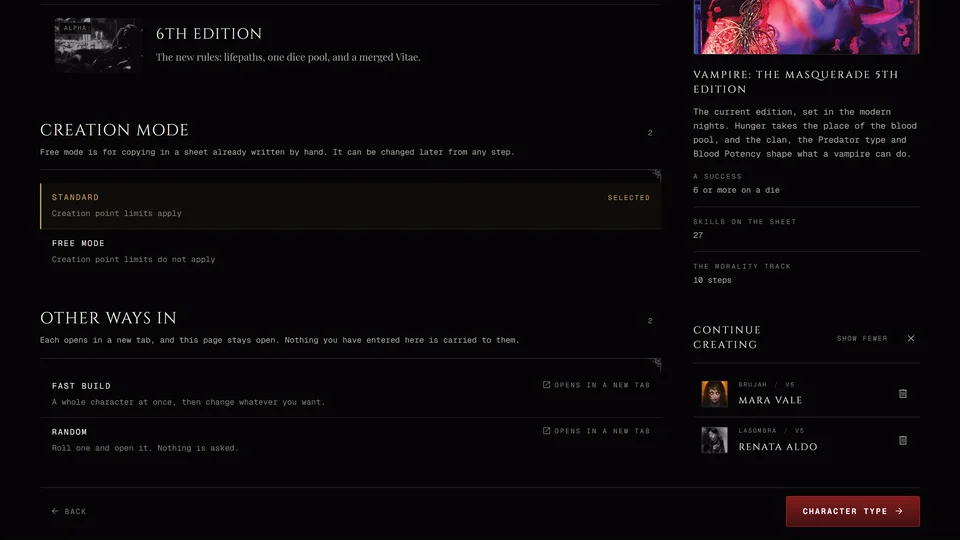
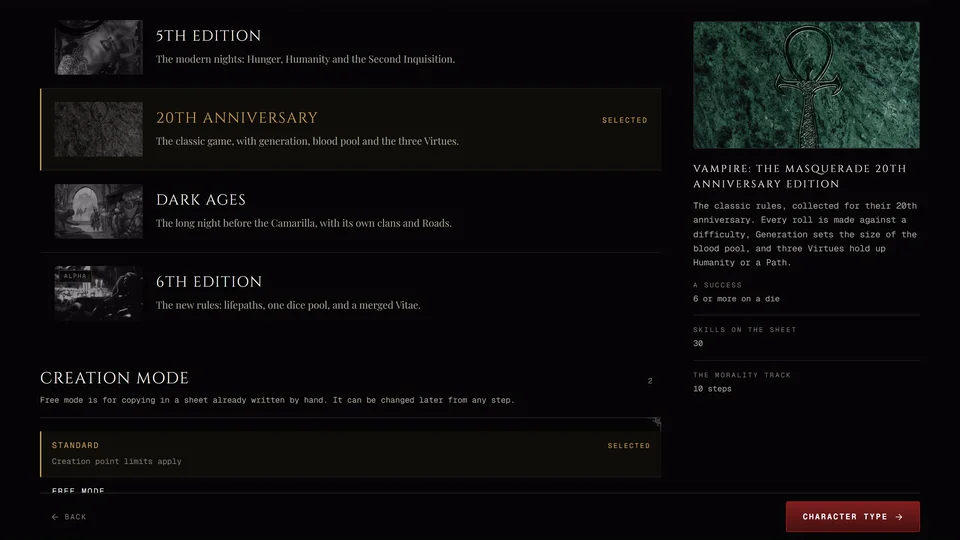
The first step asks which rules the character is built on. 5th Edition is the modern nights with Hunger, Humanity and the Second Inquisition. 20th Anniversary is the classic game with generation, blood pool and the three Virtues. Dark Ages is the long night before the Camarilla with its own clans and Roads. 6th Edition is the newest rules and carries an Alpha badge: it's an early public test and its rules can still change.
The edition decides every step after this one so pick the one your table plays. The side panel names the edition's full book title, says in a few lines what it is and shows three facts about it: what counts as a success on a die, how many Skills the sheet has and how many steps its morality track has.
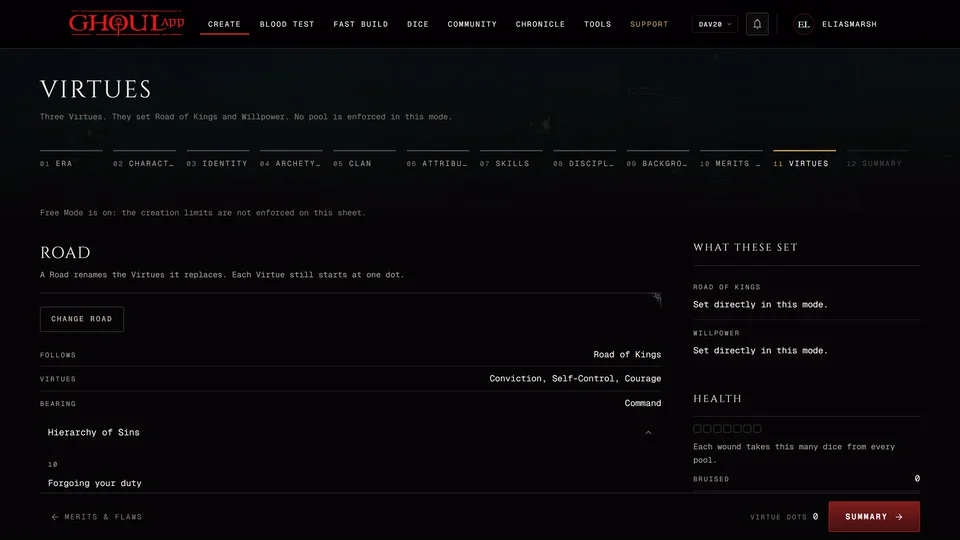
Lower down the same step asks for a Creation mode. Standard keeps the creation point limits and it's the normal choice. Free mode stops enforcing them. It's meant for copying in a sheet you already wrote by hand. While it's on every later step shows the line "Free Mode is on: the creation limits are not enforced on this sheet." What makes the sheet a character is still asked for, like a name, a clan or a Nature. You can switch the mode later from any step: the switch sits at the foot of the side panel on a computer and under the questions on a phone.
Under Other ways in there are two shortcuts. Fast Build makes a whole character at once for you to change. Random rolls one and opens it without asking anything. 6th Edition has only Fast Build. Each opens in a new tab and leaves the creator where it is. Nothing you entered in the creator is carried over to them. See Fast Build and Roll a random character.
If you have other unfinished characters the Era step lists them too, at the foot of the side panel on a computer and at the end of the page on a phone. See Drafts: leave the creator and come back.
What a step looks like
Each step opens with its title and one line saying what it's for. Under that runs a strip with every step in it. The step you're on is named and the others are numbered.
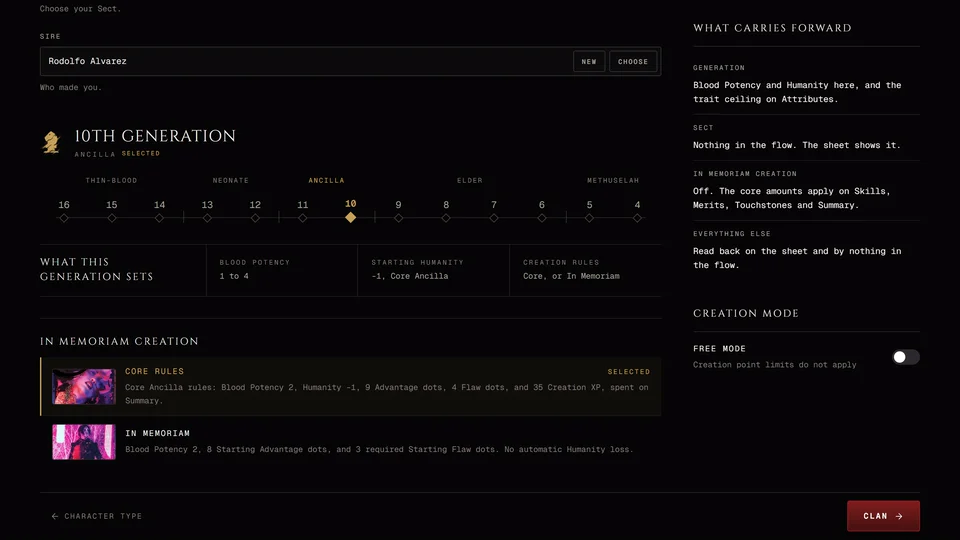
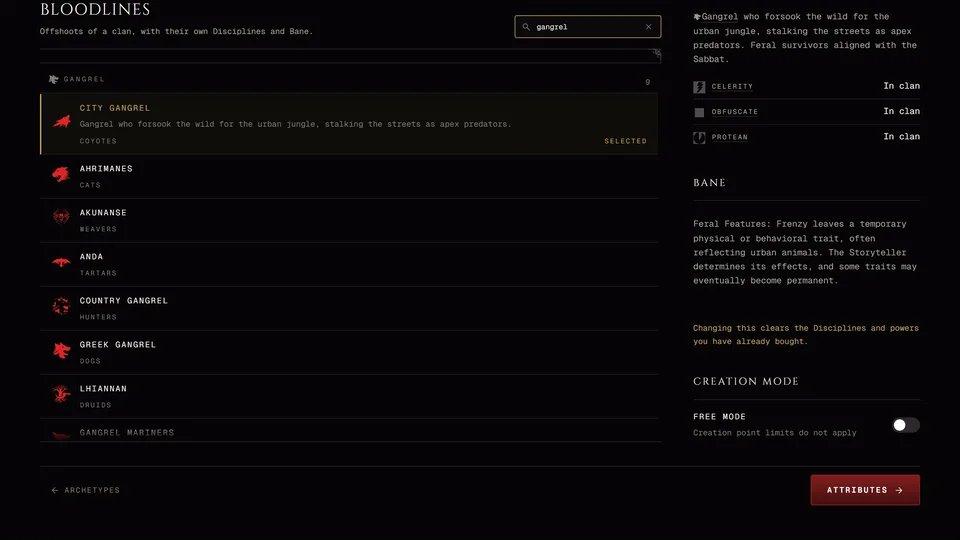
The questions fill the left side. The side panel on the right shows what your answers change: points left to spend, what a choice gives you and any limits your table has set. On a phone the panel folds under the questions. A bar stays at the bottom of the screen while you scroll.
You can work the lists without a mouse. Press Tab to reach a list, the arrow keys to move through it, Home or End to jump to the first or last row and Enter or Space to choose.
The bar at the bottom
On a computer the back button on the left is named after the step before this one. The middle shows the step's budget, like dots left to place or points over the limit. The main button on the right is named after the next step. Press it to move on. On a phone the buttons read Back and Next with your place between them, for example "4 / 12".
If the step isn't finished the main button shows a lock and reads Not yet. On a computer hover over it or reach it with Tab to see what's missing. On a phone the reason is written above the bar. If you press it anyway you stay on the step, the bar says what's still owed and the page scrolls to the first thing you need to fix.
Going back and jumping ahead
Press any step behind you in the strip to go back to it. You can also jump forward, but only to steps you've already reached and only once the step you're on is complete. Steps you haven't reached yet look closed. With the strip focused the arrow keys move you to the next or previous step you can reach and Home and End go to the first and last of them.
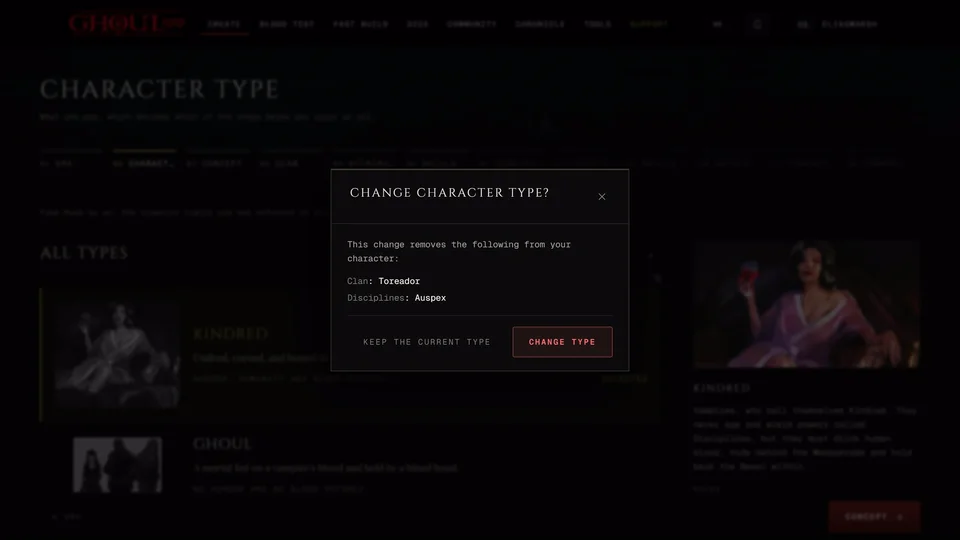
If you change the edition or pick a character type with a different list of steps the creator forgets how far you'd got. You'll walk forward again from where you are.
The steps in each edition
The list depends on the edition and on what kind of character you make. For a vampire:
| Edition | Steps |
|---|---|
| 5th Edition | Era, Character Type, Concept, Clan, Attributes, Skills, Disciplines, Predator Type, Merits & Flaws, Vitals, Touchstones, Summary |
| 20th Anniversary and Dark Ages | Era, Character Type, Identity, Archetypes, Clan, Attributes, Skills, Disciplines, Backgrounds, Merits & Flaws, Virtues, Summary |
| 6th Edition | Era, Type, Concept, Clan, Sire, Lifepaths, Attributes, Skills, Disciplines, Humanity, Resources, Summary |
A mortal skips some of these and so does a 5th Edition ghoul or revenant. See Vampire, ghoul, revenant or mortal. Each edition has its own step by step article, linked at the end of this page.
The last step and Save
The last step is called Summary in the strip and its heading reads Review. It shows everything you chose in the order the sheet will show it. The side panel reads Ready when nothing is missing. Otherwise it lists what's still to answer step by step. Save stays locked until that list is empty.
The side panel also says what saving does: "Saving writes the character and opens its sheet." If you picked a chronicle it adds that saving links the character to it.
Signed in, you choose the sheet's Visibility here. A new sheet starts on Public. Pick Private if you don't want it shown. A public sheet is listed in Community and on your profile and anyone can open it. You can change this later from the sheet.
Export PDF gives two looks. Archive prints on cream paper and Printer is plain white and uses less ink.
Start Over clears every choice for this character. It asks first and warns that it can't be undone. A character you already saved stays saved.
In 5th Edition, 20th Anniversary and Dark Ages the Summary also has an Experience section. You can add the XP your storyteller gave you and spend it before saving. 6th Edition has no XP here.
Press Save. The character is written and its sheet opens. Signed in, the character is saved to your account and you find it on your profile and on every device you sign in from. Not signed in, it's saved in this browser only with no backup. It shows on the front page under On this device. Sign in and move it to your account as soon as you can or it's lost when the browser's data is cleared. See Move your browser characters into your account.
If a save fails the Summary shows what went wrong under Saving at the top of the side panel. Most failures add a Download character file button so you can keep a copy of what you built. See Download your character as a file.
Leaving before you finish
You can leave at any point. When you leave through the creator's own buttons or the menu a box titled "Suspend the Embrace?" asks what to do with your work. Enter Torpor keeps it as a draft and leaves. Succumb to Oblivion deletes this draft and starts over. Return to Creation takes you back to the step you were on.
Your work is also kept as a draft by itself while you build. See Drafts: leave the creator and come back.
Step by step, per edition
Related articles
About this article
- Type
- Guide
- Editions
- All editions
Need more help?

Ask the team in #ghoulapp-feedback on the Player Companion Discord. Or try #ghoulapp. GhoulApp players are active there and help each other.
Open Discord(New tab)