


Roll a random character
- OzzAuthor and editor

On this page 4
The random character page gives you a whole character the moment it opens. Nothing is asked. It's handy when you need a quick NPC.
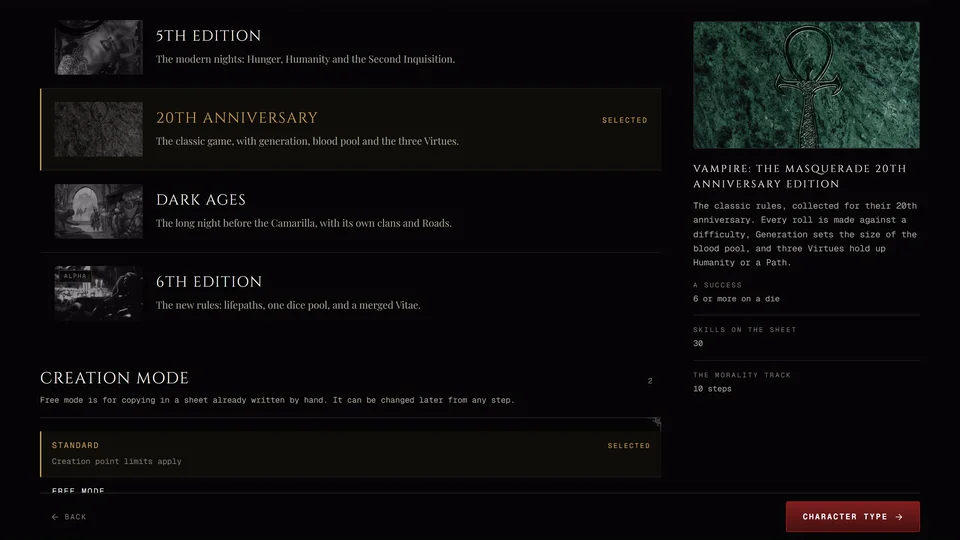
It works for 5th Edition, 20th Anniversary and Dark Ages. 6th Edition uses different rules, so a 6th Edition character has to be built in the creator. If you open the page for 6th Edition it says so and offers Open the V6 creator.
Where to find it
You'll find Random under Other ways in on the creator's first step and Random Character in Tools. Both open it in a new tab. Nothing you entered in the creator is carried over.
Roll
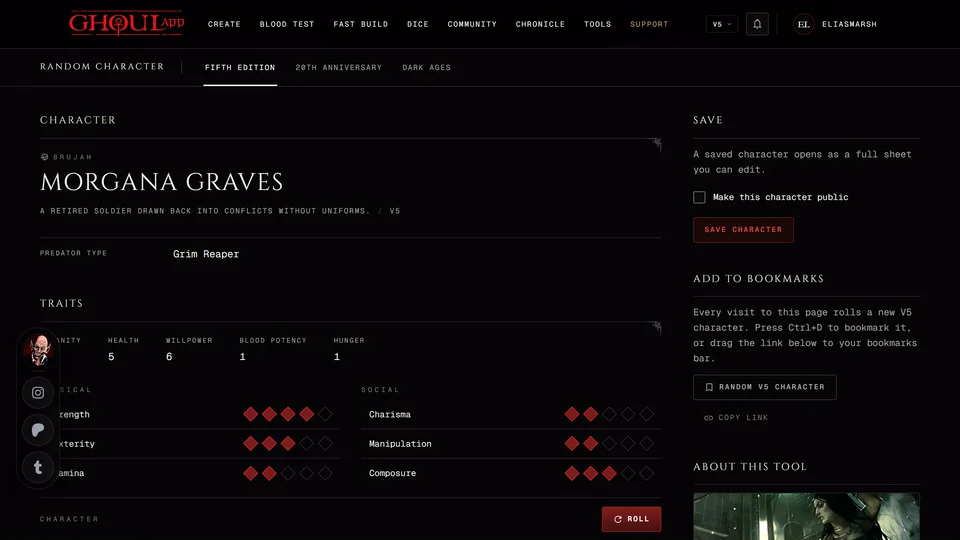
The tabs at the top pick the edition: Fifth Edition, 20th Anniversary or Dark Ages. Press Roll or R for a new character. The key does nothing while you're typing in a field. The page shows the character's traits and its Merits and Flaws. A 5th Edition character also shows its predator type, Humanity, Health, Willpower, Blood Potency and Hunger. A 20th Anniversary or Dark Ages character shows its Nature, Demeanor, generation, Humanity or Road, Willpower and blood pool.
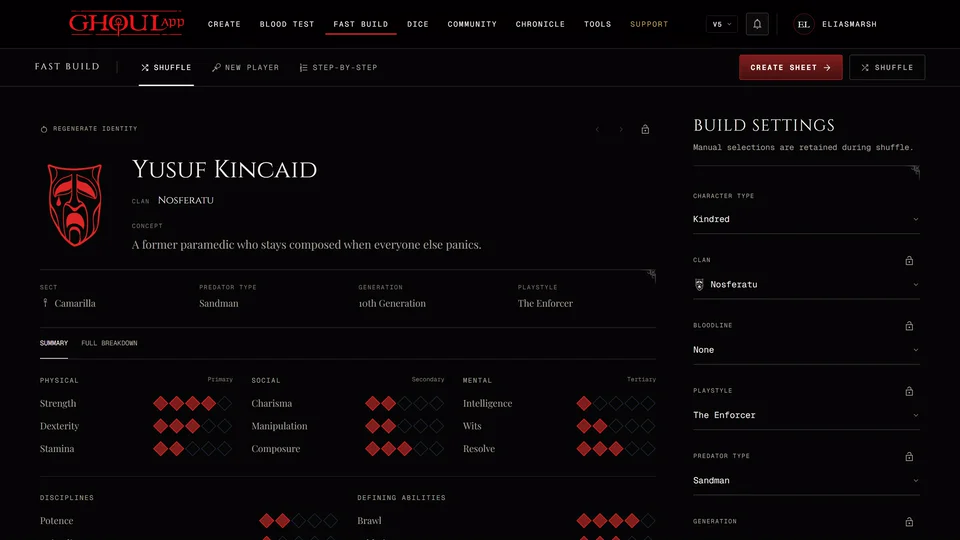
There's no way to keep part of a roll and reroll the rest here. If you want that use the Shuffle mode in Fast Build.
The name comes out in the language you use GhoulApp in. Rules terms stay in English.
Save it
When you're signed in the side panel has a Save section. Tick Make this character public if you want others to see it and press Save character. The full sheet opens and you can edit it like any other character. If the save fails you see "The character could not be saved. Try again."
When you're not signed in you see "Sign in to save this character as a sheet of your own." with a Log in / Join button. Only signed-in users can save from this page.
Bookmark it
Every visit to the page rolls a new character in the edition it was opened for. The Add to bookmarks section tells you how to keep it. On a computer press Ctrl+D (Cmd+D on a Mac) or drag the link below the text to your bookmarks bar. It reads Random V5 character or the edition you're on. Copy link copies the address and says Link copied. On a phone there's no link to drag, so add the page from your browser's menu.
Related articles

About this article
- Type
- Guide
- Editions
- V5, V20, Dark Ages
In this article
Need more help?

Ask the team in #ghoulapp-feedback on the Player Companion Discord. Or try #ghoulapp. GhoulApp players are active there and help each other.
Open Discord(New tab)