


How do I add a portrait or pictures to my character?
- BluenchanterAuthor
- OzzEditor

On this page 3
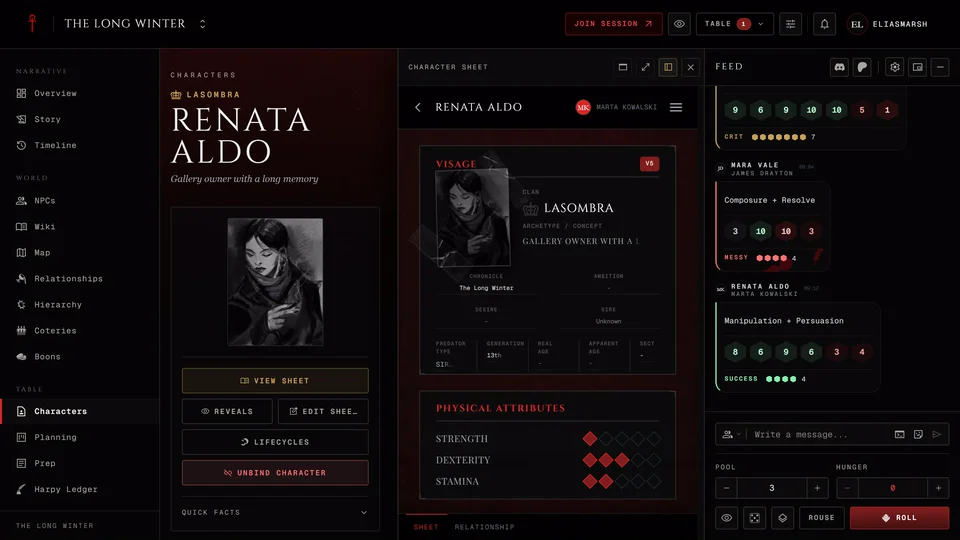
Open the sheet in the editor and press Gallery on the portrait. The Choose portrait window opens with three tabs.
On Upload press Choose image or drop a picture in. It takes JPEG, PNG or WebP and large pictures are made smaller before they upload. On URL paste a direct https link to a picture and press Use URL. A link to a web page won't work and neither will an SVG file. Existing shows the pictures you've already used so you can pick one again.
In the Classic layout you can also paste a link straight into the portrait's field or drop a picture file onto the portrait.
The gallery and uploads need a sheet that's saved to your account. You or your storyteller can use them. In a chronicle the storyteller can turn off uploads and the gallery. Pictures already there stay.
More looks for one character
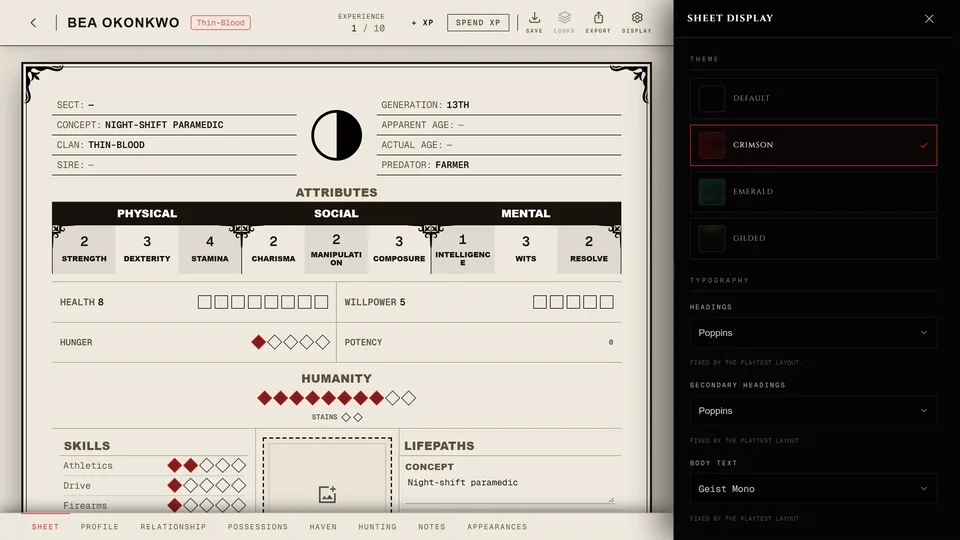
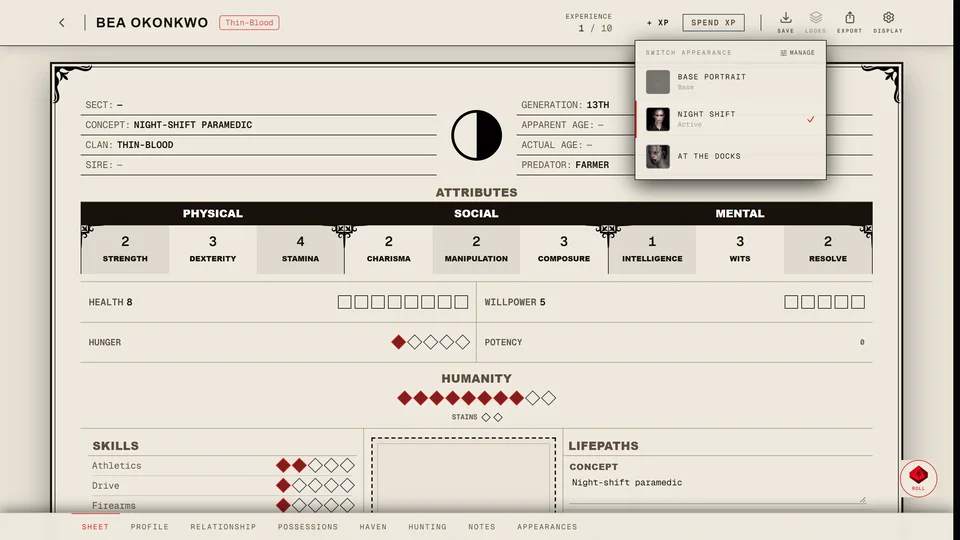
The Appearances page at the bottom of the sheet keeps more looks for the character, each with its own picture and name, like "Court attire". Press Add appearance to make one. A character can have up to 12.
To change which look the portrait shows press in the top bar. It opens Switch appearance with the Base portrait and every look you've saved. Manage appearances takes you to the Appearances page.
Deleting a look on the Appearances page keeps its picture in your gallery. If that look was in use the portrait goes back to the base portrait.
Upload space
Each account has 30 MB for uploads. Picture links don't count toward it. When it's full delete an upload you don't need or use a link instead. You can see and manage your uploads on your profile under Uploads.
Delete a picture
In the Existing tab press the bin on a picture. On an upload it reads Delete image and the window asks Delete this image? It tells you first where the picture is used and how much upload space it frees. Places that showed it go back to their default picture and nothing else in them changes. The character itself is kept. A look on the Appearances page that was built on the picture is deleted with it and the window lists those too. Press Delete to go ahead.
A picture you added by its link has Remove link on the bin. The window asks "Remove this link?" and Remove takes it out of every place you can edit. Places you can't edit keep showing it.
Related articles
About this article
- Type
- FAQ
- Editions
- All editions
In this article
Need more help?

Ask the team in #ghoulapp-feedback on the Player Companion Discord. Or try #ghoulapp. GhoulApp players are active there and help each other.
Open Discord(New tab)