


Classic and Compact layouts, themes and looks
- BluenchanterAuthor
- OzzEditor

On this page 8
You can change how a sheet looks in two places:
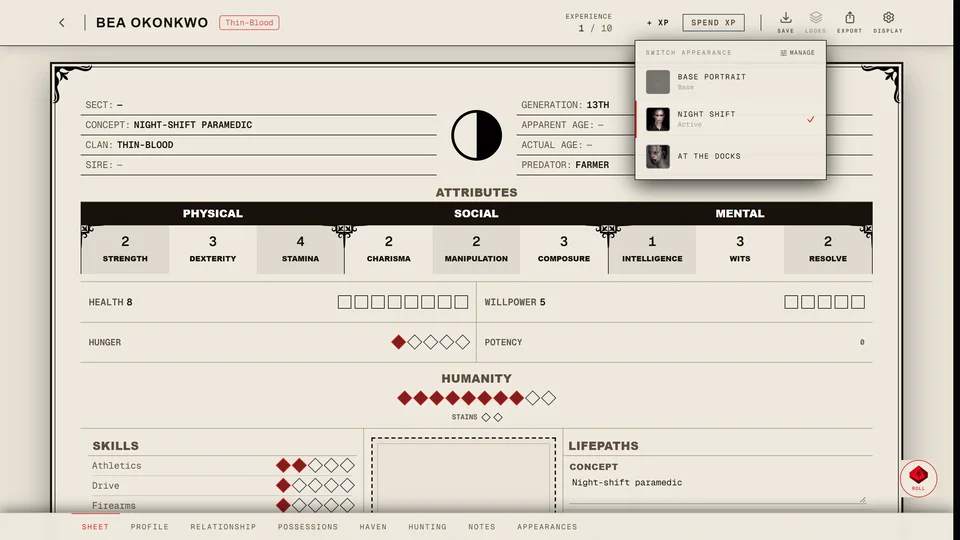
- On one sheet. Open the sheet in the editor and press . On a phone it's Sheet display in Menu. What you change there is saved on that sheet, so everyone who opens it sees the same look.
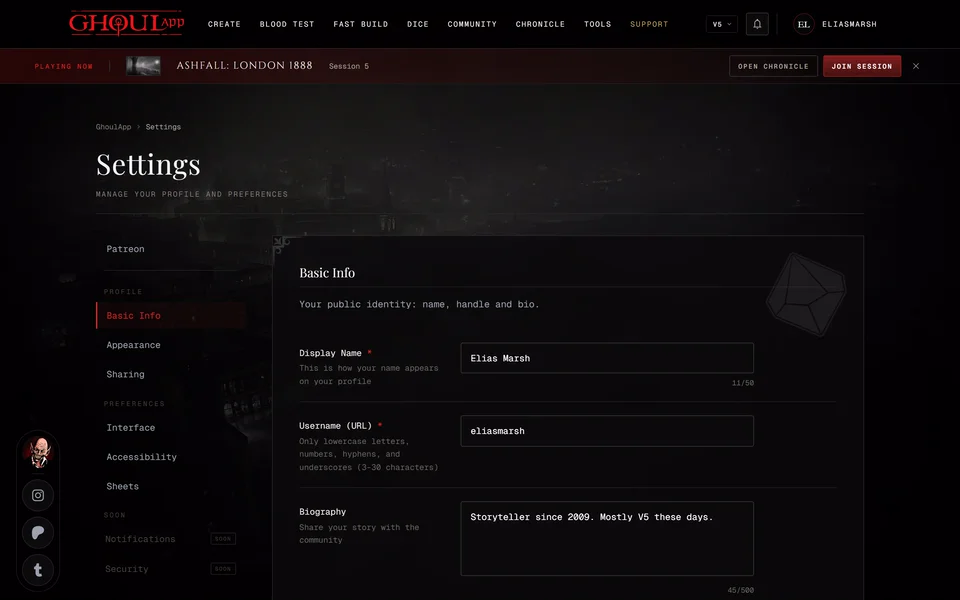
- For all your sheets. Go to Settings and open Sheets. This sets the look your sheets start from. It applies when you open your own sheets. Other people see each sheet with its own display choices. Press Save Changes at the bottom when you're done.
A choice made on a sheet wins over your default. Picking the default value again on the sheet makes it follow your default once more.
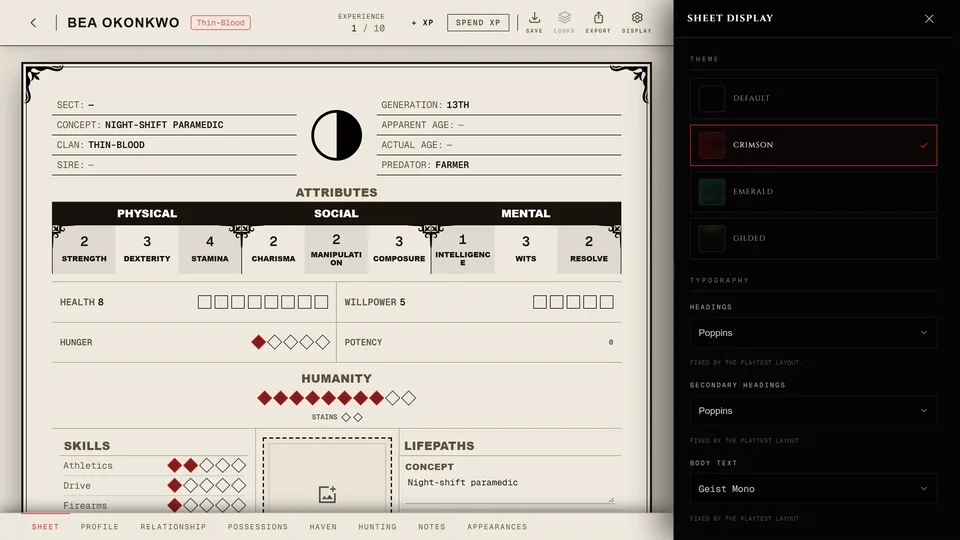
The display panel
The panel opens on the right on a computer and the sheet stays usable beside it. If the screen is too narrow for both it covers the sheet. Drag its edge to make it wider and double-click the edge to reset it. On a phone the panel opens from the bottom and can be pulled up to three heights.
Your changes show on the sheet as you make them and they're saved when you close the panel. Press Esc or Close to close it.
Layout
Layout decides how the main Sheet page is put together:
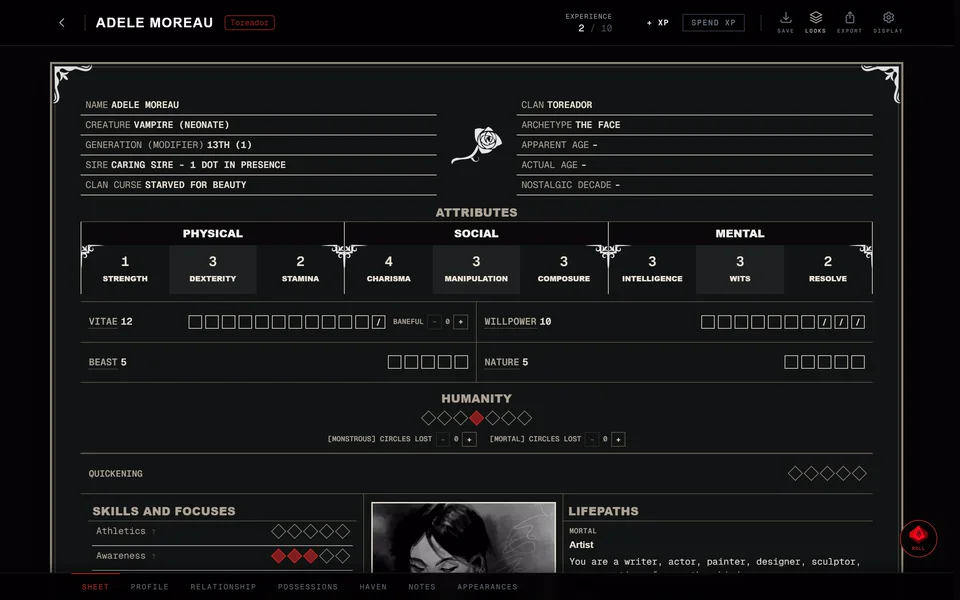
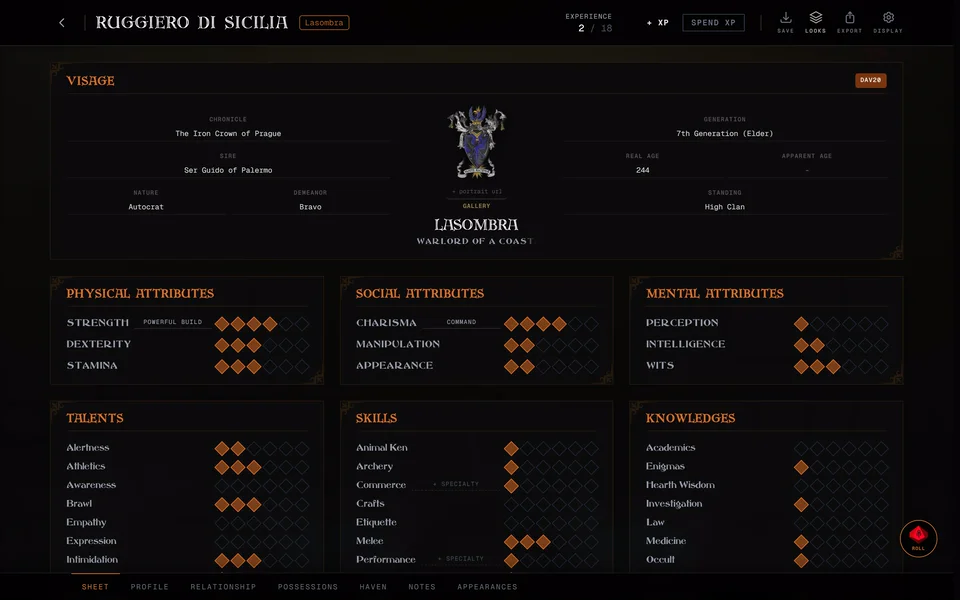
- Classic is the full sheet with every card and tracker you can click.
- Compact is a short summary for the table. It turns the main page into a light overview. Your other pages and all the character's data stay as they are.
V5, V20 and Dark Ages sheets start in Classic. A V6 sheet always uses Compact because Classic isn't available for V6.
In Classic you can also set the Identity block (the name and clan at the top) to Left, Centred or Right.
Theme, fonts and colours
- Theme sets the backdrop: Default, Crimson, Emerald or Gilded. Crimson and Emerald come with a background picture. A theme changes only the backdrop and never the fonts or the layout.
- Typography has three font choices: Headings for section titles and the name, Secondary headings for the concept and smaller headings and Body text for everything else. In Compact the fonts are fixed.
- Colour sets the Accent (titles, dots and the active state), the Card surface and the Card border.
Every font and colour you change has a Reset next to it.
Portrait and clan symbol
- In Classic the Portrait section holds the photo with Tape or Nails.
- Framing appears on a sheet with a portrait. Drag on the preview to pick which part of the photo stays in the frame or use the Horizontal and Vertical sliders.
- Clan symbol sets where the clan's mark goes when there's a portrait. In Classic: By name, On photo or Watermark. In Compact: On top, On photo or Watermark.
Background
Paste a link under Image URL to use your own background picture. It has to be an http or https link and it can't be an SVG. On a saved sheet Gallery opens your saved pictures to pick from. Opacity and Blur change how strongly the picture shows. They work once there's a picture: a Crimson or Emerald theme or your own link.
Display
- Decorations draws blood splatter and a background illustration. Compact never draws them.
- Screen damage shows the character's Health over the portrait. If the sheet is in a chronicle the chronicle's setting wins.
- Borders (Classic) adds corner ornaments to the cards.
- Light sheet switches to a light background with dark text. Classic and Compact each remember their own choice. Compact starts light except on V6.
- Paged view shows the sheet as pages with the bar at the bottom. Turn it off to scroll through every page in one long sheet.
- Default page picks which page the sheet opens on.
Two settings change how high dots can go and appear only on the sheet:
- Dynamic elder dots (V20 and Dark Ages) matches the highest Attribute, Ability and Discipline rating to the character's Generation.
- Extended elder dots (V5 elders and Methuselahs) lets Attributes and Disciplines go up to 10. Off, they stop at 5 as the book says.
Edition looks
A Dark Ages sheet starts with its own look: the Gilded theme, Dark Ages fonts, a centred identity block, the portrait on nails and the clan symbol on the photo. Dark Ages also has Clan crest in Classic, Colored or Monochrome.
A V6 sheet has V6 description detail. Short shows summaries of the rules on the sheet and Full shows the complete packet text.
Start over
Reset this sheet to my defaults at the bottom of the panel clears every choice made on that sheet. On the Settings page Reset to app defaults puts your own defaults back to the app's.
Related articles
About this article
- Type
- Guide
- Editions
- All editions
In this article
Need more help?

Ask the team in #ghoulapp-feedback on the Player Companion Discord. Or try #ghoulapp. GhoulApp players are active there and help each other.
Open Discord(New tab)