


Find your way around the sheet
- BluenchanterAuthor
- OzzEditor


On this page 5
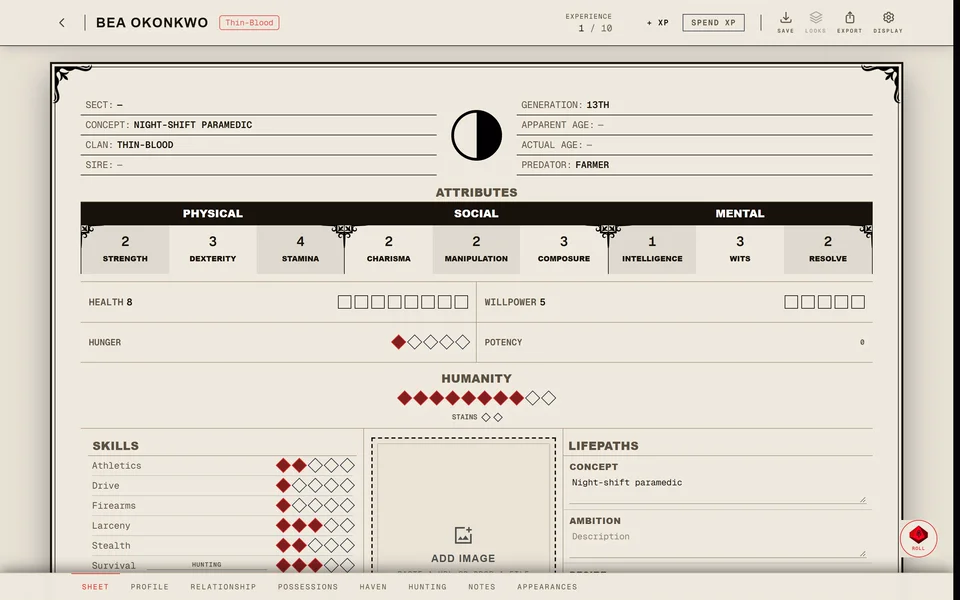
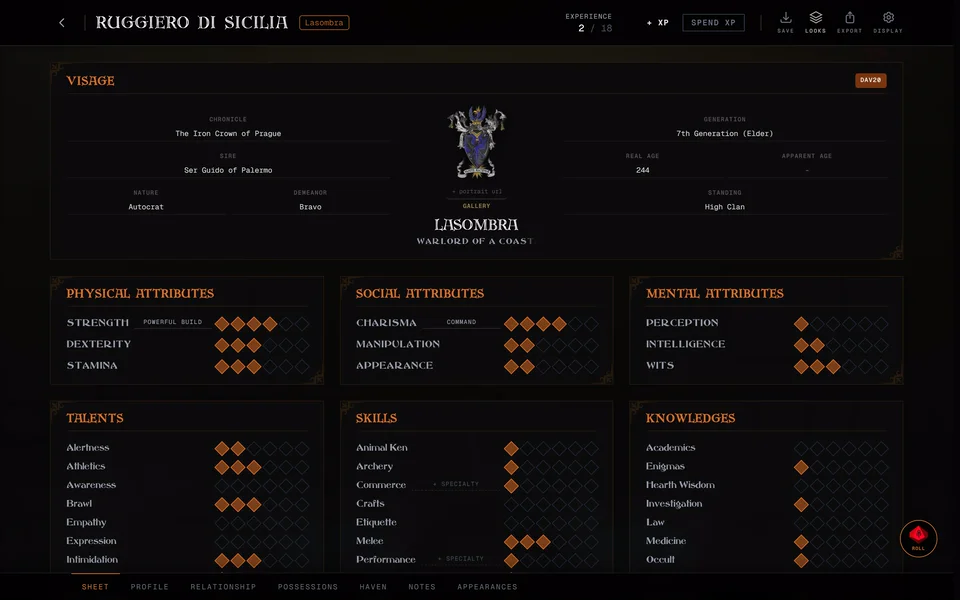
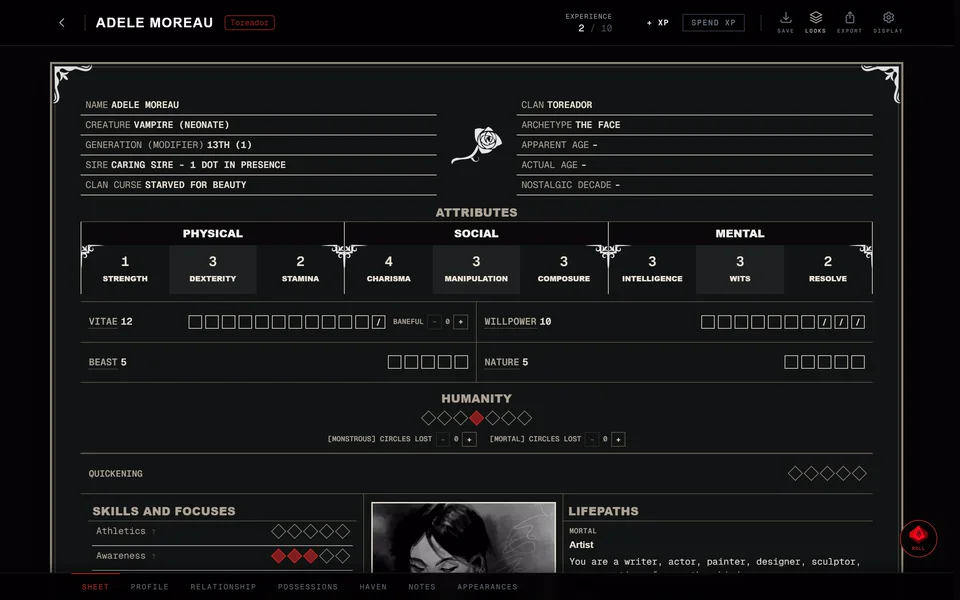
Every character you make has a sheet. It opens in two ways: a page to read it and an editor where you change it. This guide covers the parts that work the same in every edition. The traits on the main page depend on the edition so each one has its own guide: The V5 sheet, The V20 sheet, The Dark Ages sheet and The V6 sheet.
Open a sheet
- Signed in. Your characters are on the front page under Your characters. If your newest character plays in a chronicle it's also under Where you left off with Go to chronicle. Choosing one opens its sheet to read. Press Edit to change it. On a phone the same button is in the menu and it's called Game Mode.
- As a guest. Characters kept in this browser are under On this device. They open straight into the editor.
- Not finished yet. Characters under Continue creating are still in the creator. Continue takes you back to the step you left.
- In a chronicle. Open the character's page in the chronicle and press Open Sheet for your own character or View Sheet for someone else's. The sheet opens inside the chronicle and your own sheet is ready to edit there.
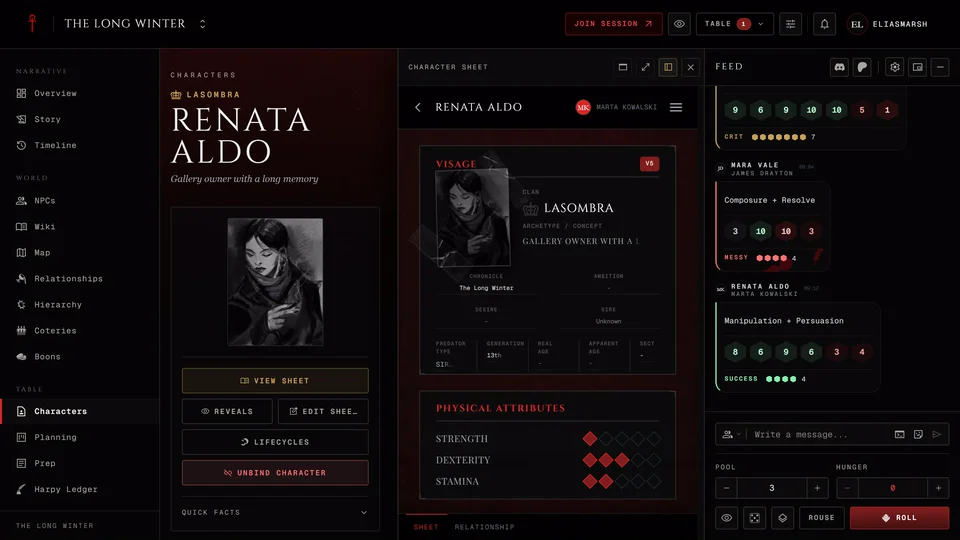
Inside a chronicle three buttons at the top of the opened sheet choose how it opens: Pop-up, Full drawer or Half drawer. A pop-up floats over the page. A drawer opens on the right. Full drawer dims the page behind it and a click outside closes it. Half drawer pushes the page aside so you can still read and click it. On a smaller screen it opens as a full drawer because there's no room beside it. You can drag a drawer's edge to make it wider and it keeps that width. Full drawer is the default and your choice is remembered in this browser. During a live session the sheet always opens as a pop-up.
Rolling dice from the sheet has its own guide: Roll dice from the sheet.
The pages
The bar along the bottom of the sheet switches between its pages. Which pages you get depends on the edition and on what you're playing:
| Page | V5 | V20 and Dark Ages | V6 |
|---|---|---|---|
| Sheet | yes | yes | yes |
| Profile | yes | yes | yes |
| Relationship | yes | yes | yes |
| Possessions | yes | yes | yes |
| Haven | yes | yes | yes |
| Hunting | vampires | no | no |
| Vitae & Bond | ghouls and revenants | ghouls and revenants | no |
| Notes | yes | yes | yes |
| Facade | yes | yes | no |
| Appearances | yes | yes | yes |
A mortal in V5, V20 or Dark Ages has Residence where a vampire has Haven and has no Hunting page.
- Sheet is the character itself: attributes, skills, Disciplines and the trackers. At the bottom is the History & XP Log, every XP gain and spend and every saved change in one list. See See what changed on a sheet.
- Profile holds the Description, the Backstory and Derangements.
- Relationship has the Coterie, a Relationship Map, Blood Bonds & Ghouls and Boons.
- Possessions lists items and Vehicles. A number on the page name means you have new handouts there.
- Haven describes where the character sleeps along with its feeding grounds and haven merits and flaws. In a chronicle you can put it on the map. See How do I put my haven on the chronicle map?
- Hunting holds the character's Resonance.
- Vitae & Bond is the ghoul's page for the domitor, the blood bond and vitae.
- Notes is free text for anything else.
- Facade is a disguise other people see. See The Facade page. In a chronicle it's there only if the storyteller lets players use one.
- Appearances is the character's picture gallery. You see it on a saved sheet in the editor. See How do I add a portrait or pictures to my character?
On a phone the bar scrolls sideways. Tap a page name to switch. There's no swipe between pages. If you'd rather scroll one long sheet turn off Paged view in the display panel (Layouts, themes and looks).
Someone reading your sheet sees only the pages that have something on them. If the Sheet page is all that's filled in the bar doesn't show at all.
The top bar
In the editor the bar across the top starts with the back arrow, the character's name and the clan. Click the name to rename the character, then press Enter or click somewhere else to keep the new name.
Next comes Experience, two numbers: the XP left to spend and the XP the character has earned in total. In a chronicle they follow the chronicle's XP log.
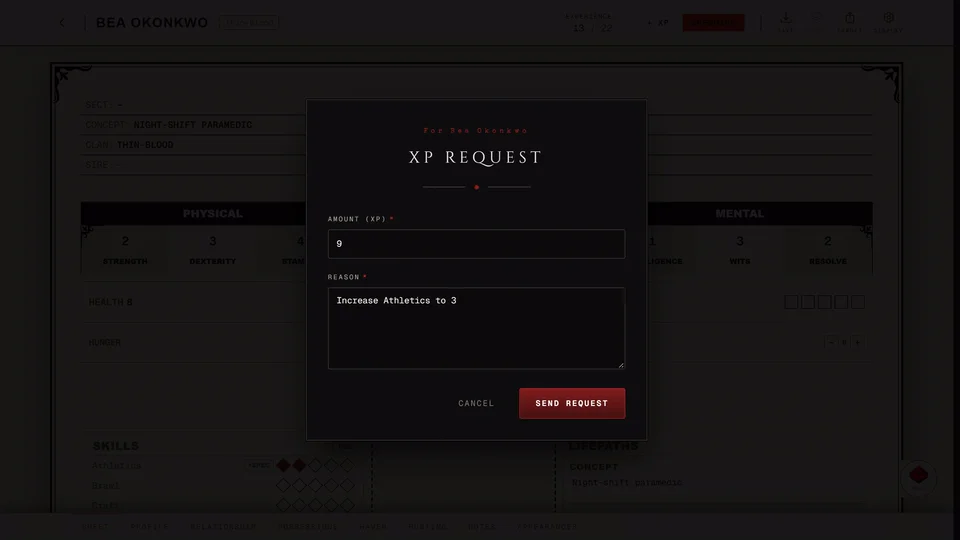
- + XP opens a small field where you add experience. While it's open the button reads Cancel. Outside a chronicle the new XP is added and saved at once. In a chronicle where the storyteller approves XP it goes to them as a request. Where the storyteller manages the sheet the button isn't there.
- Spend XP unlocks the dots so you can buy them. It reads Spending while it's on. See Earn and spend XP.
- Free Edit changes dots without spending XP and reads Editing while it's on. It's there on a sheet of your own and in a Player controlled chronicle.
- Save writes the whole sheet now.
- Looks switches the portrait between the character's saved appearances. It's there once the sheet is saved to your account. See How do I add a portrait or pictures to my character?
- Export asks which PDF you want: Archive is cream for reading on a screen and Printer is white for paper. See Download your character as a file.
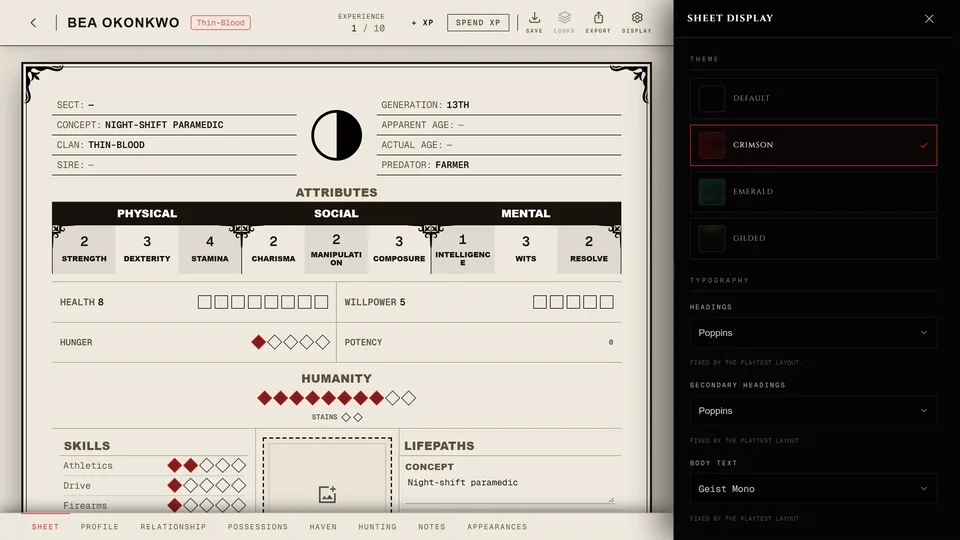
- Display opens the panel for the sheet's theme, fonts and layout.
On a narrow screen all of this moves into Menu at the right end of the bar. The names are a little longer there: Export is Download PDF and Display is Sheet display. A red dot on the menu button means Spend XP is still on.
When you read your own sheet instead you get Edit and the visibility button, which sets the sheet to Private or Public. See Share your character. On someone else's public sheet you get Applaud to like it and Save to bookmark it.
Change the character
Text fields like the concept, the ambition and the notes can be typed into as soon as the editor opens. Dots are locked until you turn on Spend XP or Free Edit:
- Spend XP charges the price for each dot and writes it into the XP log.
- Free Edit changes dots at no cost and logs nothing. Use it to fix a mistake or to copy in a character you already have on paper.
In a chronicle the storyteller decides how much you can change. Unless players control their own sheets your traits are locked and new dots go through the storyteller. The story fields stay yours: Concept, Ambition, Desire, Sire, the ages and Sect.
How the sheet saves
- Text saves when you leave the field. So does the name.
- Dots, choices from a list and switches save as you change them.
- In V5, V20 and Dark Ages the marks you make on trackers aren't saved until you press Save. That covers damage on Health and Willpower, Hunger, the blood pool, Virtues and Stains.
- A V6 sheet saves every change as you make it.
If you press the back arrow with something unsaved the sheet asks first in a box titled Unsaved changes. Save and exit saves and takes you back. If that save fails you stay on the sheet with an error and nothing is lost. Keep editing closes the question and leaves you on the sheet. Esc or a click outside it does the same. Exit without saving drops the unsaved changes and leaves.
Signed in, your sheet saves to your account. As a guest it saves to this browser only and has no backup. See Can I use GhoulApp without an account?
If the same sheet was saved somewhere else while you had it open, in another tab or by your storyteller, you'll see This sheet changed elsewhere. Reload the sheet loads the newer version. Save anyway writes yours over it, so use it only when you're sure yours is the right one.
Related articles
About this article
- Type
- Guide
- Editions
- All editions
In this article
Need more help?

Ask the team in #ghoulapp-feedback on the Player Companion Discord. Or try #ghoulapp. GhoulApp players are active there and help each other.
Open Discord(New tab)