


Copy, export and share a tool's result


On this page 4
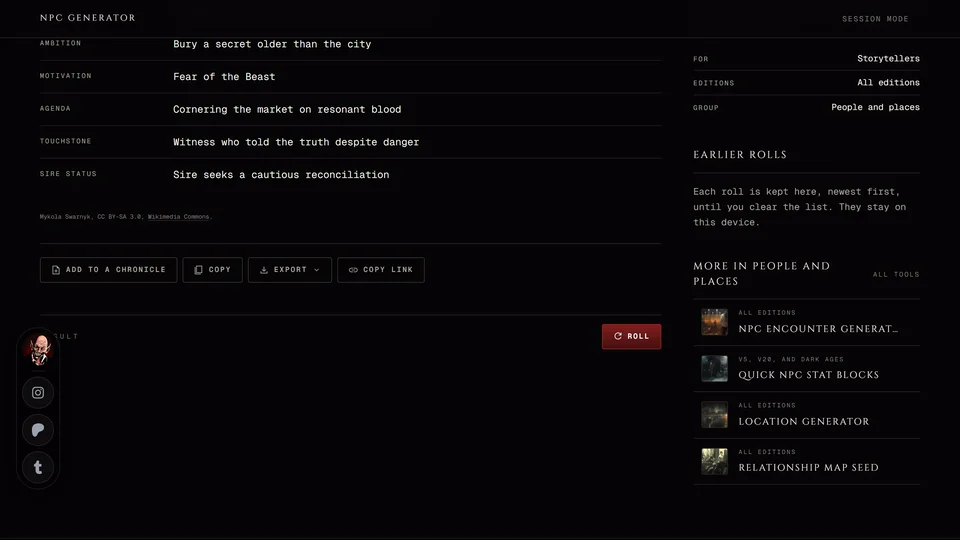
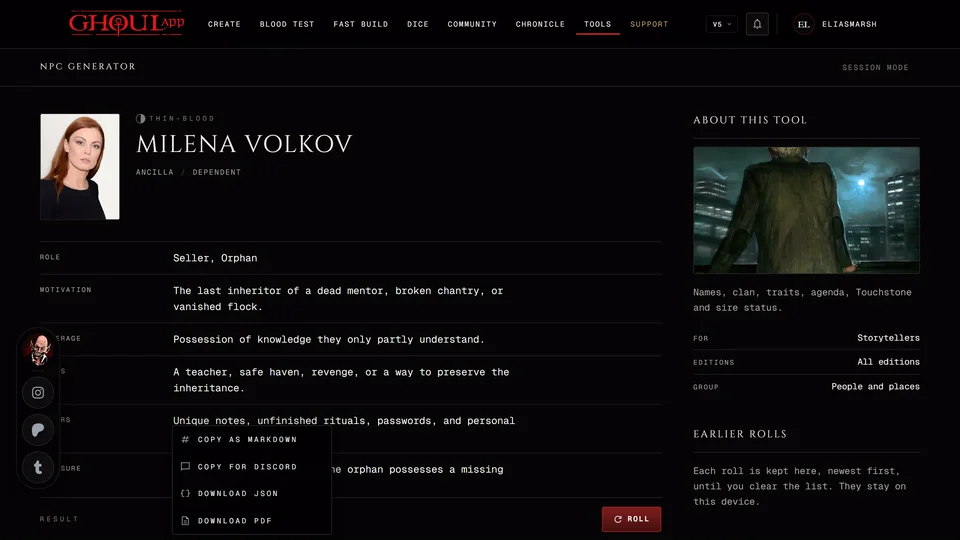
Under almost every result there's a row of buttons for taking it with you. They work in every edition and you don't need an account for any of them.
Copy and export
Copy puts the result on your clipboard as formatted text. Paste it into a notes app, a document or a chat.
Export opens a menu with four choices. Copy as Markdown copies the same text for notes apps and documents that read Markdown. Copy for Discord copies it in a shape that reads well in a Discord channel. Download JSON saves a file with every field of the result, for when you want the raw data. Download PDF saves a printable page.
A short word next to the buttons tells you it worked. It reads Copied, Copied as Markdown, Copied for Discord or Link copied. A download shows Saved.
Share a link
Copy link copies an address that opens the tool on this exact result. Send it to someone and the tool opens on that roll for them. Most generators follow the edition you've selected, so the other person sees the same result when their edition menu matches yours. The button only shows when the result can be rebuilt from its address. A few results leave it out: a Conviction and Touchstone pair mixed from two rolls, a Dyscrasia you picked by hand and a relationship map made from your chronicle's NPCs.
Earlier rolls
Each tool keeps your rolls on the device you rolled them on. Its page lists them under Earlier rolls at the side, newest first. You see six and Show all with the count opens the rest. Press one to bring that result back. A tool keeps up to 25.
Clear at the top of Earlier rolls empties that tool's list at once. It doesn't ask first, so press it only when you mean it.
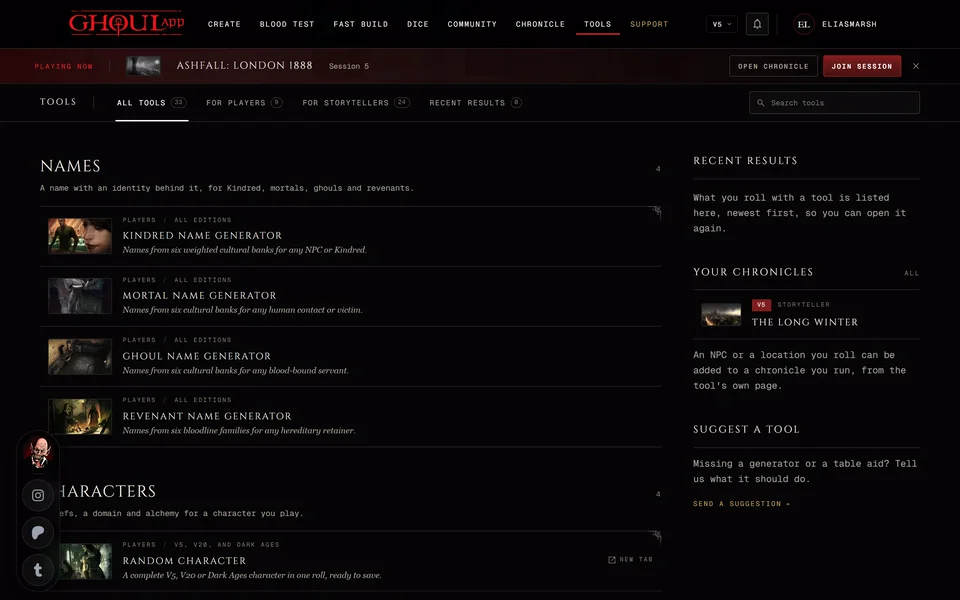
The Tools page gathers them too. Its side shows your last five rolls from any tool under Recent results and the Recent results tab lists up to 25 of the newest. Clear on that tab empties every tool's list on this device. It asks "Clear recent results?" before it does.
What stays and what doesn't
These lists live in your browser only. They don't follow you to another device and clearing your browser's data removes them. A private window forgets them when it closes.
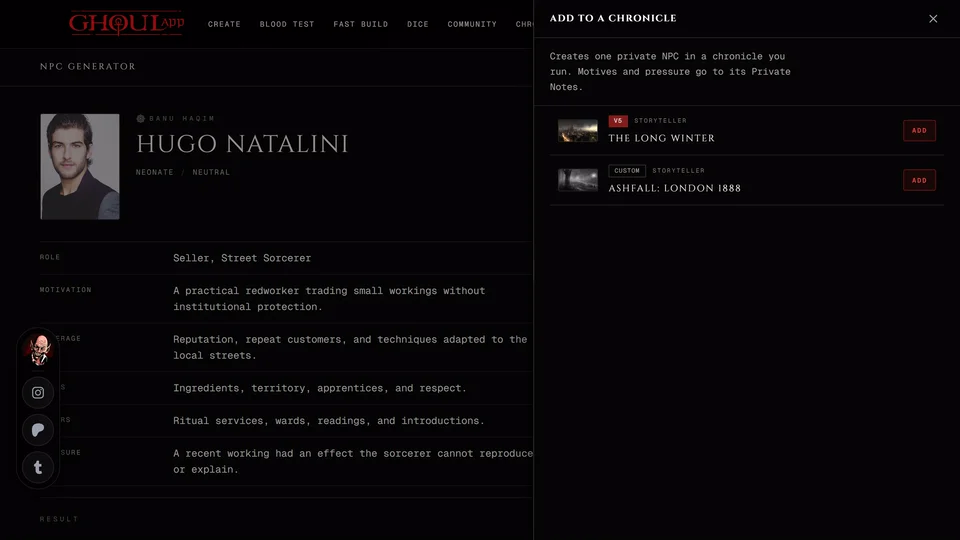
If you want to keep a result for good, export it or add it to a chronicle or a character. See Save a tool's result to your chronicle.
Related articles
About this article
- Type
- Guide
- Editions
- All editions
In this article
Need more help?

Ask the team in #ghoulapp-feedback on the Player Companion Discord. Or try #ghoulapp. GhoulApp players are active there and help each other.
Open Discord(New tab)