


The Handout Maker

On this page 10
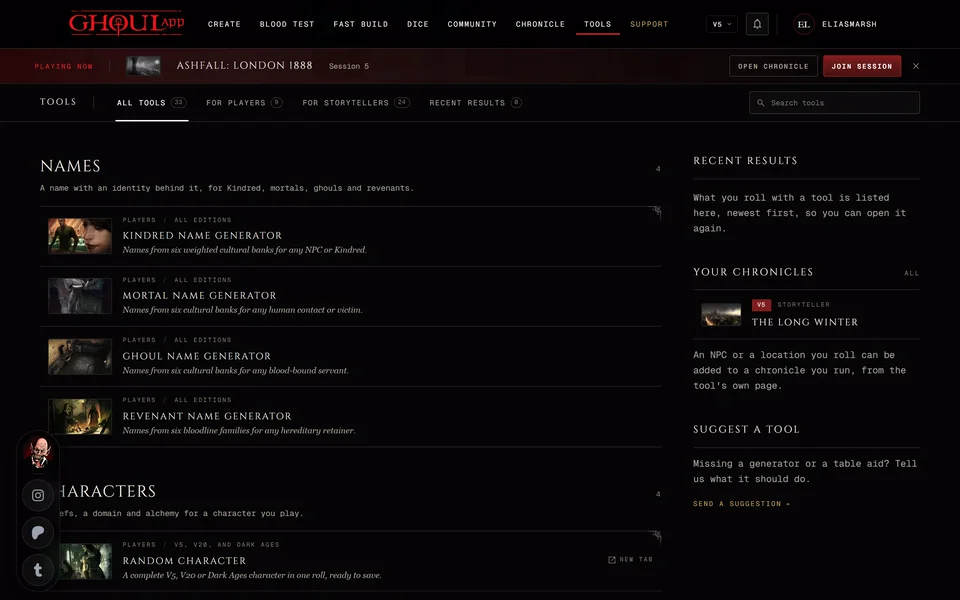
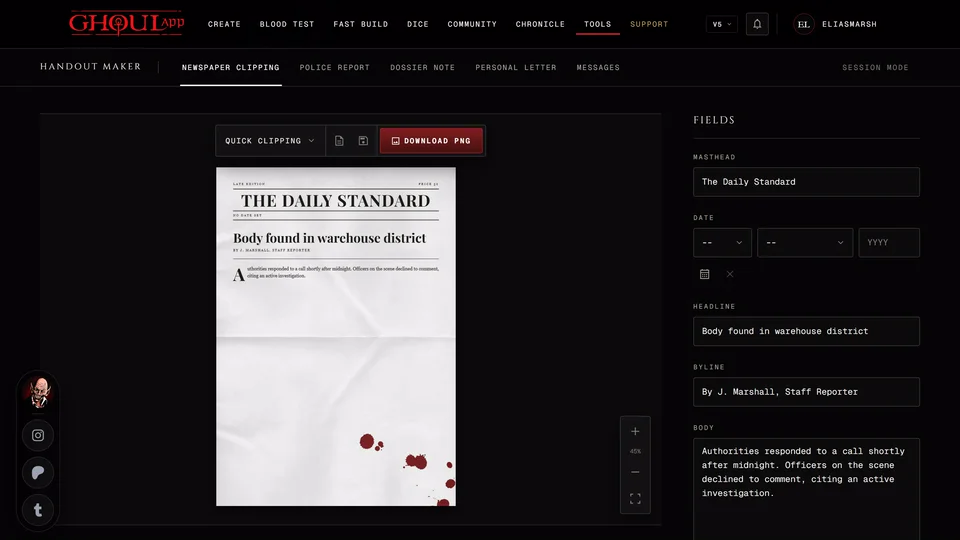
The Handout Maker turns your text into a prop that looks like paper: a newspaper clipping, a police report, a letter and more. You fill in the fields, pick a paper and download the page as a PDF or a PNG. It's under At the table on the Tools page and you don't need an account to make or download a handout.
The templates
There are seven templates: Newspaper Clipping, Police Report, Dossier Note, Personal Letter, Messages (a phone conversation), Sealed letter and Proclamation. The tabs at the top pick one. On the Tools page the template is part of the address, so a link opens the same one.
On the Tools page you get all seven. Sealed letter and Proclamation are Dark Ages props so they show only while the edition menu at the top of the page is set to Dark Ages.
Inside a chronicle the set follows the chronicle. A V5, V20 or V6 game gets the modern five: Newspaper Clipping, Police Report, Dossier Note, Messages and Personal Letter. A Dark Ages chronicle gets Personal Letter, Sealed letter and Proclamation. A Custom chronicle gets all seven. Sealed letter and Proclamation still need the edition menu set to Dark Ages there. A line above the templates says which set the chronicle offers.
Fill in the page
Each template has its own fields and the page changes as you type.
- The Newspaper Clipping asks for a Masthead, Date, Headline, Byline and Body. Under Layout choose Text, Image top or Image side. Add a Photograph and a Caption appears for it. The Text layout leaves the photograph out.
- A Police Report has a Precinct, Case number, Date, Reporting officer, Subject, Narrative, Status and Stamp. Leave the stamp empty for a report with no stamp.
- A Dossier Note has a Classification, Subject, Filed, Filed by and Summary.
- The Personal Letter is From, To, Date, Salutation, Body and Sign-off.
- Messages starts with the Contact and a Contact picture, then one row per message. Mark each one Received or Sent and give it a time. Add a message adds a row. The Read line reads "Read 03:14" to start with.
- The Sealed letter has From, To, Date, Body and Sign-off. It also has a Seal colour (red, black, green or gold) and a Device on the seal.
- A Proclamation has a Heading, Issued by, Date and Body with the same seal choices.
Dates
A date field takes a day, a month and a four-digit year. You can also pick from the calendar or press Clear date. If the year isn't four digits the field says "Enter a four-digit year." A date that doesn't exist, like 31 February, isn't applied and the page keeps the last good one.
Date style sets how the date is printed. Auto follows your browser's date order. You can also force day first (17 August 2026) or month first (August 17, 2026). Messages has no date so the style changes nothing there.
Photographs and page images
Pictures can be JPEG, PNG or WebP up to 15 MB. The maker turns them black and white so they look printed. A picture stays in your browser tab. If a file is the wrong type, too large or can't be read the field says so.
Every template also has Page images for pictures placed anywhere on the page. Add photograph takes several files at once. Drag an image to place it and drag its rotate handle to turn it. With an image selected Selected image size makes it bigger or smaller and the arrow keys nudge it. Remove takes the selected image off.
A full newspaper
The Newspaper Clipping has a Format choice. Quick clipping is one article. Full newspaper is a whole issue with several pages. It starts with three sample pages. The masthead and date are set once for the issue and each page has its own section, headlines, stories and photograph.
The pages are listed beside the paper. Add adds a page, Duplicate copies the page you're on and Delete removes it. Delete is greyed out when only one page is left.
Choose the look
Under Look pick a Paper. Each template has its own papers: aged, folded, crumpled or stained paper for a letter, photocopy or grey for a police report, kraft or manila for a dossier and so on. Plain drops the texture. New sheet picks another scan of the same paper so two handouts don't look identical. The Messages template only has photocopy and black.
Blood adds stains: None, Light or Heavy. Light is the default. New stains moves them around. They stay put while you type.
The newspaper has a Typeface: Classic serif, Broadsheet, Old press or Tabloid. A letter has a Handwriting with six script fonts plus a typewriter and a printed serif. It also has an Ink: blue black, black or sepia.
Move around the page
On a computer drag the paper to move it and hold Ctrl (Cmd on a Mac) while you scroll to zoom. A double-click fits the page or zooms in. The zoom buttons at the bottom right are Zoom in, Zoom out and Fit the page.
Click the paper first and the keyboard works too. + or = zooms in, -
zooms out, 0 fits the page and 1 shows it at 100%. The arrow keys move
the page.
On a phone pinch or double-tap to zoom and double-tap again to fit.
Download it
Every handout is an A4 page.
On a computer the bar over the paper holds the files. Download PNG is the filled button and Download PDF sits beside it. For a full newspaper they read PNG, this page and PDF, all pages: the PDF has every page and the PNG only the page you're looking at. On a phone the buttons under the paper read PDF, PNG and Add to a chronicle.
The files are named after the template, like handout-letter.pdf. A full
newspaper saves as newspaper-issue.pdf and newspaper-page.png.
While the file is made a panel about supporting GhoulApp on Patreon may open. Your download goes ahead either way. Active supporters don't see it.
Add it to a chronicle
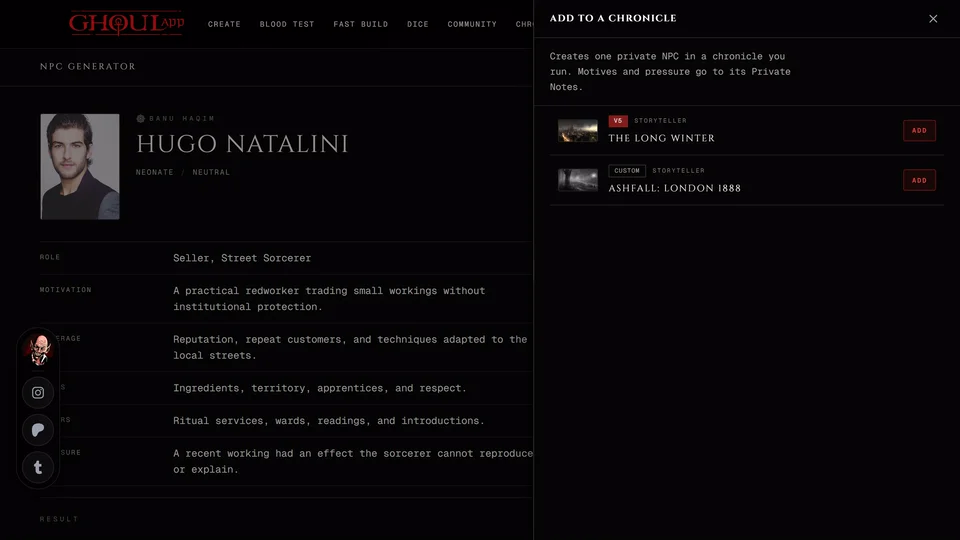
Add to a chronicle sits next to the downloads. You need to be signed in to use it. Give the handout a Title in the panel and press Add next to a chronicle you own or run as storyteller or co-storyteller. Any edition works. The pages are saved to that chronicle's handouts. Leave the title empty and the handout takes the template's name.
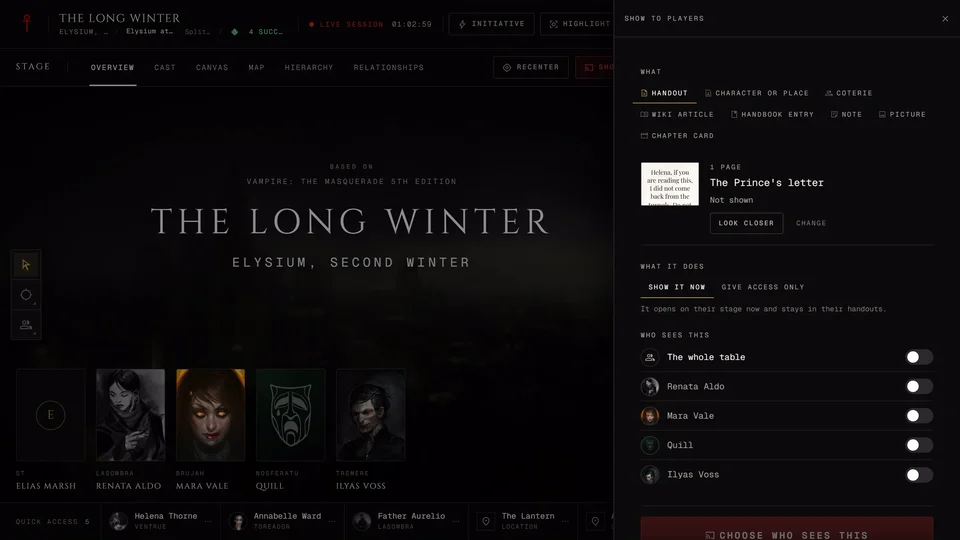
You can also make a handout from inside a chronicle: from Session Prep, from the storyteller's panel in a live session or from an NPC's page. There it asks for a Title and saves with Save to the chronicle. How to show a saved handout to players or give it to an NPC is in Handouts.
A saved handout keeps its template and its text so you can open it again and change the words. Photographs aren't kept in those fields. The finished page picture is.
Common mistakes
I can't find Sealed letter or Proclamation. Set the edition menu at the top of the page to Dark Ages. In a chronicle they're only there for a Dark Ages or Custom chronicle.
My handout disappeared. The maker doesn't keep your work on its own. Your handout stays in this browser tab until you download it or add it to a chronicle. If you close the tab first it's gone.
Related articles
About this article
- Type
- Guide
- Editions
- All editions
In this article
Need more help?

Ask the team in #ghoulapp-feedback on the Player Companion Discord. Or try #ghoulapp. GhoulApp players are active there and help each other.
Open Discord(New tab)