


Handouts

On this page 8
A handout is a page you give your players: a letter, a newspaper clipping, a police report. The storyteller makes it and decides who gets to read it. Players keep every handout they've been given and can open it again any time.
Every handout belongs to the chronicle. You make it once and then show it at the table, give it to a player or let an NPC carry it.
Making one
Storytellers have four ways to make a handout.
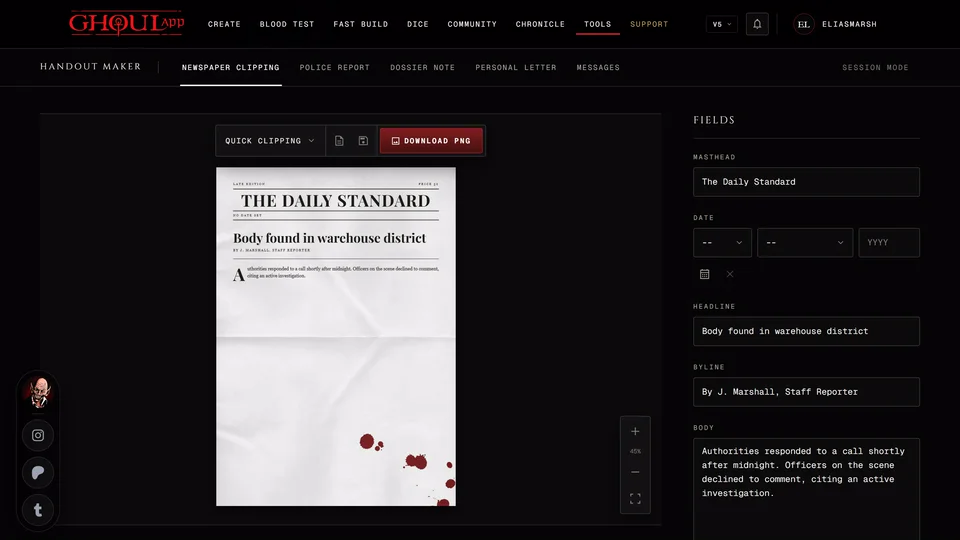
New handout opens the Handout Maker inside the chronicle. Pick a template, fill it in, give it a Title and press Save to the chronicle. Every page is saved along with what you typed, so the handout can be opened in the maker again.
Write a text handout is the quick way. Type a Title and the Text and pick a Paper. Plain is typed on a clean sheet and Letter is handwritten on an aged one. Look closer shows it before you press Make the handout.
Hand out as paper turns one of your notes into a handout. It copies the title and text as they are right now, so editing the note later won't change the handout. The note itself stays as private as it was.
The Handout Maker on the Tools page can save into a chronicle too. Press Add to a chronicle, pick one you run and give it a title. It lands with the chronicle's other handouts. Its PDF and PNG downloads still work as before.
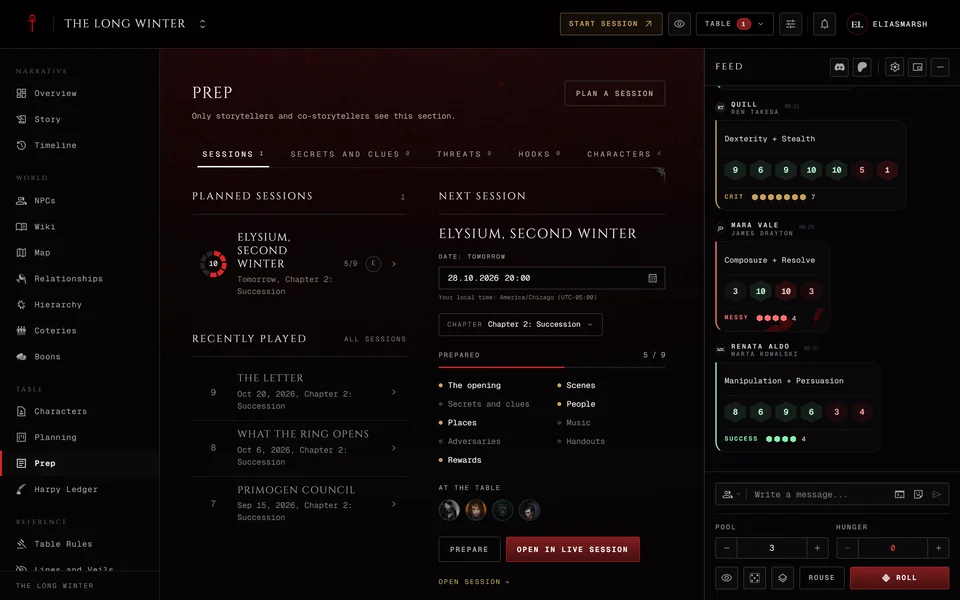
New handout and Write a text handout sit side by side in Prep, in Show to players at the table, on a character's Inventory and under an NPC's Add a handout.
Which templates you get
The maker's templates follow the chronicle. A V5 or V20 chronicle gets the modern set: Newspaper Clipping, Police Report, Dossier Note, Messages and Personal Letter. A Dark Ages chronicle gets the letter, the sealed letter and the proclamation. A Custom chronicle and the Tools page offer all of them.
The sealed letter and the proclamation also need Dark Ages picked as the edition at the top of the app, on the Tools page too. Without it a Dark Ages chronicle offers only the letter.
Giving one to a single player
Open the character's page and go to Inventory. Press Give a handout, then make a new one or press Give beside one the chronicle already has. Only that character's player gets it and nothing pops up on anyone's screen. If they can already read a handout it says Can read it already. The character needs a player for this to work.
To take it back, open the handout's menu on the character's Inventory and pick Remove from this character.
Handouts an NPC carries
An NPC can carry handouts for later. On the NPC's page press Add a handout under Handouts it carries and make one there or pick one the chronicle has. Only storytellers see that list. When the moment comes Show puts it in front of the table and Give passes a copy to one or more player characters or other NPCs. Remove from this NPC takes it off the list.
Showing one at the table
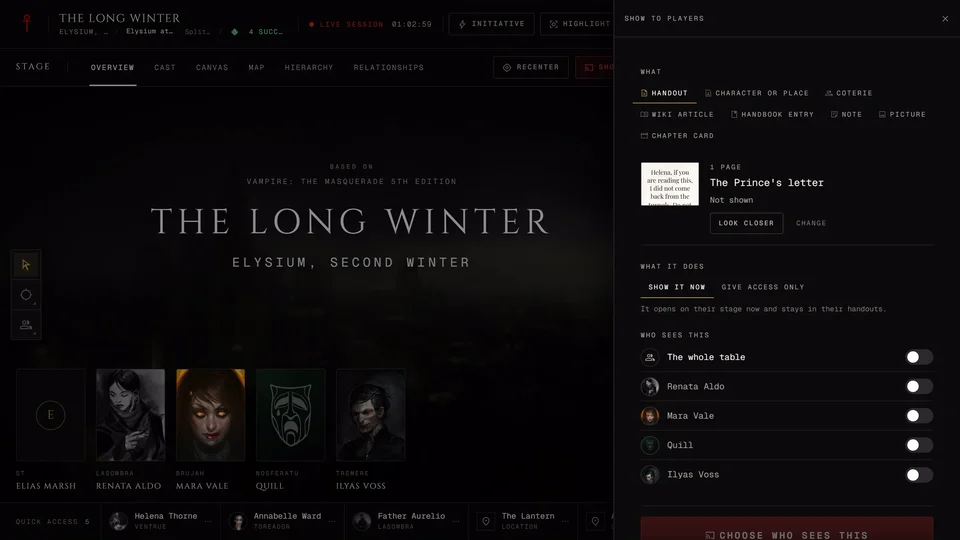
During a live session open Show to players and pick a handout. Tonight's handouts from Prep are at the top under From tonight's prep. Show it now opens it on the players' screens and keeps it in their handouts. Give access only puts it in their handouts without opening anything. Give it to the whole table or press Choose who reads it.
The quick bar at the table also has Show next, which shows the next of tonight's handouts that nobody has seen yet.
Clues on the back
A handout can have a clue on its back. When you look at it as storyteller you'll see the clue, who already knows it and a Reveal button. Players only read what you've revealed, on the back of their own copy.
Finding your handouts
As a player, open your character's page or sheet and go to Inventory. Under your items are Given to you and Shown to you. Anything you haven't looked at yet has a New tag and the tab shows a count.
Keep as an item puts a given handout on your sheet as an item you can open from there. At the live table Your handouts lists everything you can read, newest first, with a search box.
Looking at a handout
A handout opens like a piece of paper held up in front of you. On a computer it leans toward the pointer and you can drag it to turn it further. Drag past half way or press Turn over (R) to see the back.
Left and Right or Previous page and Next page move through a longer one. Zoom with the wheel, a double click, Zoom in and Zoom out or + and -. Straighten (0) puts it level again. Close the handout or Esc puts it away. On a phone you swipe between pages and pinch to zoom.
On the live stage a handout keeps only the arrows and Esc. The other keys stay with the table.
Related articles
About this article
- Type
- Guide
- Editions
- All editions
Need more help?

Ask the team in #ghoulapp-feedback on the Player Companion Discord. Or try #ghoulapp. GhoulApp players are active there and help each other.
Open Discord(New tab)