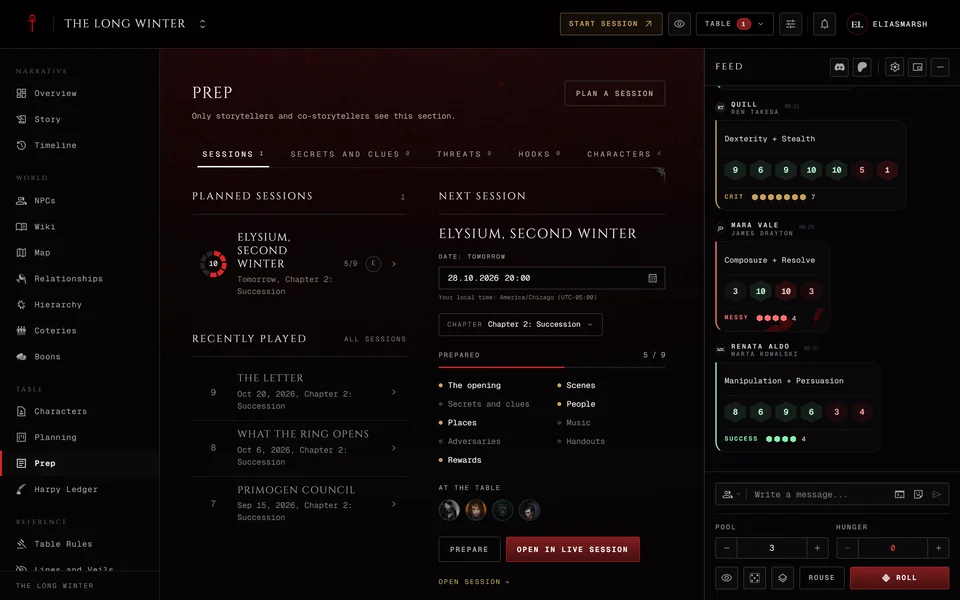
The Planning board
- BluenchanterAuthor
- OzzEditor


On this page 5
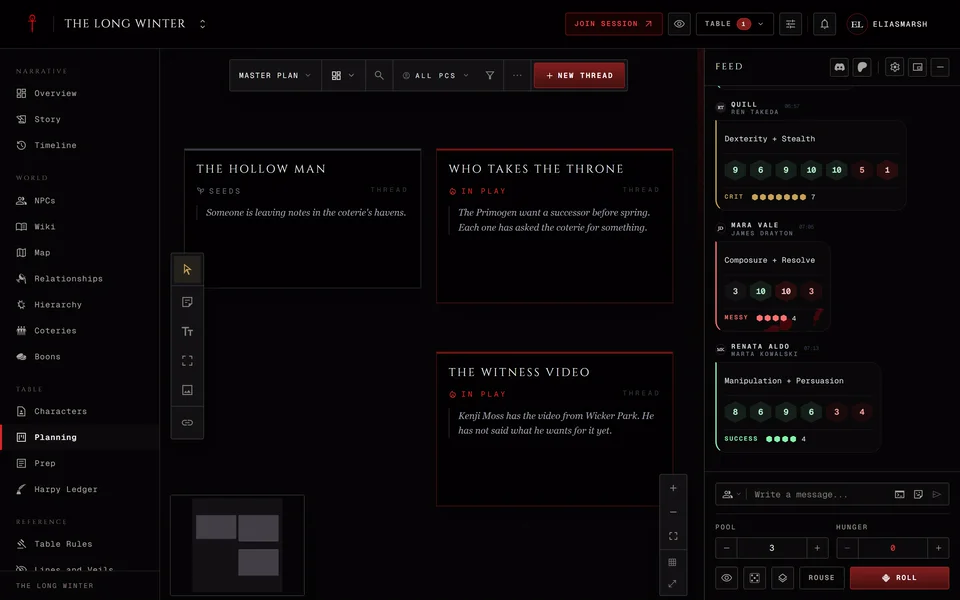
Planning is where the storyteller plots. Your plot threads sit on a big canvas with sticky notes, text, frames and pictures around them. Players never see it. A moderator can open it only if you've given them the Manage planning permission.
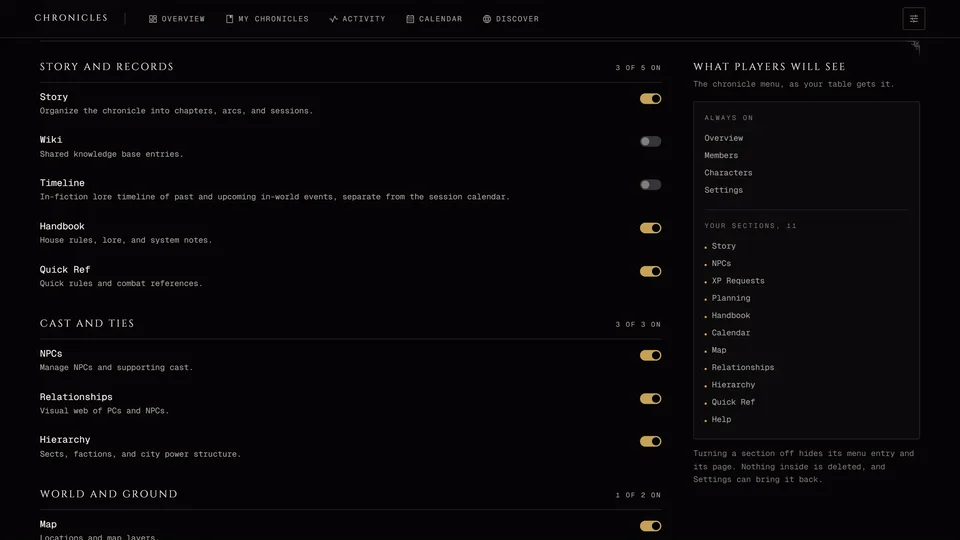
It's in the Table group. You can switch it off.
Plot threads
Press + New Thread, give it a title like "The Sheriff's missing childe", pick a status and write a summary only storytellers will read. Press Plant Thread to save it.
There are four statuses. Seeds are hooks that aren't in play yet. In Play is what's moving right now. Dormant is a thread you've set aside and may bring back. Resolved is finished.
The thread editor has two more parts you can open when you need them. Story Arc holds the tension from one to five, the current beat, a pressure clock with its segments and what happens when it fills, what's at stake and the hooks you can pull. VTM Specifics has room for boons and leverage and for threats to someone's Touchstones. Both are free text, so they work the same in every edition.
Views
You can look at the board six ways from the icons at the top: Canvas, Board, List, Timeline, Storyboard and Constellation. Computers open on Canvas and phones on Board. The app remembers the view you used last in each chronicle.
Canvas is a free board for threads, stickies, text, frames and pictures. Board has one column per status and dragging a thread to another column changes its status. List groups threads under their status as rows you can open. Timeline lines threads up by when they last changed, so you see which ones have gone cold. Storyboard is an order you set yourself: drag the panels into the order they'll hit tonight. Constellation draws threads as dots joined by their links, so the thread everything hangs off stands out.
The search box at the top finds threads and Esc clears it. The status buttons beside it hide or show a status. Auto-arrange by status tidies the canvas into a grid. Recent activity shows the latest changes and the menu can save the canvas as a PNG.
Working on the canvas
The tools run down the side of the canvas. The key after each one picks it.
Select V moves things around and opens them. Sticky S drops a sticky note where you press. Text T drops a text label, Frame F draws a frame around items to group them and Image I drops a picture from a web address. Connect C links two items: press the first, then the second.
Double-click a sticky or a label to type in it. Enter finishes and Esc cancels. Select something and press Delete or Backspace to remove it. While a sticky or label is selected the letter keys don't switch tools, so a stray key won't pull you out of what you were doing. V always works.
Ctrl+Z undoes your last change to the canvas items and links. Ctrl+Y or Ctrl+Shift+Z redoes it. Changes to the plot threads themselves can't be undone this way. Ctrl+K opens a search of every action, even while you're typing. ? opens the full list of shortcuts. On a Mac use Cmd where it says Ctrl.
More than one board
The board's name sits at the top. Press it to switch boards or to make a New board, say one per storyline. Hover a board in that list to rename it or delete it. The default board can't be deleted. If another storyteller has the same board open you'll see a mark beside its name.
You can also filter a board to the threads tied to one player character.
Bringing it to the table
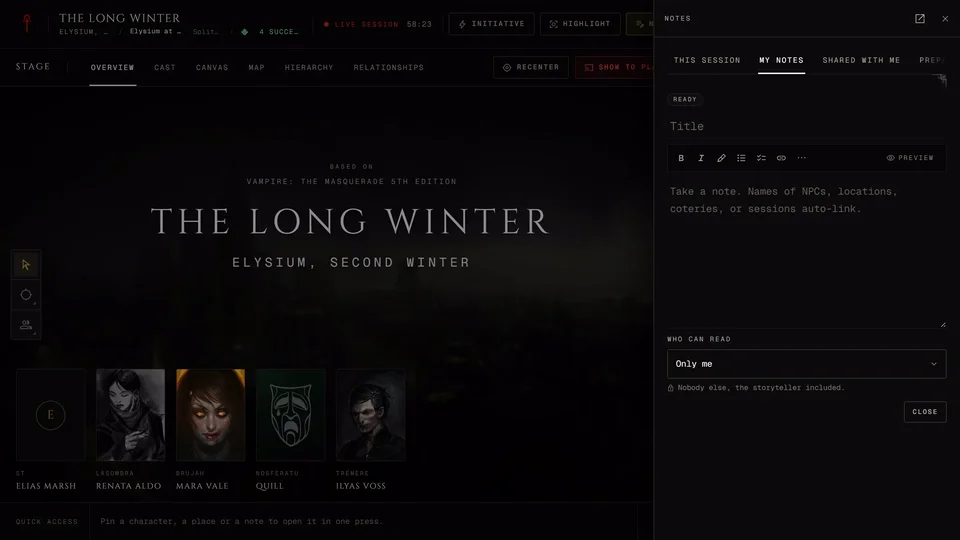
During a live session you can put a Planning board on the stage. Press Import in the stage tools and pick the board. Append adds it to what's already there and Replace clears the stage first. Press Import.
Stickies, text, frames and pictures come across with their links and styles. Links to plot threads don't. Everything you bring in starts hidden from players, so you can show it piece by piece.
A faction's tracks, Prep's threats and a storyline in Story also have Open in Planning, which opens this board.