


Tools: what's there and who it's for
- BluenchanterAuthor
- OzzEditor


On this page 7
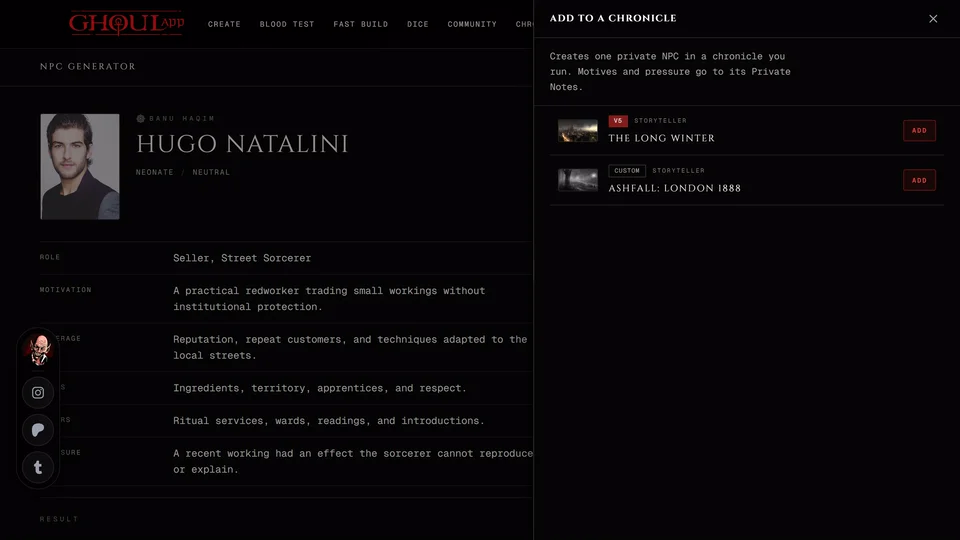
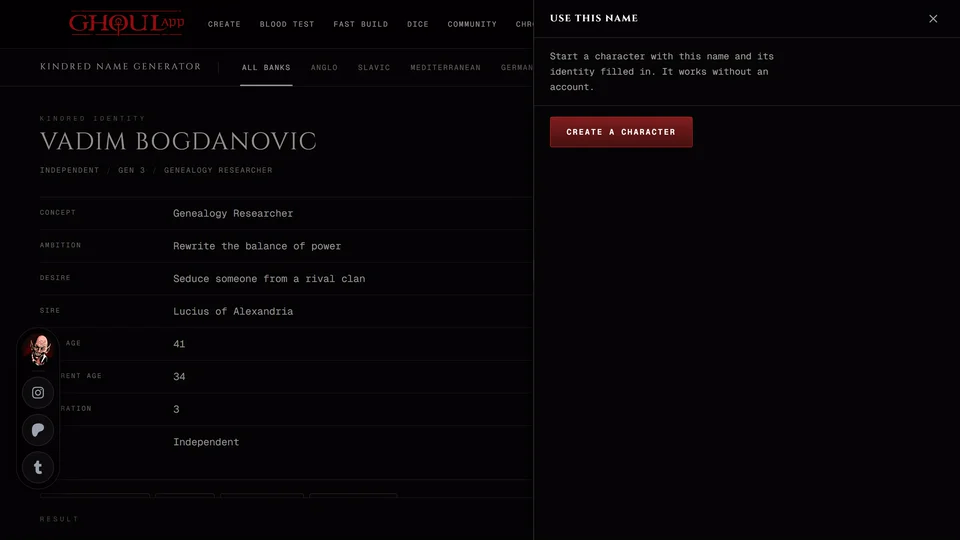
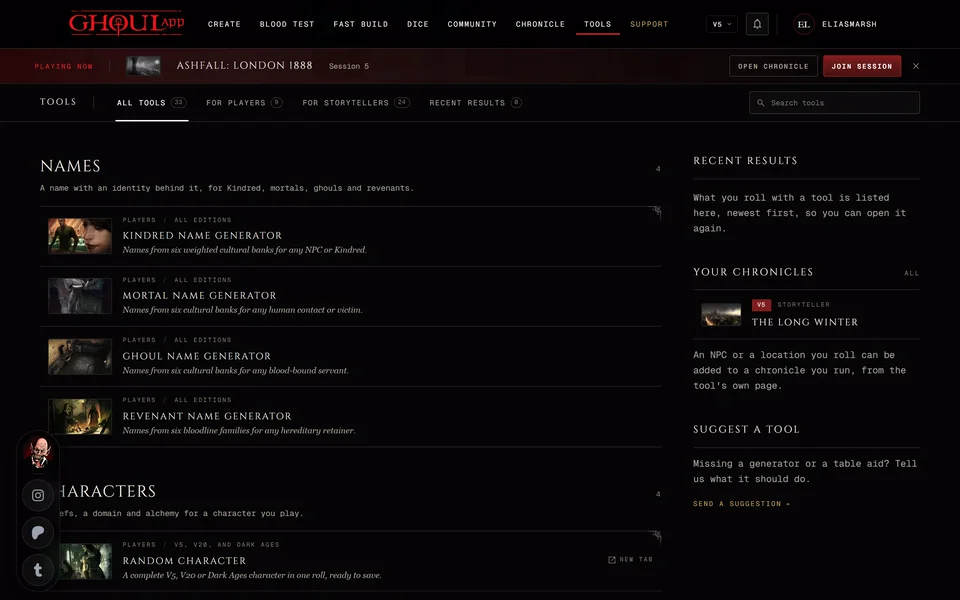
The Tools page is where GhoulApp keeps its generators, builders and table aids. Open Tools from the menu. Every tool but the Masquerade clock works without an account. Signing in adds one thing: you can send what you roll to a chronicle you run or to one of your characters.
Finding a tool
Four tabs run along the top. Each one shows how many tools it holds. All tools lists everything. For players lists the tools you'd use for your own character and For storytellers the ones for running a game. Recent results lists what you've rolled lately with any tool.
The players and storytellers split is only a filter. Any tool opens for anyone so a player can roll an NPC and a storyteller can roll a name. The tabs are part of the page's address, so the browser's Back button takes you to the tab you were on before.
Type in Search tools to narrow the list. Every word you type has to match a tool's name or its short description. On a page in another language the English name matches too. Typing a search while you're on Recent results takes you back to the tool list. If nothing matches the page says "No tool matches that search" and Clear search brings the full list back.
From anywhere in the app
Press Ctrl+K (Cmd+K on a Mac) on any page to open the Tools palette. Its search field reads "Search tools..." and it forgives a typo or two. Results are grouped under Player Tools and Storyteller Tools. ↑ and ↓ move through them, Enter opens the one that's marked and Esc closes the palette. Pressing Ctrl+K again closes it too.
The groups
Tools are listed under six headings by what they're for.
- Names holds the name generators for Kindred, mortals, ghouls and revenants.
- Characters has a random character, a domain, Convictions and Touchstones plus thin-blood alchemy.
- People and places covers NPCs, encounters, stat blocks, locations, cities and the ties between people.
- Story has plot hooks, session arcs, Masquerade breaches, the Masquerade clock and boon debts.
- At the table has the Kindred Dice Roller, combat and hunting aids, Resonance, the Handout Maker and the Sabbat Reference. The dice roller has its own article: The dice roller without a chronicle.
- Dark Ages holds builders and calculators for Dark Ages chronicles.
Under the groups More tools links to the tool pages of our sibling apps: one row for Werewolf: The Apocalypse and one for Mage: The Ascension. They open in a new tab. The section hides while you search and on the Recent results tab.
Editions
Each row says who the tool is for (Players or Storytellers) and which editions it serves. All editions means the tool works the same way whatever edition you play. Otherwise the row names them, for example V5 or Dark Ages. Tools that fit the edition you've selected are listed first in each group. Nothing is hidden because of your edition.
Some rows say Opens in and an edition. Opening that tool switches the app to the first edition it serves because it has nothing to show in yours. For example the Hunting Scene is V5 only so opening it while you're set to V20 switches you to V5. Switch back any time from the edition menu at the top of the page.
The tools that serve only some editions:
- V5 only: Thin-Blood Alchemy Workbench, Action Combat Toolkit, Hunting Scene and Resonance Roller.
- V5 and V20: Sabbat Reference.
- V5, V20 and Dark Ages: Random Character and Quick NPC Stat Blocks.
- V5, V20 and V6: Masquerade Breach Generator. Its tables are phones, cameras and modern sects so there's no Dark Ages version.
- Dark Ages only: the eight tools under the Dark Ages heading. See The Dark Ages tools.
The rest serve every edition, V6 included.
Random Character is the one tool that opens in a new tab. Its row says New tab. On a phone that mark moves into the small line under the name.
On a tool's page
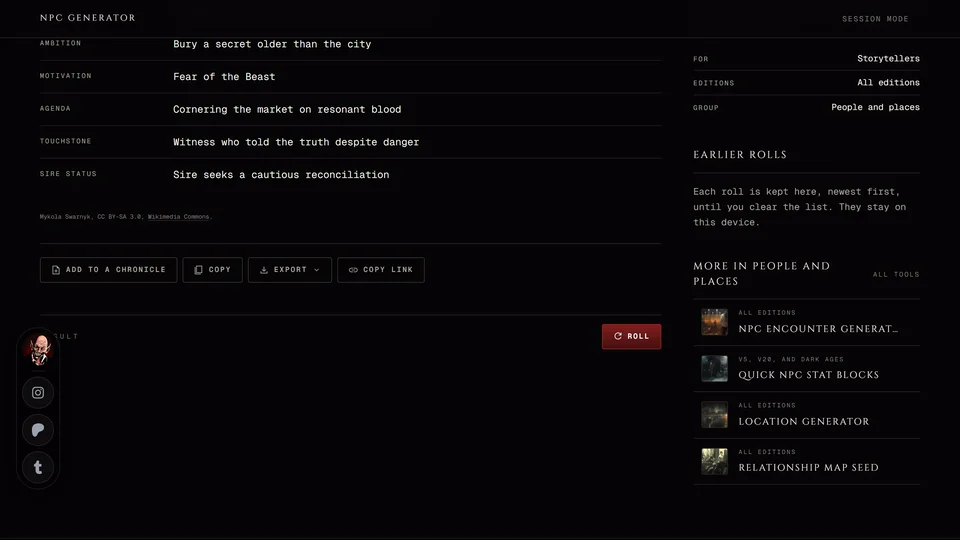
Every tool page has the same parts. The main area holds the controls and the result. The side holds About this tool with its picture, a short description and who and which editions it's for. Most tools also keep Earlier rolls there. Below that More in lists up to four other tools from the same group and All tools takes you back to the list.
The main button sits in a bar at the bottom of the work area. On most tools it's Roll. You can also press R to roll. It does nothing while you're typing in a field or holding Ctrl, Alt or Cmd. It also waits while a panel or the palette is open. The Masquerade Clock, the Action Combat Toolkit, the Handout Maker and the Sabbat Reference have no Roll button so R does nothing there.
On a phone the bar runs across the bottom of the screen.
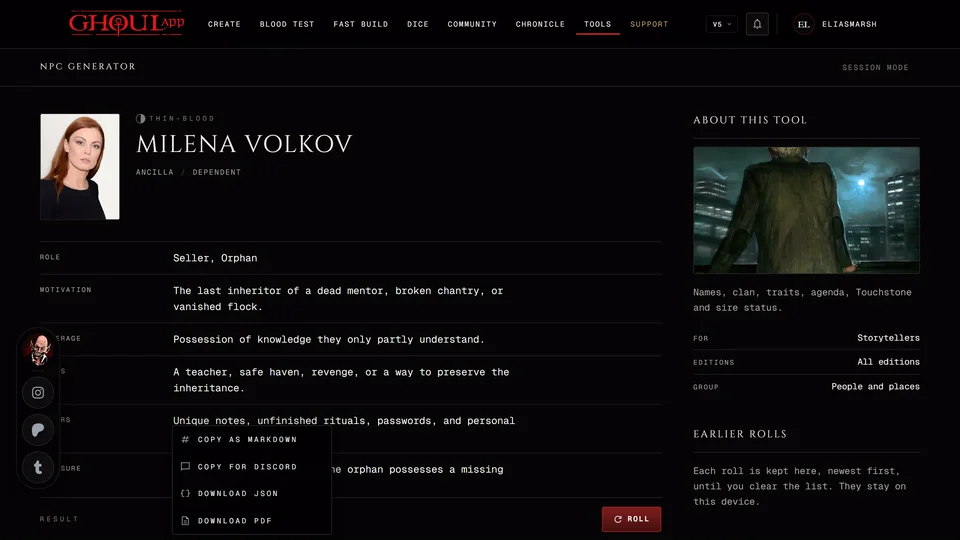
Under each result sit Copy, Export and often Copy link. Some tools add a button that sends the result on. See Copy, export and share a tool's result and Save a tool's result to your chronicle.
Session mode
On a computer Session mode at the top of a tool hides the site's header and footer so only the tool is on screen while you run a game. Exit session brings them back. The choice stays on as you move between tools and after a reload until you turn it off. Random Character and the dice roller don't have it and phones don't show it.
The side of the Tools page
Recent results shows your last five rolls from any tool. All opens the Recent results tab with up to 25 of the newest. Clear on that tab empties every tool's list on this device. It asks "Clear recent results?" first because it can't be undone.
Signed in you'll see Your chronicles with up to five chronicles you own, newest first. All opens your chronicles. A chronicle where you're a storyteller but not the owner isn't shown here. You can still add results to it from a tool's own page. Signed out the same spot says every tool works without an account and offers Log in / Join.
Suggest a tool has a Send a suggestion link if there's a generator or table aid you'd like us to build.
Related articles

About this article
- Type
- Guide
- Editions
- All editions
In this article
Need more help?

Ask the team in #ghoulapp-feedback on the Player Companion Discord. Or try #ghoulapp. GhoulApp players are active there and help each other.
Open Discord(New tab)